This document provides a comprehensive guide for getting started with your Optus Portable Modem, covering setup, internet access, device settings, and troubleshooting.
Function Description
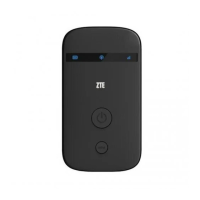
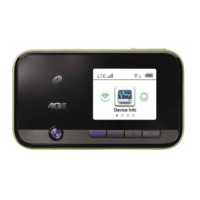
The Optus Portable Modem is a compact device designed to provide portable internet access. It functions as a mobile Wi-Fi hotspot, allowing multiple devices to connect to the internet via a cellular network. The modem uses a micro-SIM card to establish a connection to the Optus network, enabling users to access the internet on the go. It can be powered on and off using a dedicated power key and features a FUNC key for accessing various device options and settings directly on its screen. The device also supports connection to a computer via a micro-USB cable, allowing for internet access and software installation.
Usage Features
1. Preparation and SIM Card Insertion:
To begin using the modem, you'll need an Optus micro-SIM card. The manual illustrates the different SIM card sizes (U)SIM, micro-SIM, and nano-SIM, indicating that a micro-SIM is required for this device. Before inserting the SIM, you should locate the label on your device to retrieve default information such as the Model (e.g., MF971RS), WiFi SSID, WiFi Key, Device Manager Website, Password, and IMEI.
Inserting the micro-SIM card involves a simple three-step process:
- Open the micro-SIM slot cover.
- Insert your micro-SIM card into the designated slot.
- Close the micro-SIM card slot cover securely.
2. Powering On and Internet Access:
Once the SIM card is inserted, you can power on the device by pressing and holding the power key for approximately 3 seconds. The device will then automatically connect to the internet. A crucial note advises users to charge the device first if the battery is extremely low, as it may prevent the device from powering on.
There are two primary ways to access the internet using the Optus Portable Modem:
- Via Wi-Fi: Obtain the default SSID (network name) and password from the device's label. Then, use your mobile device (smartphone, tablet, laptop, etc.) to connect to the Wi-Fi network broadcast by the modem. Once connected, you can access the internet.
- Via micro-USB cable: Connect the modem to your computer using a micro-USB cable. This allows your computer to access the internet through the modem. If the operating system on your computer does not automatically launch the necessary installation, you can double-click the device installation icon to install the required software.
3. Changing Device Settings:
The device settings can be customized by logging into the Optus WiFi Hotspot configuration web page. To do this:
- Locate the Device Manager Website IP address and Website Password on the device's label.
- Launch an internet browser on a connected device and enter the Device Manager Website IP address into the address bar.
- Input the Password and click "Login."
- Once the configuration web page is open, you can modify settings such as the WiFi SSID, password, and other preferences.
4. Using the FUNC Key:
The FUNC key offers quick access to various functions and information:
- When the screen is off: Press the FUNC key to turn on the screen.
- When the screen is on: Press the FUNC key to access the options menu. From this menu, you can connect or disconnect from the internet, view device information or the Wi-Fi QR code, activate the WPS function, enable/disable global roaming, or use the quick boot function. These actions can be performed without needing to log into the Optus WiFi Hotspot configuration page, providing convenient on-device control.
5. Indicator Icons and Interfaces:
The device features several indicator icons and interfaces:
- Power key (1): Used to power on/off the device.
- FUNC key (2): Used to operate the device and access menus.
- Screen Icon (3): Displays various information and options.
- Charging/micro-USB jack (4): Used to charge the device or connect it to a computer.
- micro-SIM card slot cover and reset hole (5): Protects the SIM card slot and houses the reset button.
The screen icons provide visual feedback on the device's status:
- 4G (with signal bars): Indicates network signal strength.
- 4G (with R icon): Shows roaming status.
- Up/Down arrows: Indicates connection to the internet.
- Envelope with '1': Signifies a new message.
- Wi-Fi symbol with '6': Displays Wi-Fi status and the number of connected users.
- Battery icon: Shows the current battery level.
Maintenance Features
1. Resetting the Device:
The device includes a reset hole (part of interface 5) that allows you to restore it to factory settings. To do this, press and hold the reset hole for 3 seconds. This can be useful for resolving persistent issues or preparing the device for a new user.
2. Troubleshooting:
The manual provides a troubleshooting section to address common issues:
-
Connection between device and PC via micro-USB cable cannot be established automatically:
- Recommended Action: Manually install the software by running the installation program. If the device driver is abnormal, reinstall the software after uninstalling the previous version.
-
Connection between device and client via Wi-Fi cannot be established:
- Recommended Action: Ensure the Wi-Fi function is enabled on the modem. Refresh the network list on your client device and select the correct SSID. When connecting, enter the correct network key (Wi-Fi password).
-
Client connected to the device but cannot access the internet:
- Recommended Action: Verify that your micro-SIM card is available and properly inserted. Try changing your location to find an area with a better signal. Check the settings of the WAN connection mode. Contact your service provider to confirm your APN settings.
-
The Optus Wi-Fi Hotspot configuration page cannot be visited:
- Recommended Action: Ensure you are entering the correct address for the Device Manager Website IP address, which can be found on the device label. Use only one network adapter in your PC. Do not use any proxy server while trying to access the configuration page.
3. Battery Safety and Care:
The device's battery is not removable, and attempting to remove it may cause fire or explosion. Important safety guidelines for battery maintenance include:
- Only use OPTUS-approved or compatible batteries, chargers, or power adapters to avoid damage, shortened lifespan, fire, or other hazards.
- Adhere to recommended operating temperatures (0°C to 35°C) and storage temperatures (-20°C to +45°C) to prevent damage and maintain battery capacity and lifespan.
- The built-in rechargeable battery should only be changed or replaced by OPTUS or an OPTUS authorized service provider.
- Avoid placing the device or battery near heating equipment (microwave ovens, stoves, radiators) or in direct sunlight to prevent overheating, explosion, or fire.
- Do not disassemble, squeeze, or puncture the device, as this can lead to explosion or fire.
- Never throw the device into a fire.
- Disconnect the charger once the battery is fully charged to prevent overcharging, which can shorten battery life.
- For long-term storage, charge the battery to about half capacity and store the device in a cool, dry place.
- If the battery shows signs of swelling or leakage, immediately stop use and contact OPTUS or an authorized service provider for replacement.
4. General Device Handling and Environmental Considerations:
- Handle the device carefully; avoid dropping, bending, or striking it to prevent damage. Only qualified personnel should dismantle or repair the device.
- Maintain humidity levels between 5% and 95%.
- Avoid connecting the charger for extended periods while using the device, as this can trigger the battery's protection mechanism. Reconnect the charger if you wish to charge the battery.
- Do not connect the charger for long periods or use the device and battery outside of operating temperatures, as this can shorten battery life or cause swelling/leakage.
- For pluggable equipment, ensure the socket-outlet is easily accessible and installed near the equipment.
- Avoid using the device in enclosed environments or areas with poor heat dissipation. If the device overheats, cool it in a well-ventilated place before resuming normal use.
- Keep the device out of reach of small children.
- Do not touch metallic parts of the device while it is operating to avoid burns.
- Use only original or authorized accessories to ensure performance and compliance with regulations.
- Avoid using the device near or inside metallic constructions or establishments that emit electromagnetic waves, as signal reception may be affected.
- The device is not waterproof; keep it dry and store it in a shady, cool place.
- Do not use the device immediately after a sudden temperature change to avoid dew formation. Wait until it is dry.
5. Warning and Notice (Electromagnetic Interference and Usage Limitations):
- Electronic Devices: The device may cause electromagnetic interference with inadequately shielded electronic systems, such as those in vehicles or medical instruments (hearing aids, pacemakers). Maintain a distance of more than 20 centimeters from medical instruments when the device is powered on. Consult manufacturers or physicians if necessary.
- Hazardous Environments: Be aware of usage limitations in places with explosive gases or products, such as oil warehouses or chemical factories. Power off the device in such environments.
- Restricted Areas: Do not use electronic transmission devices in aircraft, at petrol stations, or in hospitals. Observe and obey all warning signs.
- Antenna Area: Avoid touching the inner antenna area unless necessary, as it may affect device performance.
For further assistance, users can contact Optus by phone at 133 937 or by visiting optus.com.au.

 Need help?
 General

 To Next Page