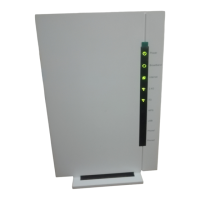
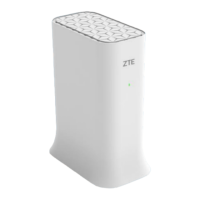
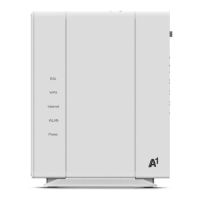
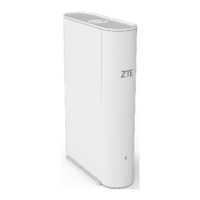
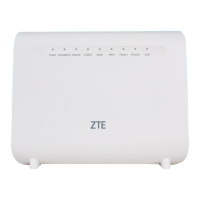
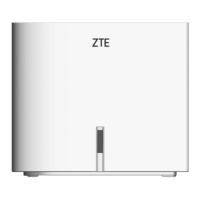
The ZXHN H3140 is a new generation home gateway device manufactured by ZTE Corporation, designed to provide high-speed internet, IPTV, and Voice over IP (VoIP) services. It supports 802.11 AX Wi-Fi for both 2.4GHz and 5GHz bands, offering robust wireless connectivity. The device can deliver services through either a GE or Fiber (SFP) uplink to various home network devices such as PCs, STBs, phones, and gaming consoles via integrated Ethernet, Wi-Fi, and phone ports.
Function Description:
The ZXHN H3140 acts as a central hub for home network services. It connects to the internet via a WAN device (either Ethernet or Fiber) and distributes the connection wirelessly or through wired Ethernet ports to multiple devices. It supports VoIP telephone services, allowing users to make calls over the internet. The device also features USB ports (USB 3.0 and USB 2.0) for connecting USB storage devices, enhancing its functionality as a home server or for media sharing.
Important Technical Specifications:
- Dimension: 274 mm (H) × 212 mm (W) × 35 mm (D).
- Certification: CE Certification and Wi-Fi Certification.
- Power Adapter:
- Input: AC 100 V – 240 V, 50 Hz/60 Hz.
- Output: DC 12.0 V, 2.5 A.
- Environment Requirements:
- Operation Temperature: 0 °C – 40 °C (32 °F – 104 °F).
- Operation Humidity: 5% – 95% (non-condensing).
- Wi-Fi Radio Specifications:
- Radio Frequencies:
- Wi-Fi 2.4 GHz band (2400 – 2483.5 MHz): EIRP < 20 dBm.
- Wi-Fi 5 GHz band (5150 – 5350 MHz): EIRP < 23 dBm.
- Wi-Fi 5 GHz band (5470 – 5725 MHz): EIRP < 30 dBm.
- Interfaces:
- Front Panel Indicators: Power, Linea, Web, LAN, WiFi, WPS, Voce.
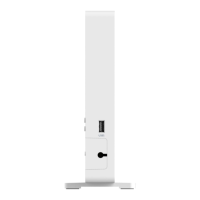
- Side Panel: USB1 (USB 3.0 host port).
- Rear Panel:
- WiFi switch: To turn on/off WLAN.
- WPS button: For WPS registration.
- Reset button: To reset to factory default settings (hold for >5 seconds during power ON).
- On/Off switch: Power on/off the device.
- Power port: For power adapter connection.
- Tel1, Tel2: RJ-11 ports for analog telephones.
- USB2: USB 2.0 host port.
- LAN1-LAN3: RJ-45 ports for connecting to computers, STBs, or other network devices.
- LAN4/WAN: RJ-45 port for uplink Ethernet access network.
- Fibra: Optical port for uplink PON network.
Usage Features:
The ZXHN H3140 is designed for ease of use with clear indicators on the front panel to show the status of various services and connections.
- Power Indicator: Fixed green indicates all services are available and at least one wireless radio is enabled. Fixed red indicates one or more subscription services are currently unavailable. Green flashing means the modem is being configured remotely. Fixed orange indicates bootloader in progress, while flashing orange means the device is being upgraded.
- Linea (LAN4/SFP) Indicator: Fixed green means connected to the WAN device. Off means not connected.
- Web Indicator: Fixed green indicates a successful internet connection. Flashing green means connected to the internet with data transmission. Off means no internet connection.
- WiFi Indicator: Fixed green means at least one wireless interface is enabled with no wireless activity. Flashing green means wireless activity is in progress. Off means both 2.4G and 5G wireless interfaces are disabled.
- WPS Indicator: Fixed green means a client is registered correctly via WPS. Fast flashing green indicates a process error or session overlap. Slow flashing green indicates WPS registration in progress.
- LAN Indicator: Fixed green means at least one active network device is connected to the Ethernet switch. Flashing green means an active network device is connected and transmitting/receiving data. Off means no active Ethernet devices are connected.
- Voce Indicator: Fixed green means the VoIP telephone service is active. Flashing green means the VoIP telephone service is active with ongoing activities. Off means the VoIP telephone service is not active or not included in the subscription.
For optimal wireless performance, the device should be placed horizontally in the middle of the applied area, away from objects that affect signal propagation (e.g., metallic objects, mirrors) and strong magnetic or electric fields (e.g., microwave ovens, refrigerators, cordless phones, Bluetooth products). The recommended height for placement is 1.2 to 1.5 meters.
Maintenance Features:
- Safety Precautions: Users are advised to read all safety cautions before use, only use included accessories, avoid extending the power cord, ensure correct power supply voltage, keep the power plug clean and dry, disconnect cables during lightning storms, power off and unplug when not in use for long periods, and never attempt to open the device covers while powered on.
- Troubleshooting: The manual provides guidance for common issues such as the Power indicator being off (check power adapter), Linea indicator being off (check WAN link, device registration, contact service provider), LAN indicator being off (check LAN link, Ethernet cable connection, connected device power), and Voce indicator being off (contact service provider for telephone function issues).
- Reset Functionality: A dedicated Reset button on the rear panel allows users to restore the device to its factory default settings by holding it for more than 5 seconds during the power-on period.
- Cleaning: Before cleaning, power off the device and unplug all cables. Use a soft dry cloth; avoid liquids or sprays.
- Environmental Protection: The device should not be disposed of improperly. Users are encouraged to reuse or recycle end-of-life equipment through accredited electronics take-back systems. Information on collection, reuse, and recycling systems can be obtained from local waste administration or the equipment provider.
- Firmware Updates: The device supports remote or local upgrades, indicated by a flashing orange Power LED during the process.
- Technical Support: Users can visit the ZTE technical support website (http://support.zte.com.cn) for related information.

 Need help?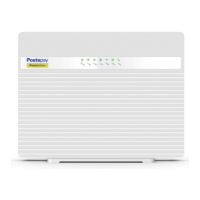

 To Next Page
 General