Need help?
Do you have a question about the Zte ZXHN H389A and is the answer not in the manual?
Cautions for safe usage, including accessories, power cord, voltage, and handling.
Guidelines for proper ventilation, dryness, and placement away from heat, water, and magnetic fields.
Instructions for cleaning the device, emphasizing powering off and unplugging cables.
Lists key features of the ZXHN H389A, including internet access, Wi-Fi, and USB support.
Details the technical specifications like dimensions, temperature, humidity, weight, and power adapter.
Instructions for checking the contents of the product package after unpacking.
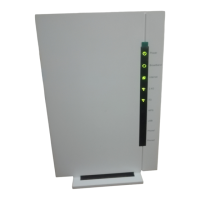
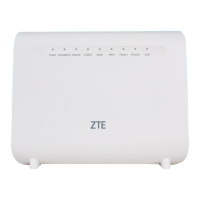
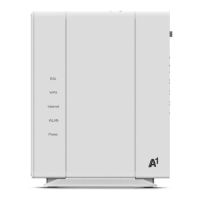
Describes the indicators and components on the front panel of the ZXHN H389A.
Details the buttons on the top panel, including WPS and WLAN functions.
Explains the interfaces and buttons on the back panel, like DSL, LAN, USB, and power.
Addresses the scenario where all indicators are off when the device is powered on.
Solutions for when DSL users cannot access the internet normally, checking device state and connections.
Explains reasons for DSL synchronization failure and provides steps to check and resolve the issue.
Troubleshooting steps when the green LAN indicator is off after powering on the device.
Statement on FCC radiation exposure limits and compliance for the device.
Details compliance with FCC Part 68 rules and requirements for telephone company connections.
Explains the Ringer Equivalence Number (REN) and its implications for telephone interface connections.
Outlines limitations and requirements for connecting the equipment to telecommunications networks.
The ZXHN H389A is an advanced home gateway with Voice over IP (VoIP) capabilities, designed to provide comprehensive internet, entertainment, and communication services within a home network. This device serves as a central hub, connecting various digital devices such as PCs, Set-Top Boxes (STBs), phones, and gaming consoles to the internet and other network services. Its primary function is to facilitate high-speed internet access and robust network connectivity, supporting a wide range of broadband access technologies.
One of the key usage features of the ZXHN H389A is its versatile internet access options. It supports ADSL, VDSL, and G.fast uplinks, as well as Gigabit Ethernet (GE) WAN connections. This flexibility allows the device to adapt to different broadband access networks, ensuring compatibility and broad applicability for various service providers and user environments. The gateway is equipped with multiple interfaces to cater to diverse connectivity needs. It provides four autosensing 10/100/1000Base-T LAN interfaces, enabling wired connections for devices that require stable and high-speed network access, such as desktop computers or smart TVs.
For wireless connectivity, the ZXHN H389A boasts dual-band concurrent Wi-Fi capabilities. It supports Wi-Fi standards up to 1.75 Gbps, combining 11ac and 11n technologies. Specifically, it offers up to 450 Mbps for 2.4 GHz compliant equipment (IEEE 802.11n) and up to 1.3 Gbps for 5 GHz compliant equipment (IEEE 802.11ac). This dual-band functionality ensures a robust and high-performance wireless network, accommodating multiple devices simultaneously with minimal interference and optimal speeds. The device also includes multiple FXS phone ports, allowing users to connect traditional telephones and utilize VoIP services for voice communication.
Another notable usage feature is its support for USB LTE/3G dongle backup. This provides a crucial redundancy mechanism, ensuring continuous internet connectivity even if the primary internet connection fails. In such scenarios, the device can automatically switch to the cellular network provided by the dongle, maintaining essential online services. The ZXHN H389A is also designed to support the transition to next-generation internet protocols, featuring IPv4/IPv6 dual stack mechanism for seamless integration into IPv6 networks. This ensures future-proofing and compatibility with evolving internet infrastructure.
The device's front panel indicators offer clear visual feedback on its operational status. For instance, the DSL indicator shows the status of the DSL synchronization, progressing from off (no link) to slow flashing green (physical link but no carrier wave), fast flashing green (handshaking process), and finally solid green (normal DSL synchronization and link connection). Similarly, the VoIP indicator informs users about SIP account registration and packet transmission, while the Internet indicator displays the status of the internet connection, distinguishing between no connection, proper connection, or a completed link negotiation without internet access. The WLAN indicator provides information on Wi-Fi status, including whether it's enabled, the encryption mode, and data transmission activity. An additional WLAN (In WPS Mode) indicator helps monitor the status of Wi-Fi Protected Setup (WPS) negotiation. The Power indicator provides essential information about the device's power status, system faults, and software upgrade processes.
The top panel of the ZXHN H389A features two important buttons: WPS and WLAN. The WPS button, when pressed for more than 0.5 seconds, enables the WPS function, simplifying the process of connecting new wireless devices securely. The WLAN button, also activated by a press longer than 0.5 seconds, allows users to enable or disable the Wi-Fi function, providing quick control over wireless emissions.
On the back panel, the device offers a comprehensive set of interfaces. The DSL port (RJ-11) is dedicated to connecting to the ADSL/VDSL/G.fast uplink access network. Two RJ-11 phone ports (Phone1-Phone2) are available for connecting telephones, facilitating VoIP services. A USB 3.0 host port is provided for 3G/4G dongle connections, supporting the backup internet functionality. Four RJ-45 LAN ports (LAN1-LAN4) are used to connect the modem to various network devices such as computers, STBs, or other wired network equipment. The WAN port (RJ-45) is used for connecting to the uplink Ethernet access network. A Reset button is included, which, when held for more than 5 seconds during power-on, resets the device to its factory default settings and initiates a restart. Finally, a Power supply port connects to the power adapter, and an On/Off switch allows users to power the device on or off.
Regarding maintenance features, the manual emphasizes several safety precautions to ensure the device's longevity and safe operation. Users are advised to only use the included accessories, such as the power supply adapter, and to avoid extending the power cord. Maintaining a clean and dry power plug is crucial to prevent electric shock. During lightning storms, disconnecting all cables is recommended to prevent damage. For prolonged periods of inactivity, powering off and unplugging the device is advised. Users are explicitly warned against attempting to open the device covers, especially when it is powered on, due to safety risks. In case of abnormal sounds, smoke, or strange smells, users should power off the device immediately and contact the service provider for maintenance, rather than attempting self-repair.
Environmental requirements for optimal performance and maintenance include ensuring proper ventilation and placing the device away from direct sunlight, heat sources, and water. Keeping the device ventilated and dry is essential, and spilling liquids on it should be avoided. Placing objects on the device is discouraged to prevent deformation or damage. Furthermore, the device should be kept away from household appliances with strong magnetic or electric fields, such as microwave ovens and refrigerators, to prevent interference. For cleaning, the device should be powered off, and all connected cables (power, optical fiber, Ethernet) should be unplugged. Only a soft, dry cloth should be used for cleaning; liquid or spray cleaners are not recommended.
The manual also provides guidance on environmental protection, urging users not to dispose of the device or battery improperly and to observe local regulations for equipment disposal and treatment. It promotes reusing or recycling end-of-life equipment through accredited electronics take-back systems to minimize environmental impact.
Troubleshooting information is provided to help users address common issues. If all indicators are off when the device is powered on, users are advised to check the power adapter connection and contact the service provider if the issue persists. For DSL users experiencing internet access problems, the manual suggests checking DSL cable connections, ensuring the DSL is away from power cables and large electronic devices, verifying that no telephone extensions or fax machines are connected between the DSL incoming line and splitter, confirming correct splitter installation, and ensuring good heat dissipation for the ZXHN H389A. For DSL synchronization failures, a detailed step-by-step process is outlined, including checking cable quality, correct installation, telephone cable integrity, direct connection to the incoming user cable end (bypassing the splitter), and contacting the operator if external line or equipment failure is suspected. If the green LAN indicator is off, users are advised to check if the LAN link is established, if the Ethernet cable is correctly connected, and if the connected network device is powered on.
The manual also includes important information regarding wireless network scope, explaining that factors like the number and thickness of walls, building materials, and background RF noise can affect signal strength. To maximize wireless range, users are advised to reduce the number of obstacles between the device and other network devices, adhere to the straight-line principle for signal transmission, and keep the ZXHN H389A away from electrical devices that generate RF noise, such as microwave ovens or Bluetooth devices.
 General
| Device Type | Gateway |
|---|---|
| Manufacturer | ZTE |
| Model | ZXHN H389A |
| WAN Ports | 1 |
| LAN Ports | 4 |
| USB Ports | 1 |
| POTS Ports | 2 |
| Operating Temperature | 0°C to 40°C |
| Storage Temperature | -40°C to 70°C |
| Operating Humidity | 10% to 90% (non-condensing) |
| Wireless Frequency Bands | 2.4 GHz, 5 GHz |
| Maximum Wireless Speed | 1200 Mbps |
| Wi-Fi Standards | IEEE 802.11b/g/n/ac |
| DSL Standards | ADSL2+ |
| Power Supply | 12 V DC / 1.5 A |

 To Next Page