Need help?
Do you have a question about the Zte ZXHN H268A and is the answer not in the manual?
Essential checks for electrical safety and equipment positioning before installation.
Important warnings and guidelines for safe operation and handling of the device.
Key capabilities including Wi-Fi, Ethernet, and service support.
Detailed specifications for dimensions, temperature, humidity, and power adapter.
List of items included in the ZXHN H268A package for verification.
Requirements for VDSL subscription, computer configuration, and operating system.
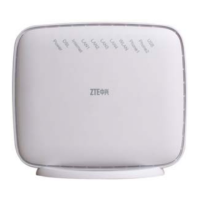
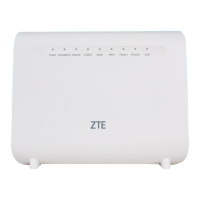
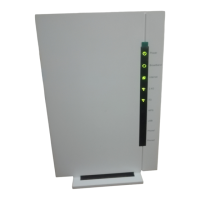
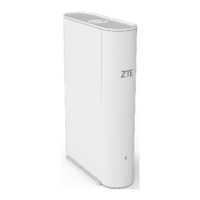
Description of the device's physical hardware and indicators.
Explanation of LED indicators on the front panel and their status meanings.
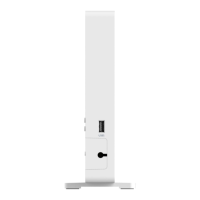
Details on buttons and ports located on the side panel of the device.
Explanation of interfaces and connectors on the back panel.
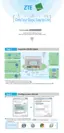
Visual guide on how to connect the ZXHN H268A to various devices and networks.
Solutions for problems related to the device not powering on or indicators being off.
Steps to diagnose and resolve issues with VDSL2 internet access.
Troubleshooting VDSL2 synchronization failures and link establishment issues.
Details on FCC Part 15, Part 68, RF exposure, and device operation.
Information on Industry Canada RSS, RF exposure, and Ringer Equivalence Number.
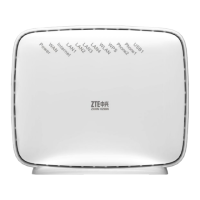
The ZXHN H268A is an advanced home gateway designed to provide high-speed internet, IPTV, and Voice over IP (VoIP) services. It supports various uplink options, including VDSL2, ADSL2+, or GE, making it a versatile solution for different network environments. This device is engineered to offer a comprehensive set of features for a modern home network, focusing on connectivity, multimedia, and management.
At its core, the ZXHN H268A serves as a central hub for home connectivity. It integrates multiple functionalities to cater to diverse user needs. For wired connections, the device provides four Gigabit Ethernet LAN interfaces, ensuring high-speed data transfer for devices such as computers, gaming consoles, and smart TVs. This allows for a robust and reliable wired network, essential for bandwidth-intensive applications.
Wireless connectivity is a key strength of the ZXHN H268A. It supports Dual-Band concurrent Wi-Fi, operating on both 2.4 GHz and 5 GHz frequencies. The 2.4 GHz band is compatible with IEEE 802.11n equipment and offers speeds up to 300 Mbps, suitable for general internet browsing and everyday wireless tasks. The 5 GHz band, compatible with IEEE 802.11ac equipment, provides significantly higher speeds, up to 1.3 Gbps, which is ideal for streaming high-definition content, online gaming, and other demanding applications that require faster and less congested wireless channels. This dual-band capability ensures optimal performance and flexibility for a wide range of wireless devices.
The gateway also includes support for multiple phone lines through its FXS phone ports, enabling VoIP services. This feature allows users to make and receive calls over the internet, often at a lower cost than traditional landline services, while integrating voice communication into the home network.
For enhanced reliability, the ZXHN H268A incorporates a USB port that supports LTE/3G dongle backup. In the event of a primary internet connection failure, the device can automatically switch to the cellular network provided by the dongle, ensuring continuous internet access. This is a crucial feature for users who require uninterrupted connectivity for work, security systems, or other critical applications.
Beyond basic connectivity, the ZXHN H268A is designed to support multimedia services within the home network. It is a DLNA (Digital Living Network Alliance) certified DMS (Digital Media Server), which means it can store and share digital media content (photos, music, videos) with other DLNA-compatible devices on the network. This facilitates easy access and streaming of media across various devices in the home.
The device is also forward-compatible with evolving network standards, supporting IPv4 / IPv6 dual stack mechanisms. This ensures a smooth transition to IPv6 networks, which are becoming increasingly prevalent, and guarantees long-term compatibility and performance.
For network management and provisioning, the ZXHN H268A supports TR-069, including the TR-098 data model and TR-104 voice provisioning. TR-069 is a protocol that allows service providers to remotely manage and configure customer premises equipment (CPE), simplifying device setup, troubleshooting, and service delivery. This capability reduces the need for on-site technical support and enhances the overall user experience by ensuring efficient and reliable service operation.
The ZXHN H268A is designed for ease of use and reliable operation. Its front panel features a series of LED indicators that provide a quick visual status of the device's various functions. These indicators include Power, Broadband (for DSL and WAN links), Internet, WLAN, WPS, Phone, and USB. Each LED changes its state (solid green, solid red, flashing green, slowly flashing green, or off) to clearly communicate the operational status, such as power on/off, DSL synchronization, WAN link establishment, data transmission, internet connection status, WLAN activity, WPS process, phone off-hook status, and USB connection. This intuitive feedback system allows users to quickly assess the device's health and connectivity without needing to access a web interface.
The device's physical interfaces are clearly labeled and strategically placed for convenient connection. On the back panel, it includes RJ-11 ports for DSL and phone lines, and RJ-45 ports for LAN and WAN connections. A dedicated power supply port ensures a stable power connection. Additionally, buttons for WPS, Reset, and WLAN on/off are provided for easy control over specific functions. The WPS (Wi-Fi Protected Setup) button simplifies the process of connecting new wireless devices securely, while the WLAN button allows users to quickly enable or disable the Wi-Fi radio. The Reset button, when held for more than 5 seconds during power-on, restores the device to its factory default settings, which is useful for troubleshooting or reconfiguring the device.
On the side panel, a USB 2.0 host port is available for connecting USB storage devices, printers, or 3G/LTE dongles, expanding the device's functionality. A power switch is also located on the side for convenient power on/off control.
When connecting the device, users are advised to follow a straightforward process: connect the DSL line to the splitter, then connect the splitter to the DSL port on the gateway. Phones should be connected to the phone interface of the splitter. Ethernet cables connect LAN ports to computers or other network devices, and the WAN port connects to the ISP's network if a GE uplink is used. Once all connections are made and the power button is pressed, the corresponding front panel indicators will illuminate, signaling that the device is operational and ready to provide services.
To optimize wireless network performance, the manual provides guidance on placement and environmental factors. Users are encouraged to reduce the number of walls and ceilings between the gateway and other network devices, as each obstruction can significantly reduce wireless range. Following the "straight line principle" for device placement helps signals transmit more directly. Awareness of building materials, such as solid metal or concrete, which can weaken signals, is also important. Furthermore, keeping the ZXHN H268A away from devices that generate RF noise, such as microwave ovens, home security systems, or Bluetooth devices, helps prevent interference and maintain signal quality.
Maintaining the ZXHN H268A involves simple yet important practices to ensure its longevity and optimal performance. Regular cleaning is recommended using a soft, dry cloth, but it is crucial to power off the equipment before cleaning to prevent any electrical hazards. The ventilation holes should be kept clean and unblocked to prevent overheating, which can lead to short circuits, fire, or damage to the equipment. Users are explicitly warned against spraying liquid on the device's surface.
For safety and to prevent damage, users should never open the equipment, especially when it is powered on. Confirming that the power is off before plugging or unplugging any cables is also a critical safety measure. All components and accessories should be kept out of reach of children.
In case of troubleshooting, the manual provides guidance for common issues. If all indicators are off when the device is powered on, users should first verify that the power adapter is correctly inserted into a working socket and that the power switch is pressed. If the issue persists, it may indicate hardware damage, and users are advised to contact their service provider for maintenance rather than attempting to dismantle the equipment themselves.
For VDSL2 users experiencing internet access problems, the first step is to check if the ZXHN H268A is in a normal state by observing the LED indicators. If the device appears normal, the issue might lie with the computer or application network. If the device is abnormal, a systematic check of the indicators is recommended. Specific checks include ensuring VDSL2 telephone cable connectors are proper, keeping the VDSL2 unit away from power cables and large-power electronic devices, and confirming that no telephone extensions or fax machines are connected between the VDSL2 incoming line and splitter. Proper installation of the splitter and good heat dissipation are also important.
If VDSL2 synchronization fails (link down), indicated by the Link indicator being off, users should check the quality of incoming cables and connectors. The ZXHN H268A should be installed correctly, minimizing taps. Verifying the connection quality of telephone cables and the VDSL2 unit is essential. A troubleshooting step involves disconnecting the splitter and directly connecting the ZXHN H268A to the incoming user cable end to determine if the problem is due to improper installation or poor line quality. If synchronization is achieved this way, it suggests an installation issue. If the VDSL2 still fails to synchronize, the problem might be an external line failure or a fault with the ZXHN H268A itself, requiring contact with the operator. Issues with the splitter or end office equipment also necessitate contacting the operator for maintenance or confirmation. Finally, using excessively long connection cables between the splitter and the ZXHN H268A can negatively impact anti-interference performance and synchronization, so shorter cables are recommended.
 General
| Model | ZXHN H268A |
|---|---|
| Category | Gateway |
| USB Ports | 1 x USB 2.0 |
| VoIP Support | Yes |
| Manufacturer | ZTE |
| Operating Temperature | 0°C to 40°C |
| Wi-Fi Standards | 802.11b, 802.11g, 802.11n |
| Ports | 1 x USB |
| DSL Standards | ADSL2+, VDSL2 |
| Power Supply | 12V DC |
| Operating Humidity | 10% to 90% (non-condensing) |

 To Next Page