EasyManua.ls Logo

ZyXEL Communications G-4100 - User Manual

ZyXEL Communications G-4100
93 pages
Print Icon
To Next Page IconTo Next Page
Loading...
G-4100 v2
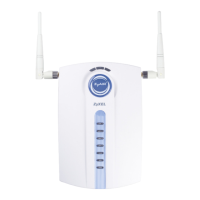
802.11g Wireless Hotspot Gateway
Quick Start Guide
Version 1.00
7/2006
Edition 1
Copyright © 2006 ZyXEL Communications Corporation. All rights reserved.
ENGLISH 2
DEUTSCH 13
ESPAÑOL 25
FRANÇAIS 37
ITALIANO 48
РУССКИЙ 59
SVENSKA 71
繁體中文 83

Questions and Answers

  • R
    Rhonda StevensJul 30, 2025
    What to do if I cannot access the Internet using my ZyXEL Communications Gateway?
    • C
      Charles DominguezJul 31, 2025
      First, verify the ZyXEL Communications Gateway's connection to the Ethernet jack providing Internet access and ensure that your Internet gateway device, such as a DSL modem, is functioning correctly. If you are using wireless clients, ensure that both the Gateway and the wireless clients are configured with the same ESSID, channel, and WPA or WEP keys, especially if encryption is enabled.
  • C
    Curtis WolfAug 7, 2025
    How to troubleshoot if I cannot access the ZyXEL Communications Gateway from the LAN?
    • P
      Patricia MaloneAug 7, 2025
      First, check the cable connection between your ZyXEL Communications Gateway and your computer or switch. Next, ping the Gateway from a computer on the LAN to ensure that your computer’s Ethernet card is properly installed and functioning, and that its IP address is within the same subnet as the Gateway’s. If you’ve forgotten the Gateway’s IP address or password, reset it by pressing the RESET button for about 5 seconds, until the PWR LED starts to blink, then release it to return the Gateway to its factory default settings (password is 1234, LAN IP address 192.168.1.1).
  • S
    Sydney PattersonAug 14, 2025
    Why can't my ZyXEL Communications Gateway get a WAN IP address from the ISP?
    • T
      Taylor WilliamsAug 14, 2025
      Check your Internet connection settings in the wizard. Ensure you've entered the Internet access information correctly. Remember that with PPPoE or PPTP, the username and password are case sensitive.
  • L
    Lisa ChavezAug 22, 2025
    What to do if none of the LEDs turn on on my ZyXEL Communications Gateway?
    • B
      brian69Aug 22, 2025
      Ensure that you are using the correct power adapter connected to the ZyXEL Communications Gateway and that it is plugged into a working power source. Verify all cable connections. If the LEDs still do not turn on, it may indicate a hardware problem, and you should contact your local vendor.

Summary

1 Connecting the Hardware

2 Web Login

Launch Browser

Open web browser and navigate to the device's IP address.

Enter Credentials

Log in using default username 'admin' and password '1234'.

3 Setup Wizard

ISP Configuration

Configure internet connection details with ISP information.

5 Attach the Antennas

6 Hardware Installation

Free-standing Installation

Install the device on its stand.

Wall-mounted Installation

Mount the device on a wall.

ZyXEL Communications G-4100 Specifications

General IconGeneral
BrandZyXEL Communications
ModelG-4100
CategoryGateway
LanguageEnglish

Related product manuals