247securityinc.com
1.866.693.7492
CONFIGURATION MENUS
247securityinc.com | 1.866.693.7492 | 1455 Alderman Drive, Alpharetta GA 30005, USA
Pg.36 of 47
SET-UP EXTERNAL WiFi FOR SMART UPLOAD / TOUCHDOWN
The following steps are required to enable wireless uploading of videos and data to the
TouchDown server.
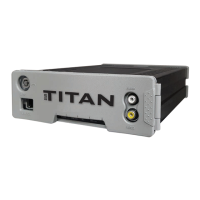
1. Connect to TITAN
a. Follow the steps in the section CONNECT TITAN TO PC/LAPTOP on page 8.
2. Congure TITAN
a. On the System menu, check the boxes for Enable Smart Upload and Enable External Wi-Fi.
b. Click the Apply button and wait for the changes to be initiated.
3. Restart TITAN
a. Disconnect your laptop/PC from TITAN.
b. Hard restart TITAN by unplugging the power cable. Wait 5 seconds, then reconnect power
cable.
4. Verify Connection to TouchDown
a. Use the POE cable, (see 10/100BASET-LAN CONNECTOR and POE Connector on page 42)
and with the Client AP connect to the TITAN.
b. Check the WiFi communication between TD and the Zeus TITAN: Connect to the bus through
the TD server and open Live View.
If step 4b is successful, then external WiFi is correctly congured.


 To Next Page