247securityinc.com
1.866.693.7492
1. CONNECT TITAN TO PC/LAPTOP
247securityinc.com | 1.866.693.7492 | 1455 Alderman Drive, Alpharetta GA 30005, USA
Your 247 Security installer will congure your TITAN DVR as part of the installation process.
Changes to the initial conguration can be made by following these steps.
1. Connect TITAN to your PC or laptop, with the supplied Ethernet Crossover Cable
2. Set up your computer’s Ethernet port (temporarily) with a static IP
3. Use DVRViewer Pro or a browser to access conguration settings (You can also use DVRViewer)
4. After disconnecting from TITAN, return your laptop/PC to dynamic IP settings as necessary
An Ethernet Crossover Cable is included with the unit. This is how the installer views the cameras
for aiming purposes. A crossover Ethernet cable is slightly dierent than a normal Ethernet cable:
the connection is not between a PC and a network device per se, such as a router/switch/modem,
but between two terminal devices on a LAN.
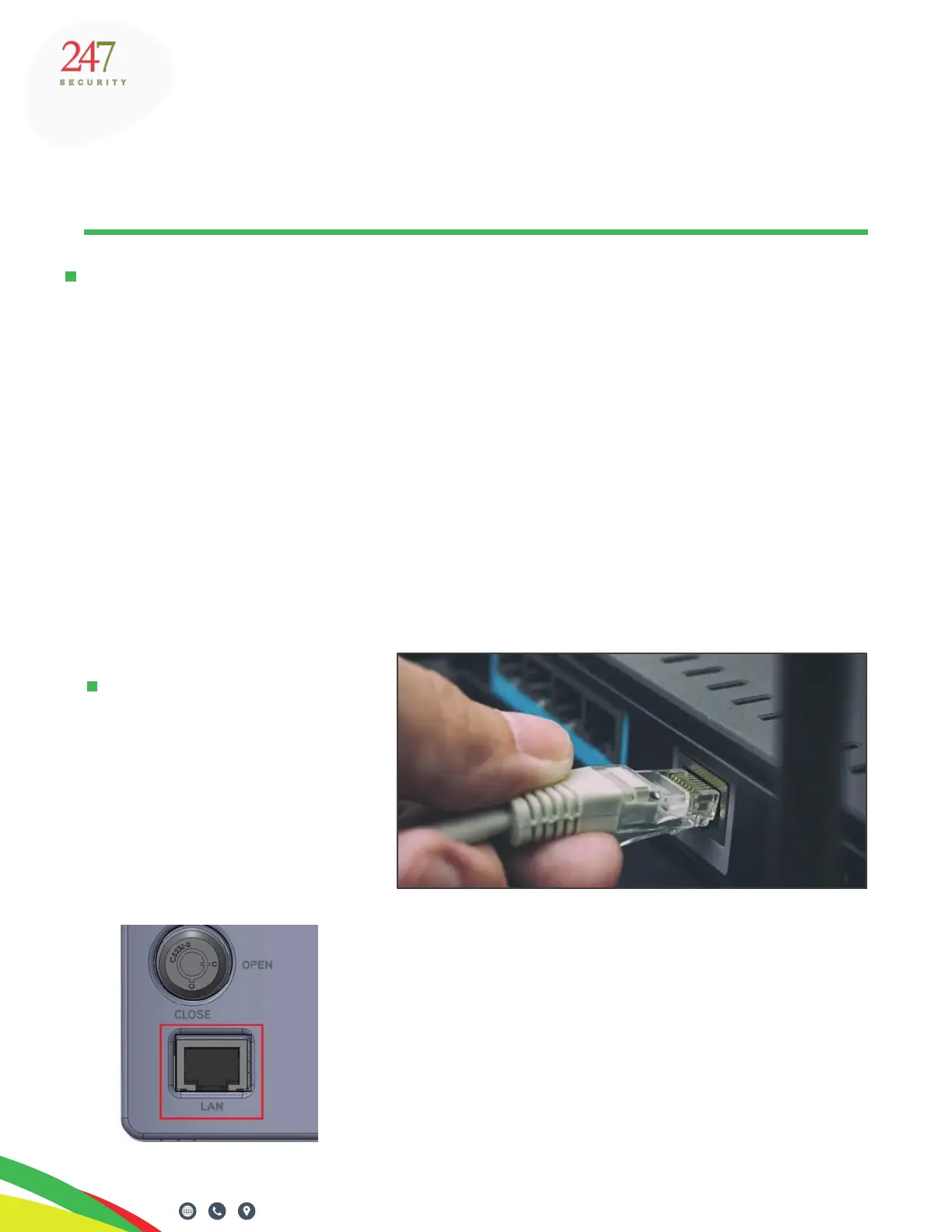
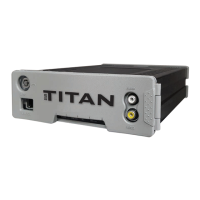
Use the grey cross-over cable that
shipped with the DVR. Attach one
end to the LAN port on the laptop
or PC,
...and the other end to the DVR port labeled LAN.
Verify that one end of the cable has a “XOVER” label.
A standard Ethernet network cable will not work.
CONFIGURING ZEUS TITAN
Pg. 8 of 47
Configuring Zeus Titan


 To Next Page