247securityinc.com
1.866.693.7492
VIEWING VIDEOS
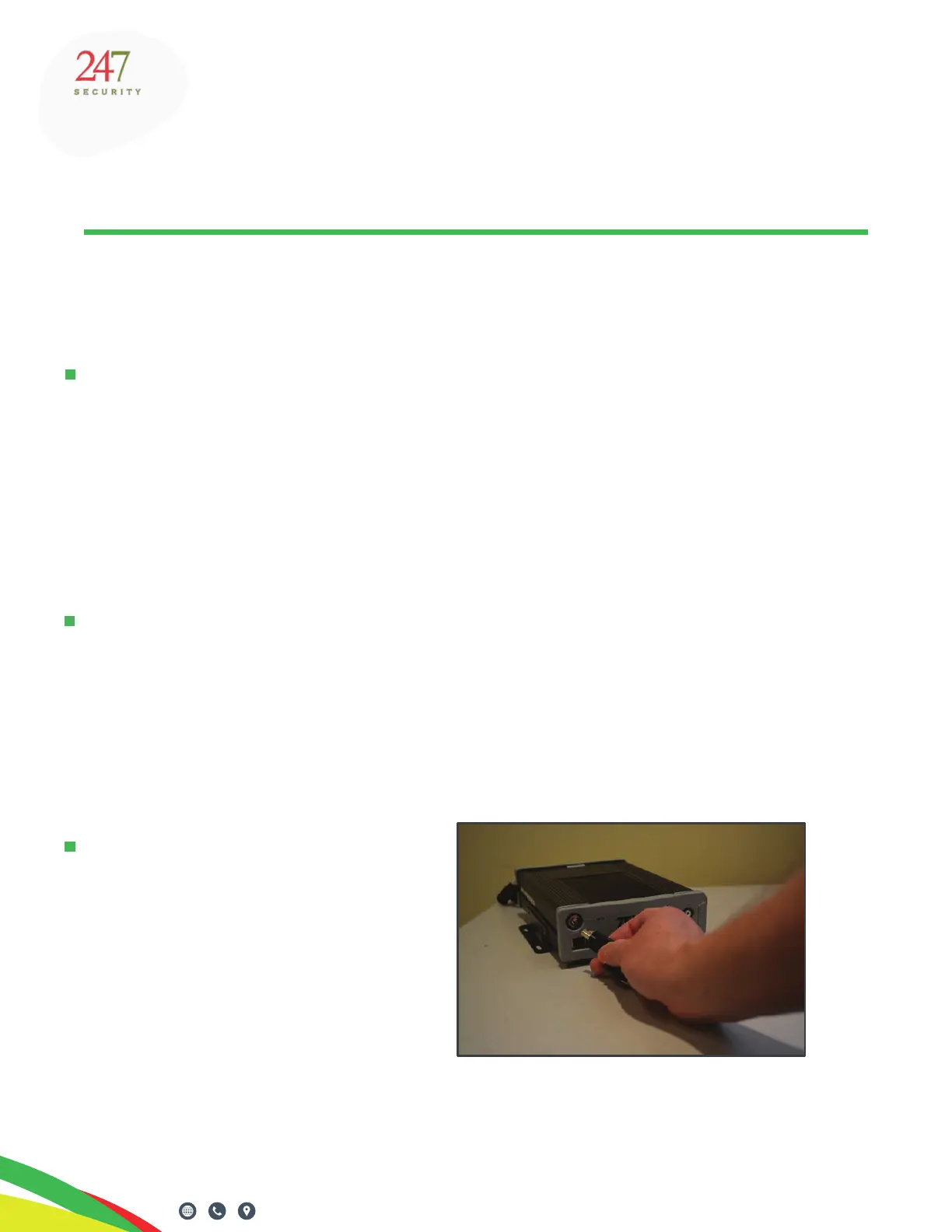
REMOVING THE MEDIA STORAGE TRAY
247securityinc.com | 1.866.693.7492 | 1455 Alderman Drive, Alpharetta GA 30005, USA
Pg. 6 of 47
OPERATION
Operation
Once your Zeus TITAN has been installed, it’s ready to start recording.
To view videos, retrieve the DHD media storage tray from the DVR, connect it to your computer,
and open DVRViewer Pro. Refer to the DVRViewer Pro User Guide for details.
Go to pro.247securityinc.com for more information.
If you have TouchDown, you can upload and view videos from your browser, you don’t need to
retrieve the media storage tray from the vehicle.
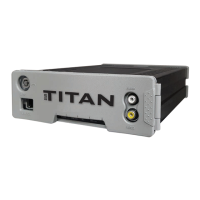
The media storage tray (DHD – see below) can be removed and inserted without turning the
vehicle ignition o, but the POWER and REC LEDs must be o. This process is necessary so
that the ZEUS can properly close all video/audio les and safely turn the HDD (hard disc drive)
power o. This process will take roughly 15 to 30 seconds to complete. The feature is helpful
when access to video is needed but vehicle is required to remain running.
For a full explanation of the Titan lights, refer to Status Indicators on page 38
Turn the key to the “Open” position.
Open the door and wait until all lights
are o.
Note: The ignition light will remain
illuminated if the vehicle ignition is on.


 To Next Page