11
Connecting to a Ground Station
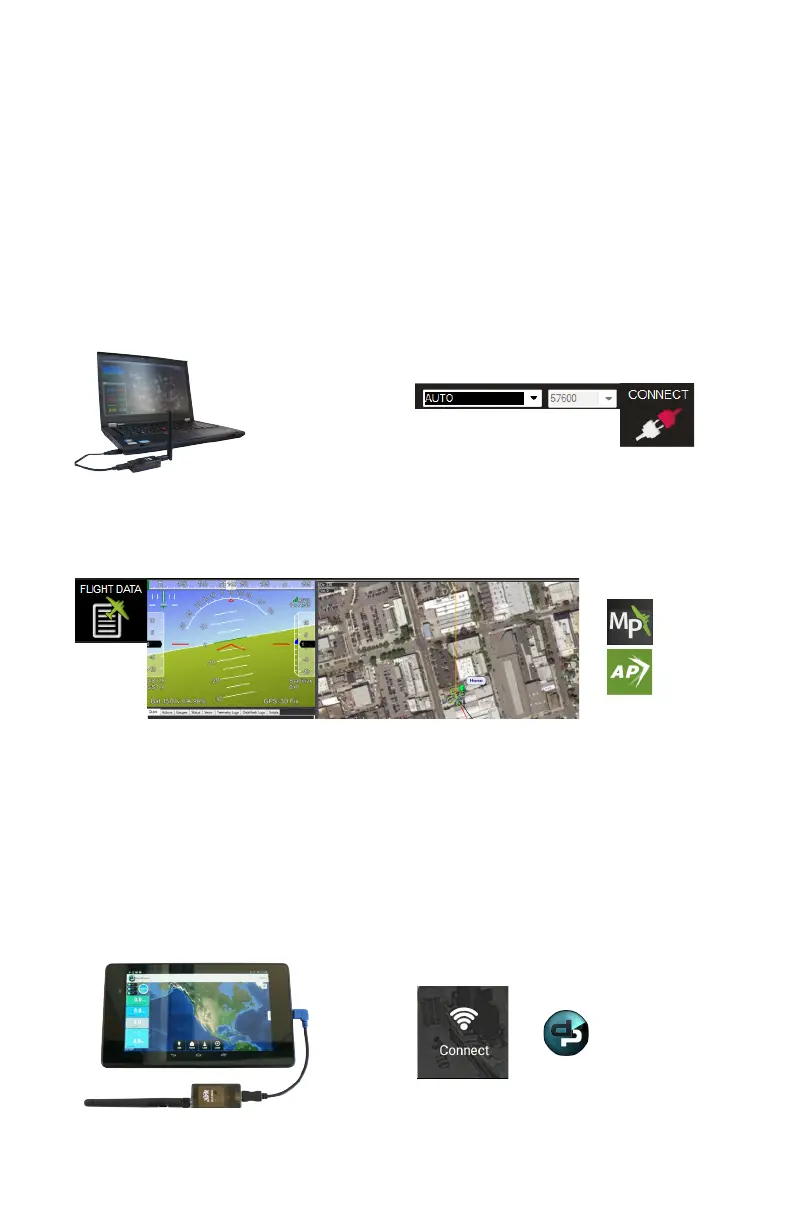
To connect the X8 to a ground station, connect the ground station radio to
your laptop or tablet and power the X8.
Tablet (DroidPlanner)
1
Connect the ground station radio to your
laptop using the USB adapter. Open
Mission Planner or APM Planner.
3
Select Flight Data to view live data from the X8.
2
Select AUTO and 57600, then select CONNECT.
(When connecting directly to Pixhawk’s
micro-USB port, set the rate to 115200.)
Ground station laptop with radio connected
Mission Planner Connect tool (top-right corner)
Mission Planner Flight Data tab: connected to aircraft
Laptop (Mission Planner/APM Planner)
1
Connect the blue end of the Android adapter
to your device and the black end to the radio.
2
Select Connect.
Ground station tablet with radio connected DroidPlanner: Connect icon


 To Next Page