04
Connecting with the 70mai app
This product needs to be used in conjunction with the 70mai app. Follow the steps below to connect it with the
app.
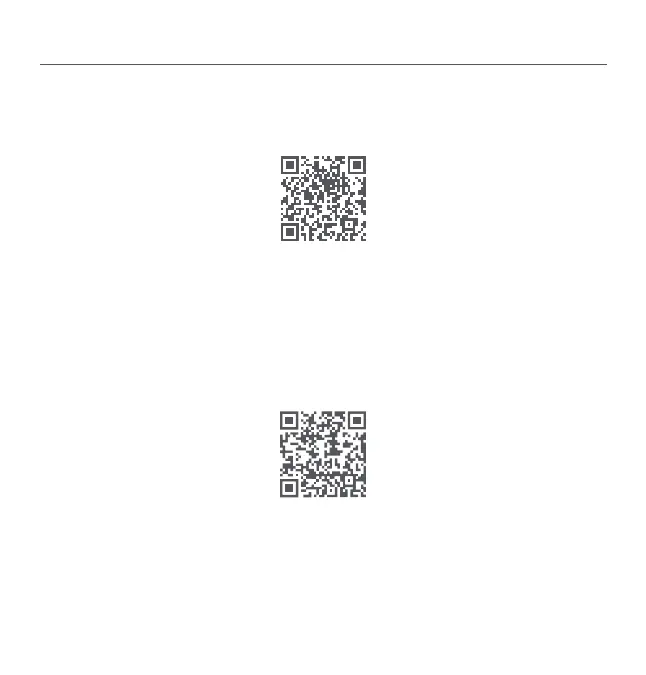
1. Scan the QR code to download and install the app. Or search for “70mai” in the app store to download and
install it.
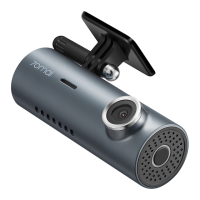
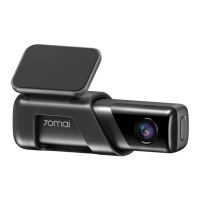
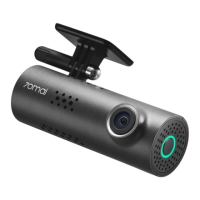
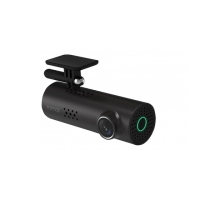
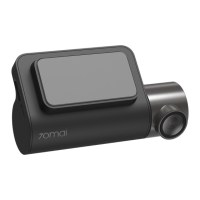
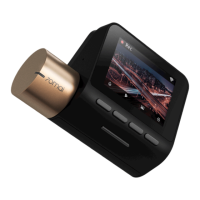
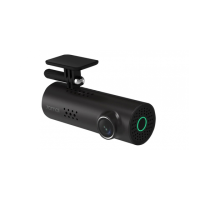
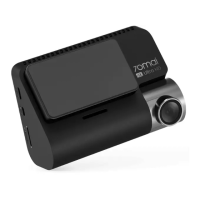
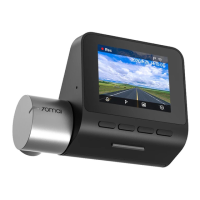
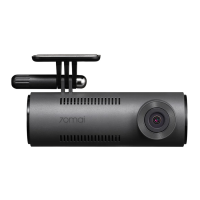
2. Open the app, tap "+" in the device page, find the corresponding dash cam type and tap the dash cam image.
3. Turn on the dash cam and enable the Wi-Fi hotspot. Follow the on-screen instructions to connect the dash
cam's Wi-Fi hotspot in your phone's settings.
4. Once successfully connected, go back to the 70mai app. In the device page, connect the dash cam and enter
the dash cam's homepage. You can view the live video and configure the dash cam settings.
Note: Android 5.0 & iOS 11.0 or above is required to connect to the dash cam’s Wi-Fi hotspot with a mobile phone.
If you need more help when connecting the app, please scan the QR code below to view the tutorial video.
Scan to download the app
Scan to view the video
The Wi-Fi hotspot information is as follows:
Hotspot name: 70mai_M310_XXXX (Please check the label on the device for the hotspot name.)
Default password: 12345678


 To Next Page