5 6
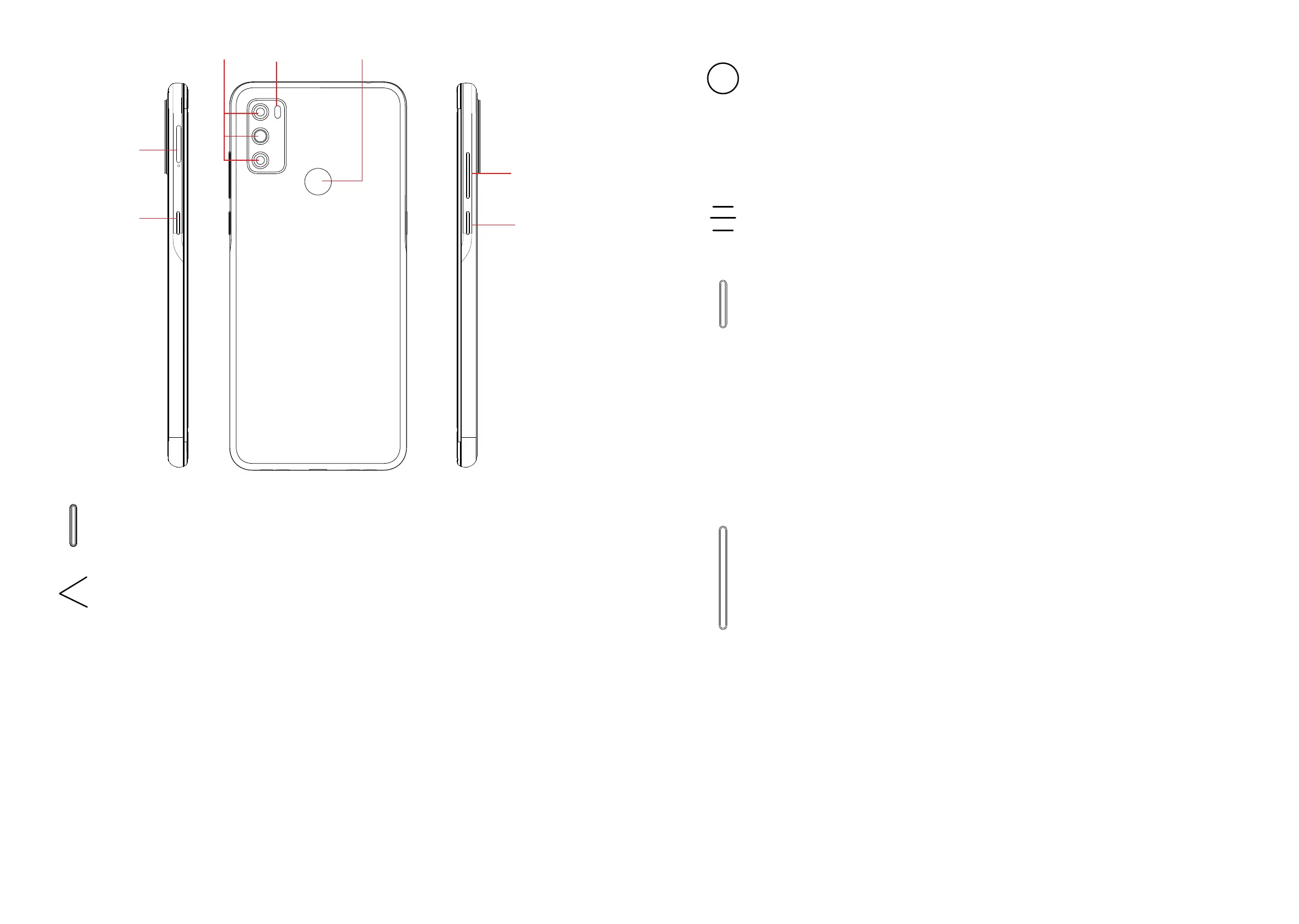
Camera Back flash
Power key
The Google
Assistant
Button
SIM card
slot/
microSD
card slot
Volume
keys
Fingerprint sensor
The Google Assistant Button (left of the device)
• Press to access the Google Assistant
Back button
• Tap to go back to the previous screen, or to close a dialog box, options
menu, the notification panel, etc.
Home button
• From any application or screen, touch to return to the Home screen.
• Touch and hold to turn on Google Assistant. You can get help such
as getting directions and restaurant information based on the content
detected on the screen.
Recent apps
• Touch to view applications you’ve recently accessed
Power key
• Press: Lock the screen/Light up the screen.
• Press and hold: Show the popup menu to select from Power off/
Restart/Airplane mode.
• Press and hold the Power key and Volume down key to take a
screenshot.
• Press and hold the Power key for at least 10 seconds to force reboot.
• Double-press the Power key to open the camera.
Volume Keys
• In call mode, adjusts the earpiece or headset volume.
• In Music/Video/Streaming mode, adjusts the media volume.
• In general mode, adjusts the ringtone volume.
• Mutes the ringtone of an incoming call.
• In camera preview mode, press the Volume up or down key to take a
photo or press and hold to take burst shots.
• Press Volume up and down keys at the same time for 3 seconds to start
an accessibility feature when Volume keys shortcut is on. To set, touch
Settings > Accessibility


 To Next Page