21 22
• Video stabilisation (EIS): Touch on
to enable the Electronic Image
Stabilization (EIS) feature. It helps reduce blurring associated with the motion
of a camera during exposure.
• AI scene detection: Once turned on, the camera will automatically identify the
image content of a scene and categorize it accordingly. Many different scene
categories are supported. This only works when using the main camera.
• Calorie detection
(1)
: Turn on to detect the calorie content of a captured
object.
• Smart guideline
(1)
: Touch to turn on/off. This feature provides AI-powered facial
detection and composition guides for portrait shots. It only works when using
the main camera.
• Volume button function: Touch to customize the Volume button to either
Shutter or Volume when using camera.
• Touch to capture: Touch to turn on/off. When activated, the image will be
captured by simply touching the viewfinder screen.
• Grid: Touch to turn on/off. It divides the screen into equal parts and helps you
take better photos by making it simple to align elements such as the horizon or
buildings, to the lines in the grid.
• Storage: Touch to choose between phone and SD card storage when an SD
card is inserted. The default is phone storage.
• Save location information: Turn on
to tag photos and videos with your
location. This option is available when the GPS location service is enabled.
• Shutter sound: Touch to turn on/off shutter sound when capturing.
• Spirit level: Enable Spirit level to display a guiding line on the viewfinder to help
you take better photos.
• Reset settings: Touch to reset the camera to its factory default settings.
Two more options are available when you switch to using the front camera:
• Face Beauty: Touch
to adjust skin smoothing and enhance colouring
effects in portraits.
• Mirror camera: Touch to turn on/off.
(1)
Only available when the AI scene detection is turned on.
2.2 Gallery ...........................................................
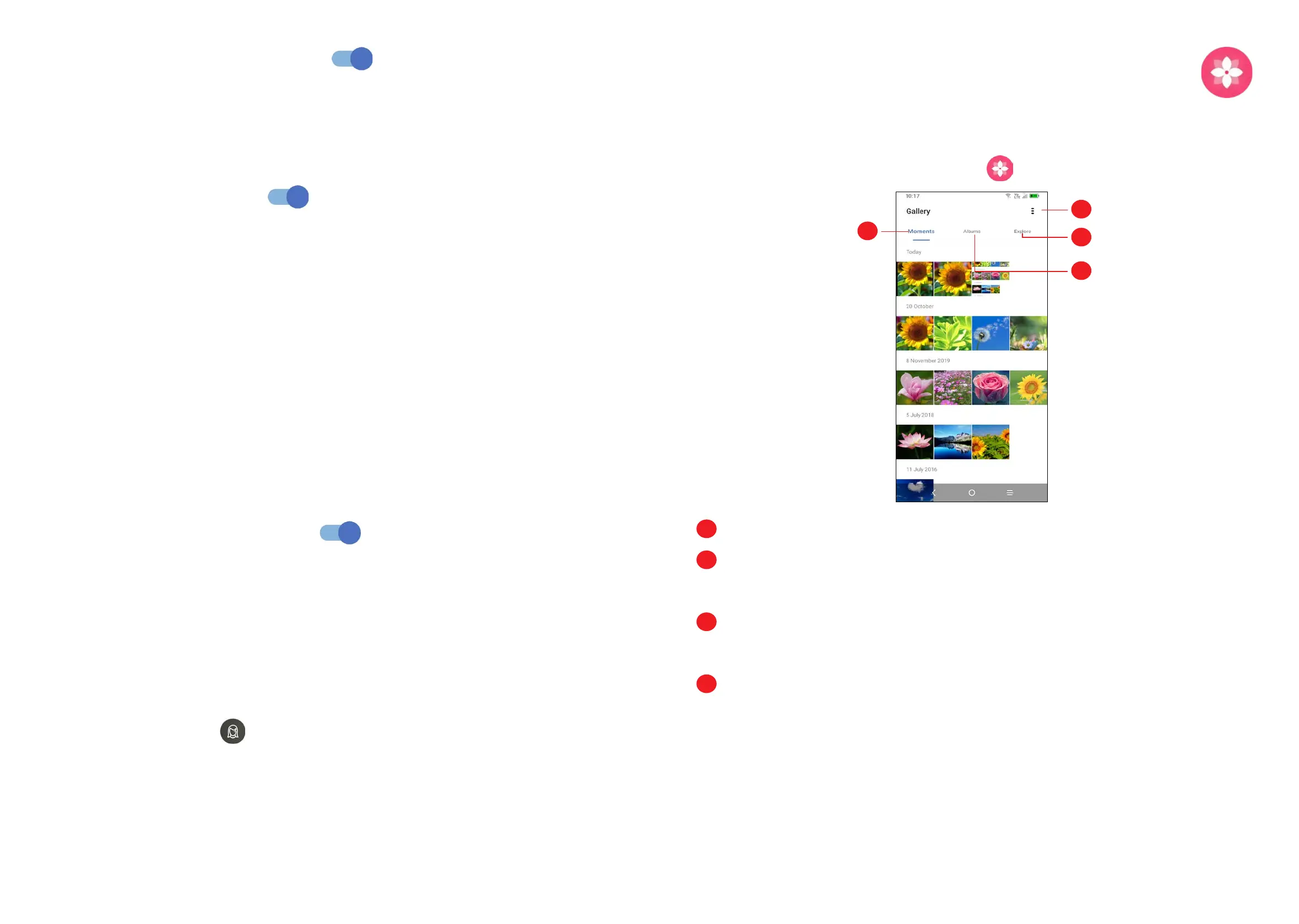
Gallery acts as a media player for you to view photos and play videos. In addition,
a set of further operations to pictures and videos are available for selection.
To view the photos you have taken, touch
from the Home screen.
1
2
3
4
1
Tap to access more options
2
Explore
Explore collects photos into groups making them more easy to find
3
Albums
Photos, videos, screenshots, etc. are all automatically grouped in Albums
4
Moments
View the photos/videos you have just taken



 To Next Page