15 16
Volume adjustment
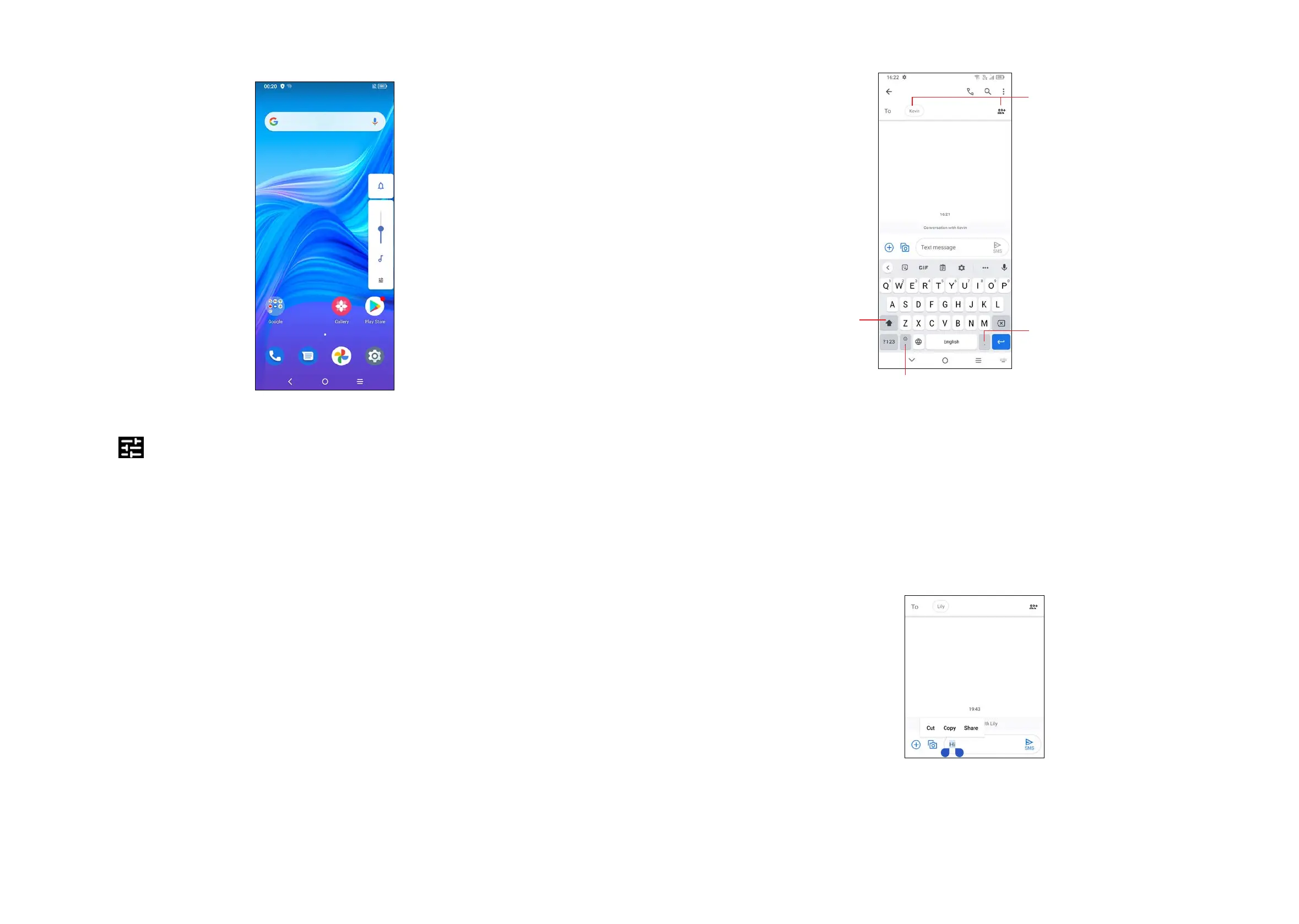
Press the Volume key to adjust the Media volume.
Touch the
icon to adjust Alarm, Ring and Notification volume.
1.4 Text input
Using the Onscreen Keyboard
Onscreen Keyboard settings
Touch Settings > System > Languages & input > Virtual keyboard, touch the
keyboard you want to set up and a series of settings will become available.
Adjust the Onscreen Keyboard orientation
Turn the phone sideways or upright to adjust the onscreen keyboard orientation.
You can adjust it by changing the settings (Touch Settings > Display > Auto-
rotate screen).
• Gboard
Enter numbers or
select from contacts.
Touch and hold to show more
options.
Touch to switch
between "abc/
Abc" mode;
Touch and hold
to switch to "abc/
ABC" mode.
Touch and hold to select
symbols.
Text editing
You can edit text which you have entered.
• Touch and hold or double touch within the text you want to edit.
• Drag the tabs to change the amount of text to edit.
• The following options will appear: Cut, Copy, and Share.
You can also insert new texts if preferred
• Touch where you want to type, or touch and hold a blank area. The cursor will
blink and the tab will appear. Drag the tab to move the cursor.



 To Next Page