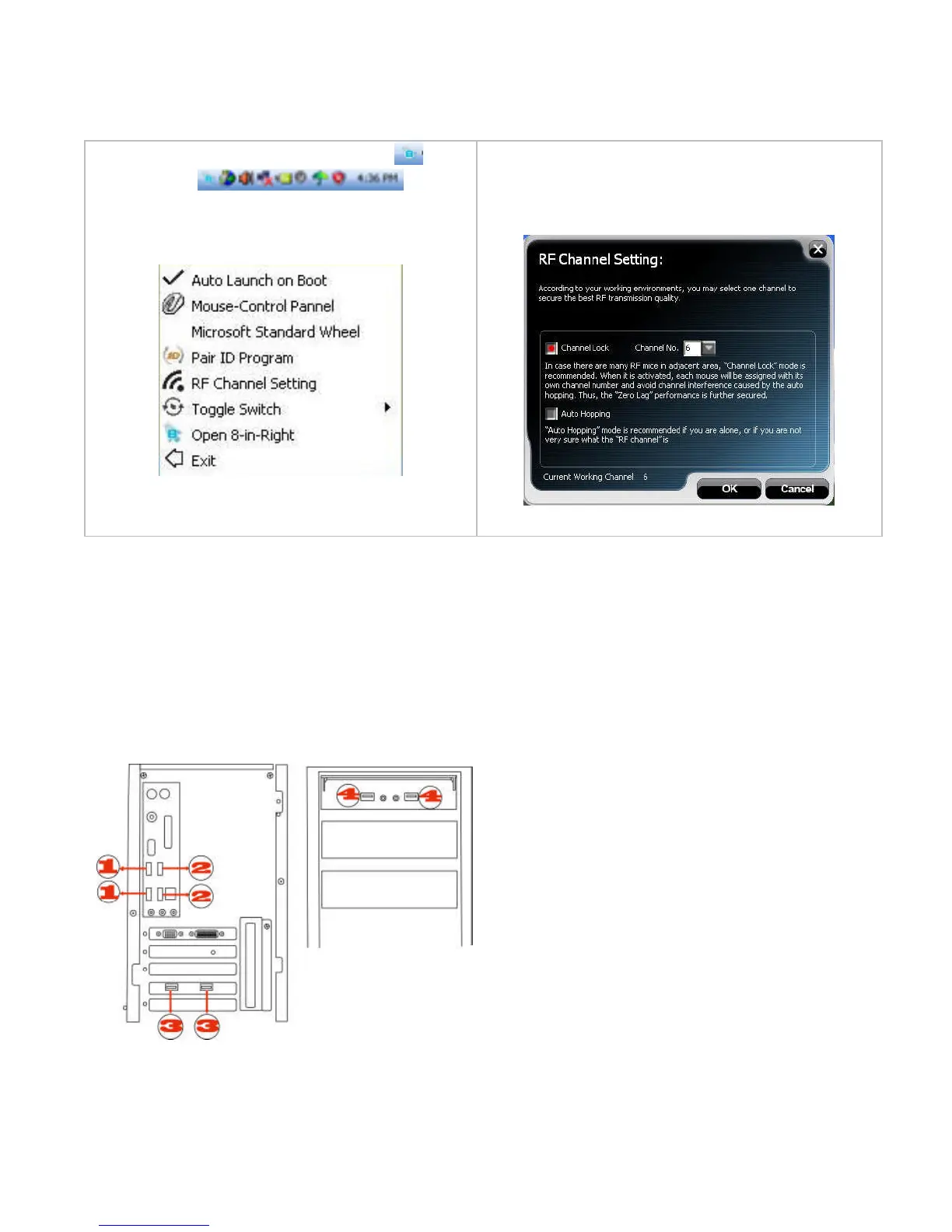
Step 1: Right click on the icon in
the taskbar and
select “RF Channel Setting”
Step 2: Tick “Channel Lock“ and
distribute each mouse a different channel.
Notice:
To ensure that your mouse and keyboard send and receive perfectly, please read below
instructions for your reference:
1. Interference from iron panel of PC.
①②③④ USB Ports
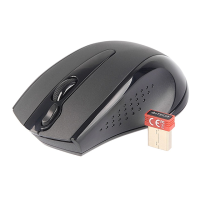
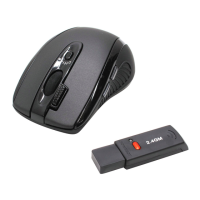
To get optimal performance, please plug
the Nano-receiver into ③、④ to avoid
shielding wireless signal when placing at
① ②、 .
2. Use USB extension wire to position the Nano-receiver at a far location to prevent


 To Next Page