1.4 WiFi Connection
1.4.1 WiFi APP download
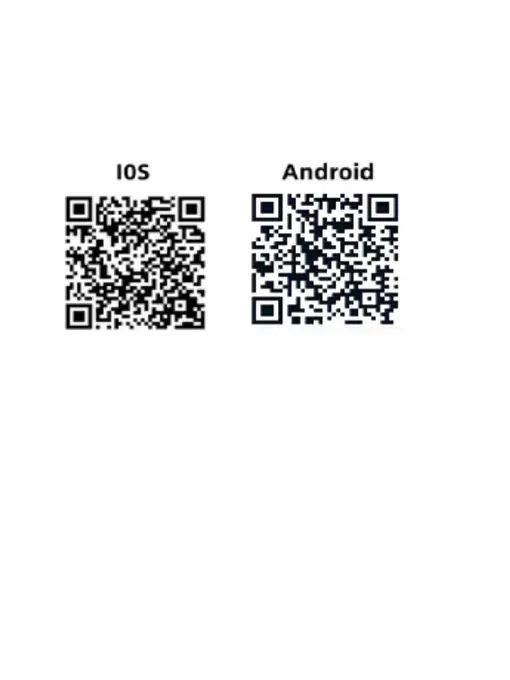
The WiFi APP is “LuckyCam”, you can search for LuckyCam
in the mobile browser and mobile application market,click to
download and install. Or scan the QR code to download
“LuckyCam”.
1.4.2 How to connect the dash cam to your phone?
1.Turn on WiFi in dash cam
①Press the【OK 】Button to stop the dash cam from
recording. (no red dot flashing on the screen)
②Press the【MENU】Button to enter the Video Menu.
③Press the【MENU】Button again to enter the Settings
Menu.
④Press the
【
OK
】
Button to confirm WiFi setting, select
【
on
】
to turn on the WiFi function. The WiFi name and password
will be displayed on the camera screen.
2.Go to your phone’s Settings > Wi-Fi and make sure that
Wi-Fi is on. Tap the name of dash cam network to join. A


 To Next Page