7) Open the PCCU32 software. Click on Operate on the menu bar. Navigate
through the drop-down list to Setup. From the fly-out menu, select System
Setup.
8) Under Communications, set the PCCU32 com port to TCP. Enter the IP
address previously noted in the network ID or IP box. Close the System
Setup screen.
9) Verify the TCP/IP communications by clicking the Entry button on the main
screen (upper most left button).
If receiving a “Communication Link Failed” error message,
investigate the following possible causes:
Verify a cross-over Ethernet cable is being used
and not a straight-through Ethernet cable.
If using a network hub or network, verify the
firewall is not blocking the IP address.
If the laptop is connected to a network, verify a
virtual private network (VPN) is not being used to
access a corporate network. The VPN may need
to be disconnected before a local Ethernet
connection is possible.
3.3 Connecting to the PGC1000’s Local Port
The laptop computer connects to the local port via USB or RS-232 and uses one
of two cables (See Figure 3-4).
ActiveSync software is required to communicate when
using USB. If ActiveSync was not installed during the
PCCU32 installation, connecting the USB cable should
trigger the ActiveSync installation to begin.
3.3.1 Instructions
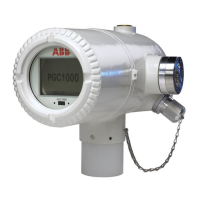
1) Connect the MMI cable to the designated port on the PC and to the local
port. This is located on the outside of the PGC1000. If the unit is configured
for the RS-232 MMI cable, connect to the appropriate communication port
on the PC (default is COM1). If the unit is configured for a USB cable,
connect the host end of the USB cable to any USB port on the PC.
2) Click on the Windows
®
Start button, and select Programs - PCCU_NGC (or
correct program folder if changed during installation). Select PCCU32. This
will display the PCCU32’s initial screen.


 To Next Page