Ref: "Ap1400ProgGuide1_2.docx" Page 23 of 42
Document Revision: “1.2”
Document Date: “9 Apr. 2013”
7. Setting up USB functionality
In order to take advantage of the USB functionality of the Ap1400, drivers must be installed on the
Windows based machine you wish to use the printer with. First you must install LIBUSB, and then you
should install the USBPrintDLL interface in order to take advantage of Able Systems’ pre-configured
commands.
Installing LIBUSB.
There are two ways to obtain the files to install LIBUSB
1) Contact Able Systems with details of your company, application and operating system at
support@able-systems.com
2) Download LIBUSB from http://sourceforge.net/projects/libusb-win32/
When using files provided by Able Systems;
LIBUSB for Windows is supplied in a zip file containing all of the files needed to install the library on
Win32 (32bit) and x64 (64bit) architecture machines. Contained within the zip file is a document
detailing the install process. Please read and follow these instructions to install LIBUSB.
When using files obtained from http://sourceforge.net/projects/libusb-win32/;
Download the latest LIBUSB from the website. Extract ‘libusb-win32-bin-1.2.6.0.zip’ and navigate to
the folder titled ‘bin’. Once here, select your operating system and run ‘install-filter-win.exe’.
To install the driver for the Ap1400 printer proceed as follows.
1. Ensure that the Ap1400 printer is externally powered and is switched on.
2. Connect the Ap1400 to the PC using the supplied USB cable.
3. Windows will install the base driver for the Ap1400 automatically and place it in the USB
Printing support category.
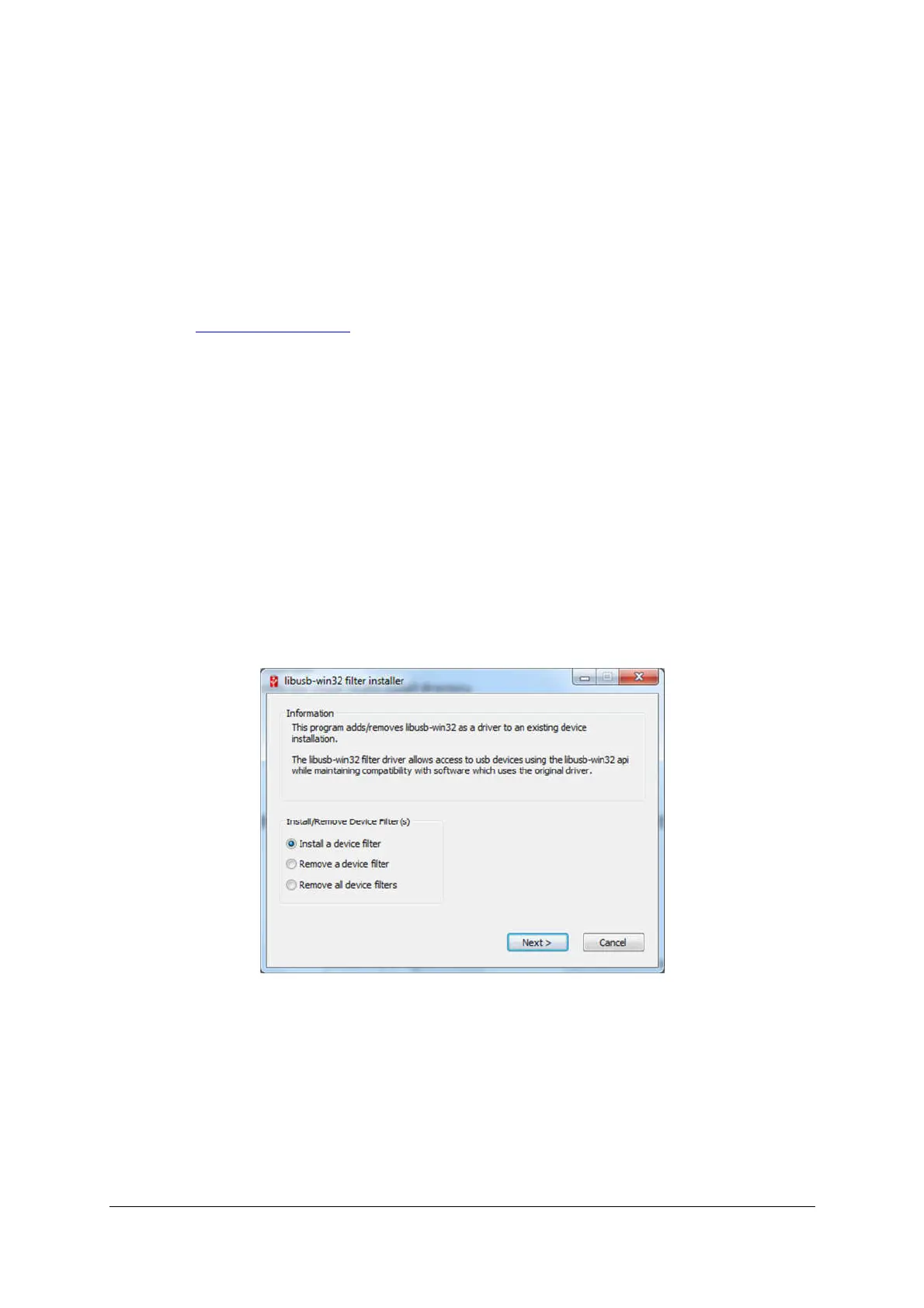
4. The following dialog will be displayed
5. Select ‘Install a device filter’ and click ‘next’. The utility will display the ‘Device selection’
dialog


 To Next Page