Ref: "Ap1400ProgGuide1_2.docx" Page 24 of 42
Document Revision: “1.2”
Document Date: “9 Apr. 2013”
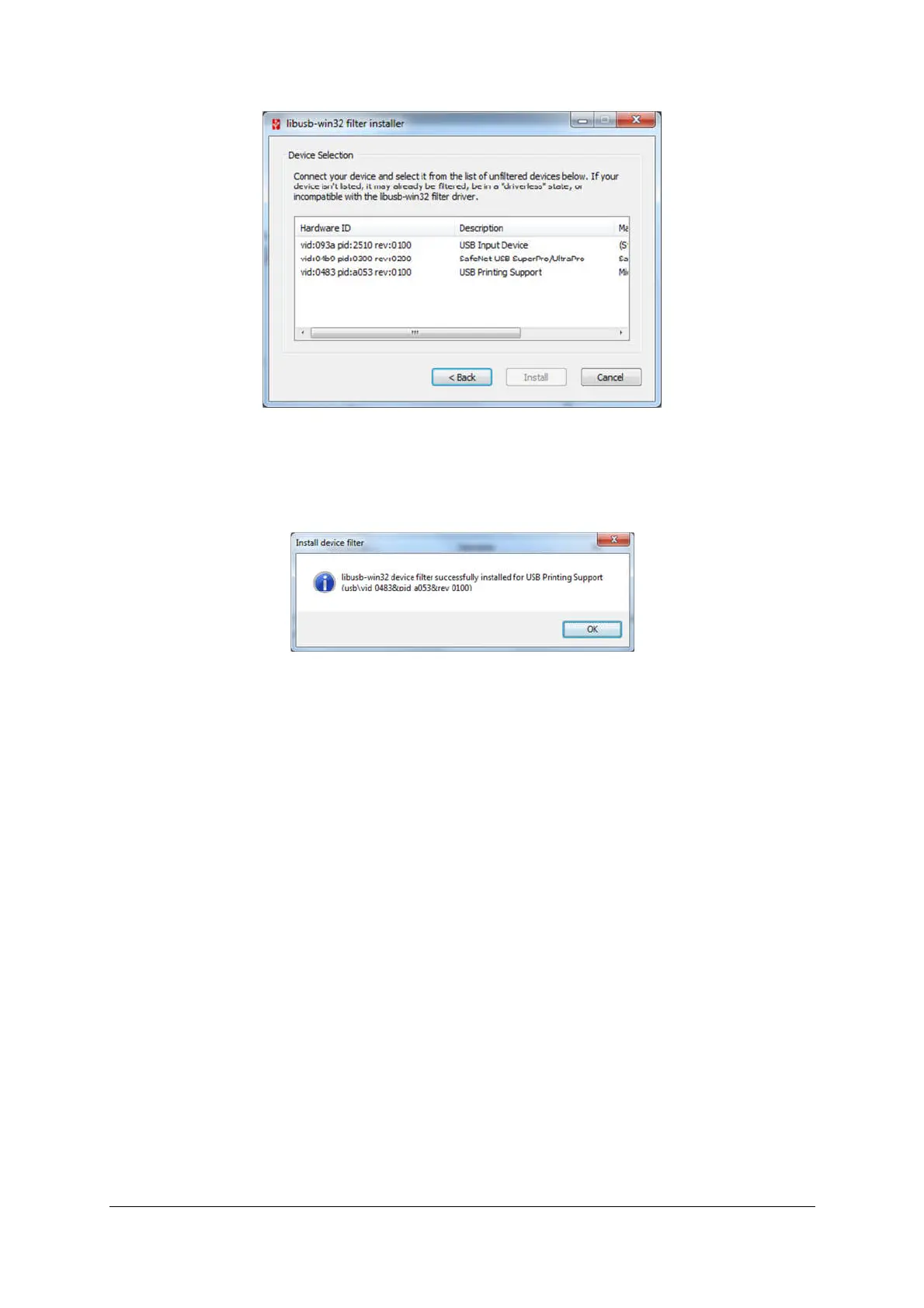
6. Select the device with a VID:0483 and a PID:A053. and click ‘install’ This device will have a
description of USB Printing Support.
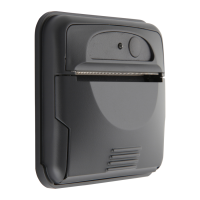
7. When complete, the utility will display the completion message. Click Ok and then ‘cancel’ to
exit the utility. Driver install is now complete.
8. Once the driver has been installed, disconnect the USB lead from the Ap1400, wait for 5
seconds then reconnect.
Installing USBPrintDll
The USB device interface is accessed via the interface provided by USBPrintDll. Access to this DLL
must be included in the users’ application by inclusion of the header ‘USBPrintDll.h’ and by linking to
the USBPrintDll.lib file. The installation of this can be done manually as follows.
Visual Studio Example.
1.Identify the Visual Studio install directory.
For 32 bit installs this will normally be
[BootDrive]:\Program Files\Microsoft Visual Studio (version).
For 64 bit installs this will normally be
[BootDrive]:\Program Files X86\Microsoft Visual Studio (version).
2. Identify the language\compiler directory (for C\C++ this would be \VC).
3. Identify the include & library directories (for C\C++ these would be \include & \lib respectively.
4. Copy the supplied USBPrintDll.lib file into the library directory and the USBPrintDll.h file into the
include directory.
Manual install of the USBPrintDll
Manual installation of the USBPrintDll.dll file is simply a matter of copying it into the correct directory
for the operating system. (Alternatively, if only the users’ application requires access, it may be stored
in the application runtime/execution directory).
For 32 bit operating systems the USBPrintDll should be copied into the Windows\System32 directory.


 To Next Page