Page 13 of 16 Copyright © Access-IS 2018
3. Review the information displayed on the Summary tab.
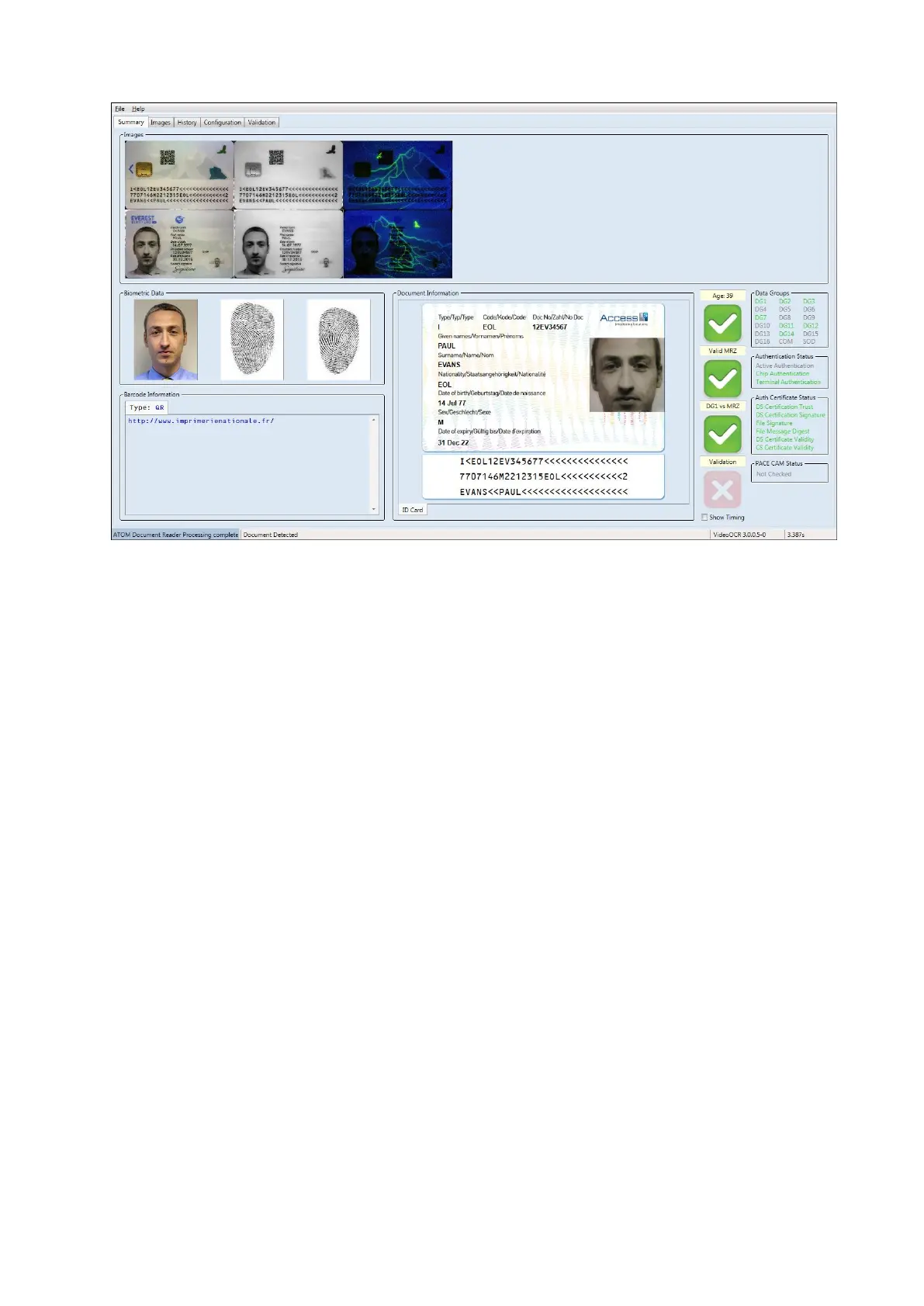
Figure 5: ADRS Summary tab. Note the version number of the software displays on the right side of the
status bar, next to the time taken to read and process the document.
The version shown is VideoOCR 3.0.0.5-0; the precise layout may differ in newer versions of the software.
To help you assess the validity of the document, ticks and crosses display next to the
Document Information section.
Age
Displays a tick if the date of birth read from the MRZ indicates that the owner of the
document is older than the age specified on the Configuration tab (default age set to 18).
Valid MRZ
Displays a green tick if the MRZ is valid.
If invalid, you can see why the MRZ is invalid by hovering the mouse over the red cross.
3.3.1 Images
The ADR100 captures images under visible and ultraviolet light and displays colour and ultraviolet
images in the Images panel. A third image captured under infrared light may display if the ADR100
is configured with the infrared option.
3.3.2 Barcode information
If barcode reading is enabled on your ADR100, the barcode type and barcode data in the read
document appears in the Barcode Information section.
3.3.3 Document information
If fitted with the IR option, the ADR100 reads the MRZ, if it is present on the document that you are
scanning. Once read, the reader decodes the information and the details appear in the Document
Information section on the Summary tab. If a colour image is captured, the software picks out the
face from the image and displays this separately.


 To Next Page