Page 12 of 16 Copyright © Access-IS 2018
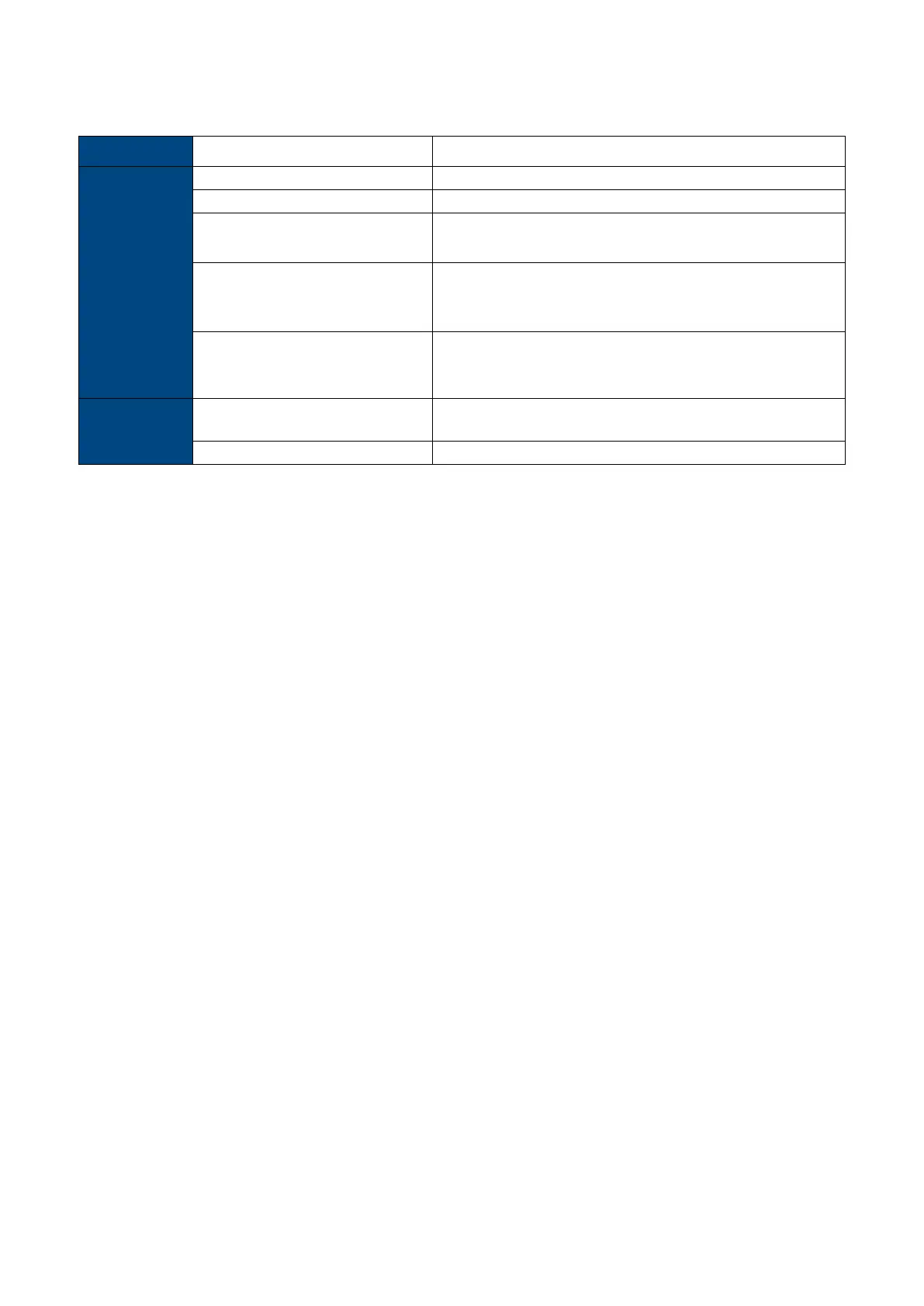
3.1.3 ADRS application, SDK and tools
Table 3: ADRS application, SDK and tools
3.2 Starting the software
1. Connect the ADR100 to the host. See Connecting the ADR100 to the host (on page 5) for
details.
2. Double-click the Access-IS Document Reader shortcut on the host's desktop.
The Access-IS Document Reader opens.
3.3 Reading your first document
Use ADRS to read and display the information in a read document. The software displays the
information in an easy-to-read format so that you can quickly check the authenticity and validity of
the document.
1. Ensure that the ADR100 is connected to the host and that you have started ADRS.
The message in the status bar at the bottom of the ADRS window indicates that the ADR100 is
ready.
A message displayed in the status bar with a pink background indicates a problem. Refer to
Document reader software status messages (on page 14) for details.
2. Place the ID document that you want to read onto the glass platen with side of the document to
be read facing into the ADR100. Slide the ID document until it meets the lower and side guide.
The ADR100 captures a full-colour and ultraviolet image of the ID document, together with an
infrared image, if installed. When reading an ICAO-compliant driving licence or identity card with
an IR-ready ADR100, it decodes the MRZ and validates the data for accuracy.
The Summary tab in the Access-IS Document Reader window displays the images and other
details collected from the read ID document.
Images - Displays captured images.
Barcode Information - Displays barcode and validation information (if barcode reading is
enabled on the ADR100).
Document Information - Displays MRZ data and a face-detect image (if applicable).


 To Next Page