Page 7 of 16 Copyright © Access-IS 2018
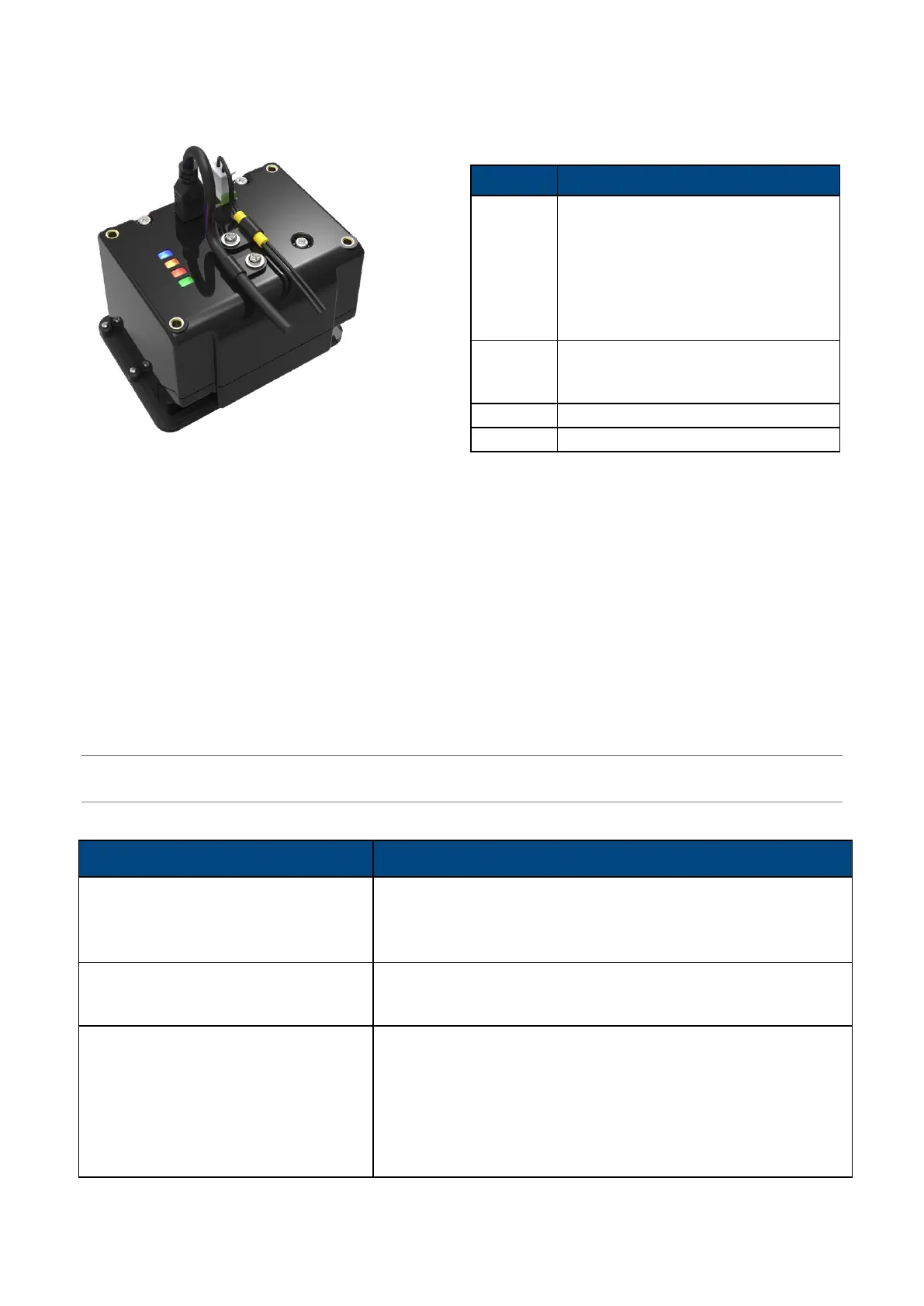
2.4.1 ADR100 status indicators
Four indicators on the back of the device allow you to check the status of the ADR100.
Figure 3: The ADR100 rear view, showing lighting
indicators and cable connections
Table 1: ADR100 status indicators
The ADR100 is switched on and
has power.
Communication with the document
reader software's Application
Programming Interface (API) is
established and the ADR100 can
read a document.
The ADR100 is busy reading a
document, or the detected
document is not stable.
If all of these indicators are illuminated, the ADR100 is switched on, but there is no communication
between the ADR100 and the document reader software's API.
When ADRS is started, only the blue power indicator illuminates; the ADR100 is in standby mode
waiting to read a document. The ADR100 is not ready to scan a document if the blue power
indicator is not illuminated.
2.5 Troubleshooting
If the ADR100 does not appear to be working, refer to the following table to help identify and resolve
the problem. For further assistance, contact Customer Support (support@access-is.com).
Alternatively, use the Contact Customer Support page on the Access-IS website.
Note: Do not attempt to disassemble the ADR100 if it does not operate correctly. Any attempt to do
so may be dangerous and will invalidate the warranty.
Table 2: Troubleshoot ADR100
Persistent 'bad reads'
(A bad read is defined as more than
7 misread characters)
Ensure that you place the document correctly in the document
guide.
If the document is correctly placed, check the document
window, and clean as necessary.
The ADR100 is not detecting a
document
Check that ADRS is ready. Refer to Document reader
software status messages (on page 14) for more
information.
The ADR100 cannot scan a barcode
Ensure that the unit has been purchased with barcode option
enabled.
Ensure that the unit is configured to read the barcode that you
are scanning.
If scanning a document, ensure that the print quality is good.
If scanning a barcode on a mobile phone, ensure that you set
the screen backlight on the phone to its brightest setting.


 To Next Page