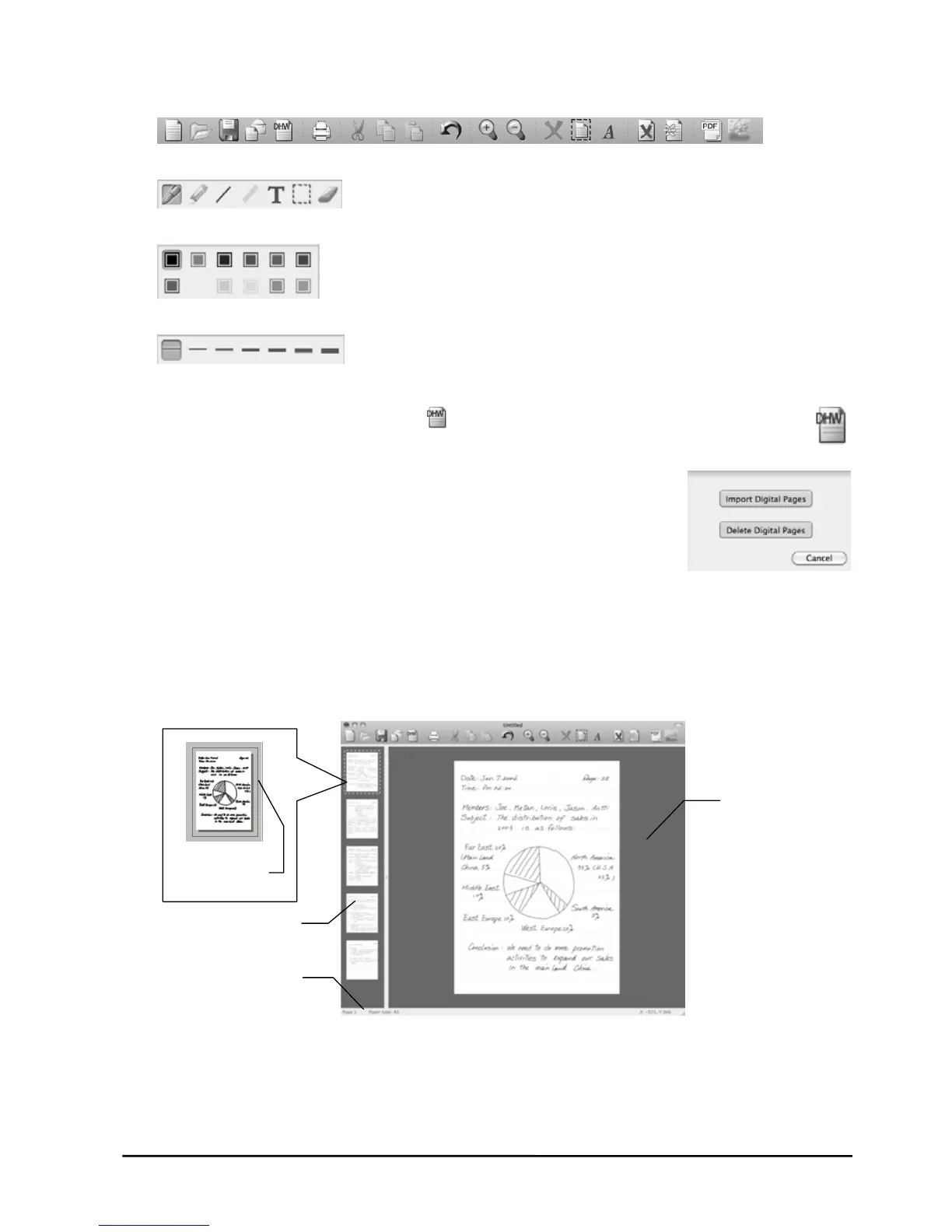
z Standard Toolbar
z Drawing Tools Toolbar
z Color Toolbar
z Width Toolbar
Importing Your Digital Pages
1. Click the Digital Page button on the Standard toolbar. The Digital
Page dialog box will appear.
2. Select the Import Digital Pages button.
3. Select a folder from which you want to import your digital
pages. Such folder could possibly be the DMEMO-M, the
DMEMO-S, the DMEMO-C or any folder that contains digital
pages.
4. To select nonadjacent digital pages, click one digital page, and then hold down the
Command key and click each additional digital page.
To select adjacent digital pages, click the first digital page in the sequence, and
then hold down the Shift key and click the last digital page.
5. Click Open. The digital pages you select will be imported to this book file.
Current Page
Indicator
Current Page Number
and Size
Page Thumbnails
Current Page
Note! You can click any page thumbnail to quickly switch the current page.
Note! You can import and insert any digital pages after the current page.
Note! The current page number indicates the current page of this book file (e-
Book).
9



 To Next Page