14
To set it, choose ACECAD D
Pre
igiMemo Manager on the menu bar and then
tion button
box, type the page number (such as 5) which you want to move the
ferences. We recommend that you select the Default New Page Size op
in accordance with your DigiMemo model.
Moving the Current Page
1. On the Page menu, click Move to. The Move to dialog box will appear.
2. In the dialog
current page to.
ge 3. Click OK. The current pa will then be moved to the page you desig
previously.
nated
Removing the Current Page
Click the Remove Page button . The current page and all its contents will be
removed.
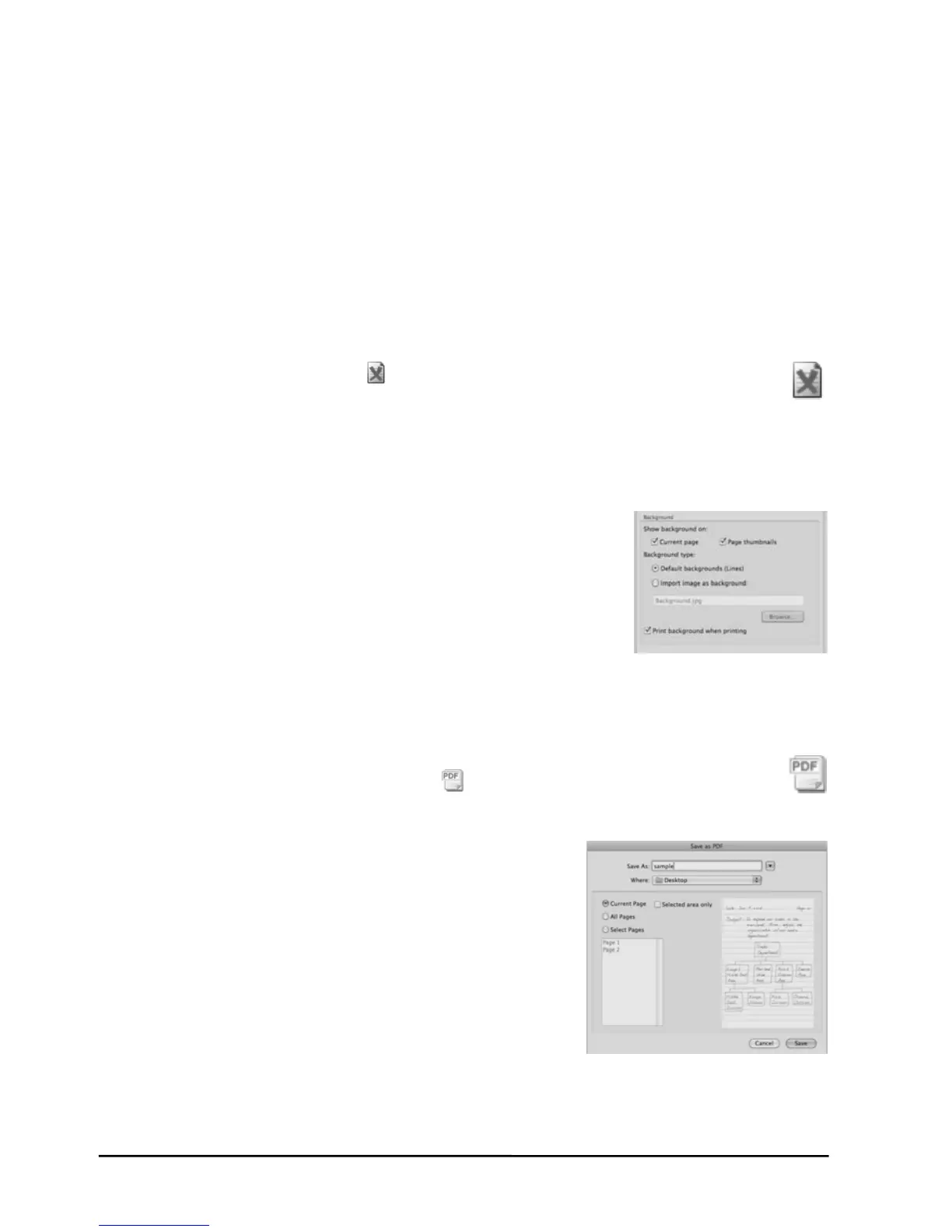
Show ng the Backi ground of Pages
1. Choose ACECAD DigiMemo Manager on the menu bar an
e back
3. If e
z
as BMP, JPG, GIF, or PNG
1. C c
d then Preferences.
ground on: 2. Choose or clear the following check boxes to show th
z Current page
z Page thumbnails
n cessary, select the following one option button:
Default background (Lines)
z Import image as background
Click the Browse button to find the image file such
file which you want to be the background.
4. Choose or clear the Print background when printing check box.
Saving Your Handwritten Notes as a PDF File
li k the Save as a PDF File button on the Stand
e dialog box, select the following one option button:
ard toolbar.
2. In th
ge
you can choose the Selected
z
,
z Current Pa
In this option,
area only check box.
All Pages
z Select Pages
You can select several pages by using
Command or Shift key with mouse click.
3. Enter a name for the PDF file. Click Save. The
selected pages or area will be saved as the PDF file.
Saving the Current Page as an Image File
You can save the current page as an image file whose file types can be TIF, JPG
GIF or PNG.
BMP,



 To Next Page