15
1. Click the Save as Image button on the Standard toolbar.
e.
You can use one of the foll n e-mail:
z In the software py or move several
pages or just pa message.
z hment.
ve the DigiMemo
t
e DigiMemo Manager organizing software. Click
2. In the dialog box, select a Image Format and enter a file name. Click Sav
Sending Your e-Book File in E-mail
owing methods to send your e-Book file i
window of DigiMemo Manager, you can co
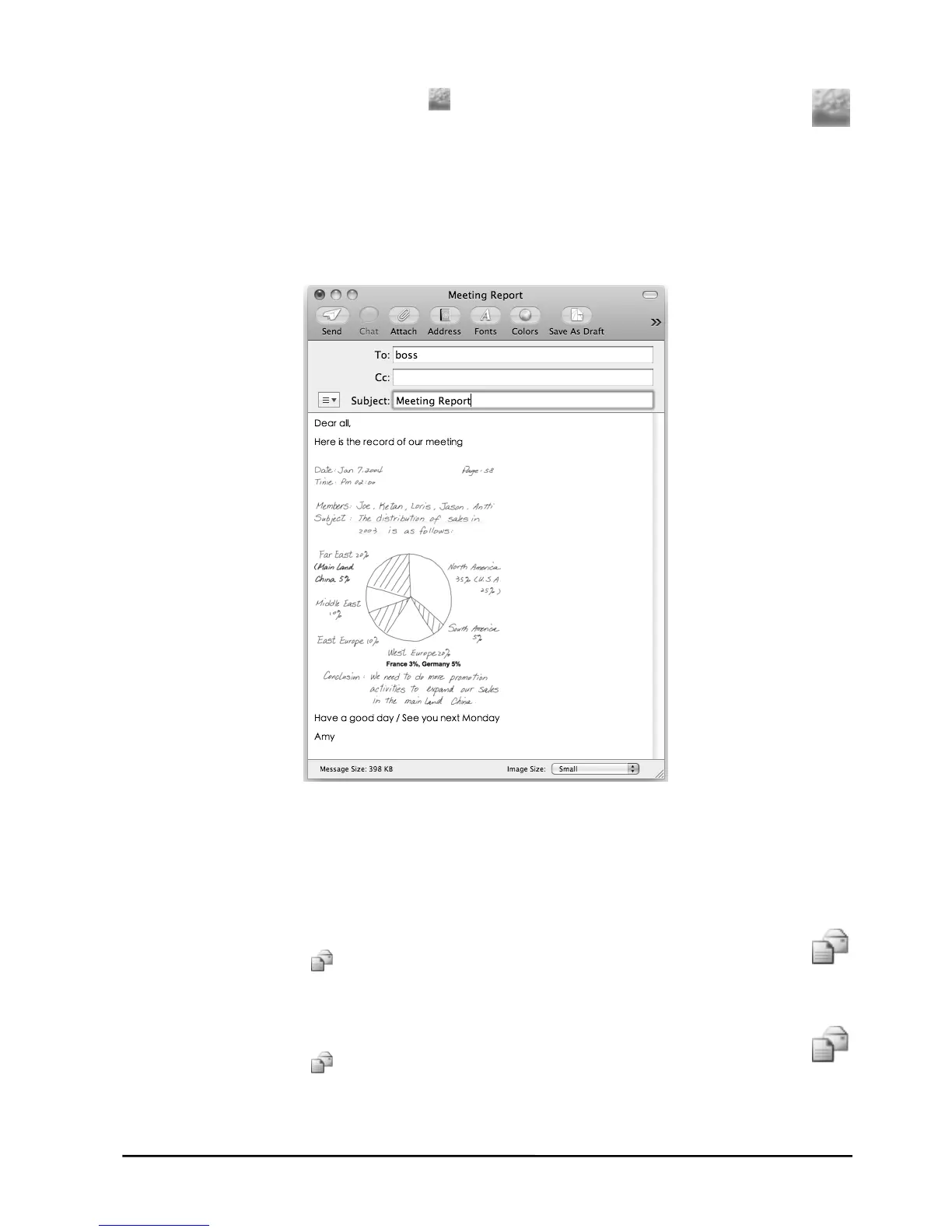
rt of a page in your e-Book file to your email
In an e-mail message, insert your e-Book file as an attac
Note! To view and edit your e-Book file, the recipient must ha
Manager organizing software. If he or she does not have this sof
please download it on the ACECAD website.
http://www.acecad.com.tw/digimemo/download.html
z Open your e-Book file in th
ware,
the E-mail button
on the Standard toolbar. In the dialog box, select the
Attach your e-Book file option. Click OK. Your e-Book file will be attached
to a new email message.
z Open your e-Book file in the DigiMemo Manager organizing software. Click
the E-mail button
on the Standard toolbar. In the
Attach images option. Click OK. Every page of your
dialog box, select the
e-Book file will be saved as a
JPG image file and be attached to a new email message.



 To Next Page