11
Editing Your e-Book File
Zooming in and Zooming out
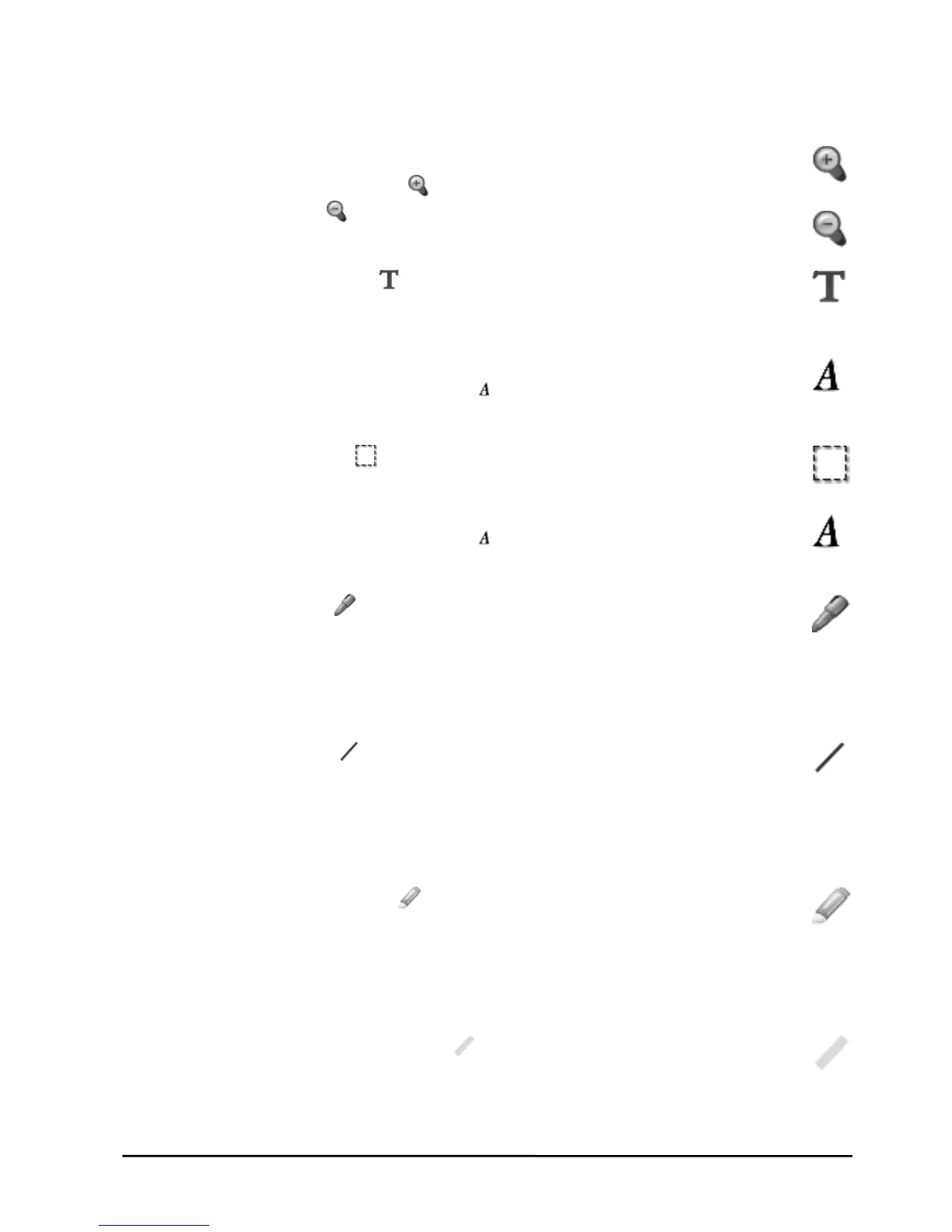
You can click the Zoom in button to get a close-up view of the current page
or the Zoom out button to see more of the page at a reduced size.
Inserting a Text Box
1. Click the Text Box button on the Drawing Tools toolbar.
2. Click and drag in the current page where you want to insert the text box.
3. Type and edit your text in the text box.
Note! You can click a color button to change the color of the text or click
the Show Font Panel button
to change the font of text.
Editing an Existing Text Box
1. Click the Select button on the Drawing Tools toolbar.
2. Click anywhere inside the existing text box. Then edit your text.
Note! You can click a color button to change the color of the text or click
the Show Font Panel button
to change the font of text.
Drawing a Freeform Line and Writing
1. Click the Pen button on the Drawing Tools toolbar.
2. You can switch the color by clicking a color button on the Color toolbar.
You can change the width by clicking a width button on the Width toolbar.
3. Drag to draw a freeform line or write.
Drawing a Straight Line
1. Click the Line button on the Drawing Tools toolbar.
2. You can switch the color by clicking a color button on the Color toolbar.
You can change the width by clicking a width button on the Width toolbar.
3. Click and drag to draw a straight line.
Drawing a Highlighting and Freeform Line
1. Click the Highlighter button on the Drawing Tools toolbar.
2. You can switch the color by clicking a color button on the Color toolbar.
You can change the width by clicking a width button on the Width toolbar.
3. Click and drag to draw a highlighting and freeform line.
Drawing a Highlighting and Straight Line
1. Click the Highlighting Line button on the Drawing Tools toolbar.
2. You can switch the color by clicking a color button on the Color toolbar.
You can change the width by clicking a width button on the Width toolbar.
3. Click and drag to draw a highlighting and straight line.



 To Next Page