9Getting to know your smartphone
LED indicators
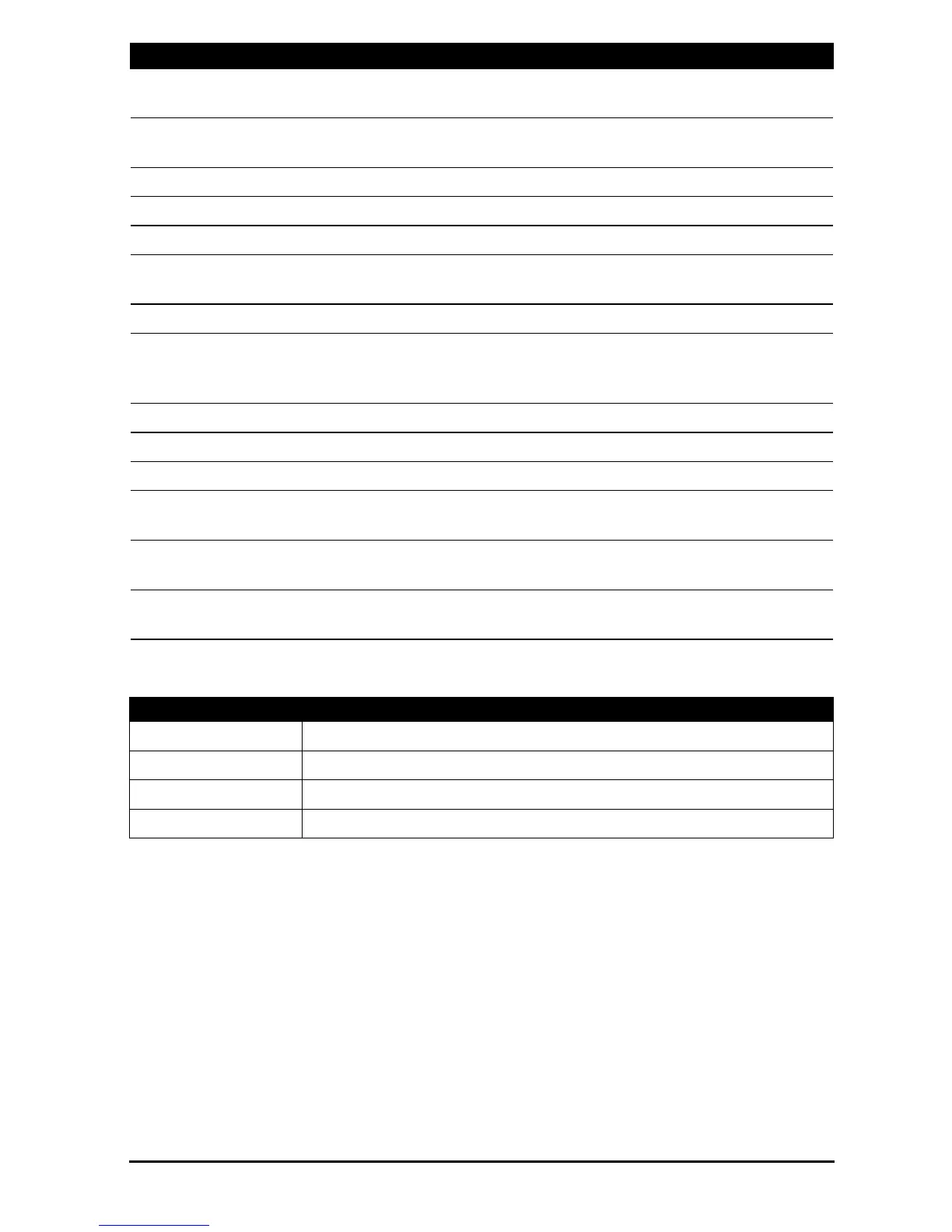
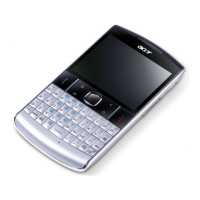
5 Call button Activate phone/dial/view recently dialed numbers/
answer a call.
6 Menu button Open the option menu; press and hold to display the
keyboard.
7 Keyboard QWERTY keyboard.
8 Microphone Internal microphone.
9
Camera button Activate the camera or take a picture.
10 Navigation button Slide a finger to move around the screen; Press to
activate the selected item.
11 Search button Open the Google search function.
12 End button / Power button Press to end a call. / Press to turn the screen on/off or
enter sleep mode; press and hold to turn the
smartphone off.
13 Back button Go back one menu step; close the onscreen keyboard.
14 Volume up / down button Increase or decrease the phone volume.
15 Micro USB connector Connect to a USB cable/charger.
16 Phone speaker Emits audio from your smartphone; suitable for
holding to your ear.
17 Camera A 3-megapixel camera for taking high-resolution
images.
18 Handsfree speaker Emits audio from your smartphone; suitable for
handsfree use.
LED state Description
Off Normal status.
Constantly on Device / USB plugged in: Battery is charging.
Slow flashing Device unplugged: Battery is low and should be charged.
Fast flashing Battery is critcally low and needs to be charged urgently.
No. Item Description


 To Next Page