The Acer CastMaster Touch WPS2 is a device designed to streamline multi-person presentations and improve efficiency in various settings such as enterprises, education, and conferences. It facilitates instant switching of projector inputs, thereby reducing waiting times between presentations and enhancing overall meeting productivity.
Function Description
The core function of the Acer CastMaster Touch is to enable seamless wireless and wired projection from multiple sources to a single display. It acts as a central hub for managing and switching presentation inputs, eliminating the need for manual cable changes or complex setup procedures. The device supports both wireless and wired connections, offering flexibility for different user scenarios.
For wireless connectivity, the CastMaster Touch supports 5GHz Wi-Fi, allowing mobile devices (Android and iOS) to connect through external wireless A/V receivers like Miracast, Chromecast, and Apple TV. This broad compatibility ensures that a wide range of devices can easily connect and project content.
For wired connections, the device utilizes HDMI or USB Type-C (DP alt mode) outputs, making it compatible with Windows and Mac systems. This "plug-and-project" functionality means users can connect directly with a cable without the need for driver installations or additional training, simplifying the setup process significantly.
The CastMaster Touch also features a web-based management interface, allowing users to configure and customize various settings of the device. This interface provides access to system information, wireless network details, pairing status, WAN settings, and a suite of tools for maintenance and advanced configurations.
Usage Features
The Acer CastMaster Touch is designed for ease of use, offering several features that enhance the user experience:
- Instant Input Switching: The primary benefit is the ability to quickly switch between different presenters' inputs, which is crucial in meetings with multiple participants. This reduces downtime and keeps presentations flowing smoothly.
- Broad Device Compatibility: It supports a wide array of devices, including Windows and Mac laptops via HDMI or USB-C, and Android/iOS mobile devices through external wireless receivers. This ensures that most users can connect their devices without compatibility issues.
- Driver-Free Operation: For wired connections, the device operates without requiring any driver installations, making it truly plug-and-play. This simplifies the setup process and reduces technical hurdles for users.
- Intuitive Web Management Interface: The device can be configured via a web browser, providing a user-friendly interface to manage settings. Users can connect to the device's Wi-Fi network and access the management page by entering its IP address.
- Wireless Network Configuration: Within the web interface, users can rename the Wi-Fi SSID and change the password for the CastMaster Touch's wireless connection. This allows for personalized and secure network management.
- Adjustable Transmission Power: The RF settings allow users to adjust the transmission power of the Wi-Fi signal (from level 1 to 6, with 6 being the strongest). This feature helps optimize signal strength and can be used to mitigate interference with other wireless devices in crowded environments.
- Automatic or Manual Channel Selection: The 5GHz channel can be set to "Auto" for automatic selection of the best performing RF channel, or users can manually select a channel to improve performance in environments with frequent wireless changes or weak WPS performance.
- Pairing Functionality: The device supports pairing with transmitters. The web interface displays the pairing status, showing which transmitters are connected or disconnected, along with their serial numbers, MAC addresses, and firmware versions. Transmitters connect via HDMI and USB, and an LED indicator changes from flashing red to solid green upon successful pairing.
- WAN Settings: Users can configure the WAN IP address, with DHCP as the default connection type. For specific network requirements, a static IP can also be set.
- Auto Projection: This feature automates the projection process. When set to "Auto," projection activates when a single transmitter is paired and connected. "Force On" activates projection for the first connected transmitter, even if multiple are paired. "Force Off" deactivates auto projection.
- Wireless Environment Options: Users can choose between "High performance" for optimal video quality or "Low interference" for better Wi-Fi transmission stability and video quality in challenging wireless environments.
Maintenance Features
The Acer CastMaster Touch includes several features designed to facilitate maintenance, updates, and system management:
- Firmware Updates: The web management interface allows for firmware updates for both the receiver and transmitters. Users can select a firmware file from their computer and initiate the upgrade process. It is recommended to obtain instructions and the latest firmware from the official website. Warnings are provided to ensure the update process is not interrupted, which could lead to issues.
- Startup Image Customization: Users can replace the default factory guide and idle images with custom images. The device supports JPG format with specific resolution (1920x1080) and file size requirements (20-300KB). There's also an option to restore all pictures to their factory defaults.
- Configuration Backup and Restore: The device allows for backing up all configuration settings (excluding hostname, SSID, wireless password, and pairing status). Users can import previously saved profiles, export current configurations, or restore the device to its factory default settings. This is useful for deploying consistent settings across multiple devices or recovering from misconfigurations.
- Password Management: The login password for the web management page can be changed, enhancing the security of the device's settings.
- System Restart and Power Management: The device can be rebooted through the web interface. It also offers standby mode and automatic restart features. In standby mode, if the transmitter is idle and there's no video output for a preset time, the receiver enters standby, and the HDMI port stops outputting video. The display can also enter standby. When video output is detected from the transmitter, the receiver resumes operation and projects the video.
- Auto Restart Options: Users can configure the device to automatically restart if standby mode has been triggered a certain number of times consecutively or if there has been no TX (transmitter) connection for a specified number of days. These features help ensure the device remains responsive and operational over time.

 Need help?
 General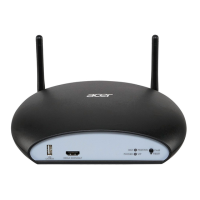

 To Next Page