English
Selecting the input
are done, press the joystick to exit current page and store.
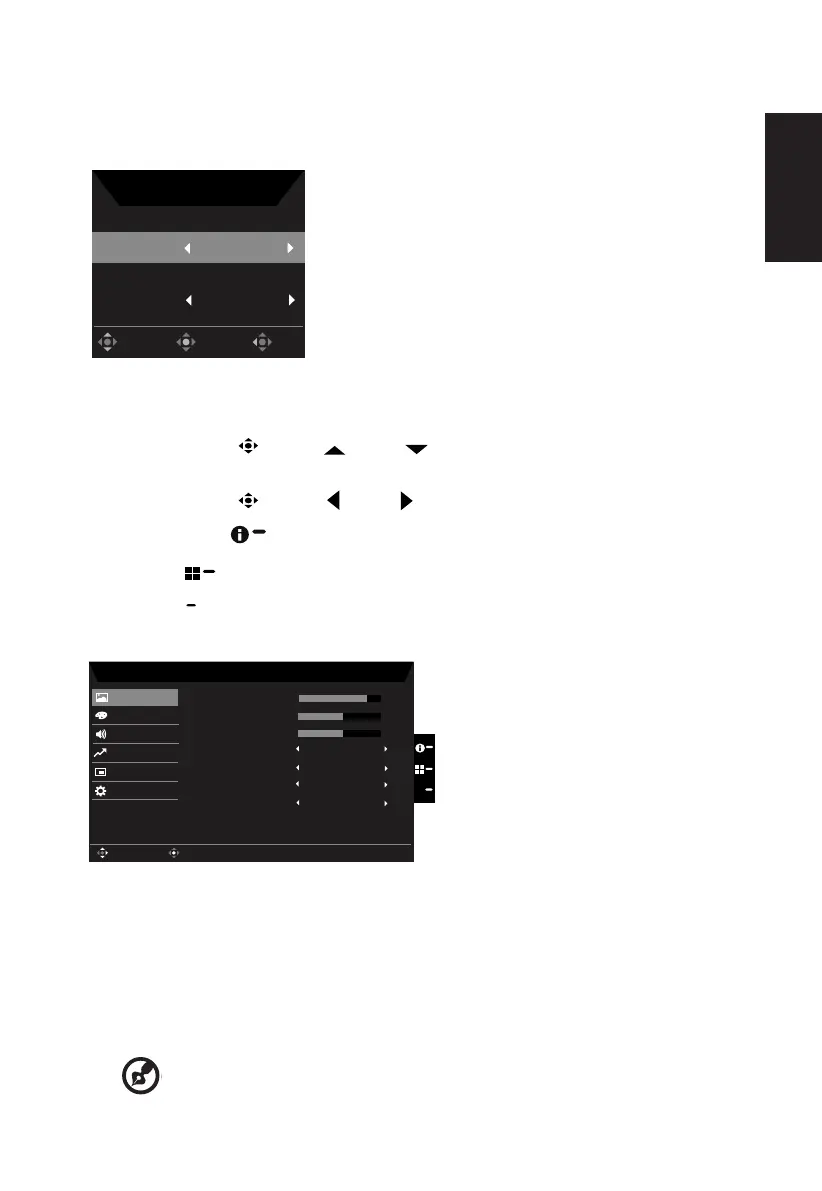
Input
HDMI
Auto Source
On
OK
Move
Exit
Input
Main menu
2. Toggle the joystick
to the up or down
to select Picture from the OSD. The toggle
to the right to navigate to the element you wish to adjust and press the joystick to enter it.
3. Toggle the joystick
to the left
or right to adjust the sliding scales.
Information Hot Key
: Show Monitor Information and Reset control function.
Modes Hot Key : To change Modes Hot Key menu.
: To exit current page and store.
Picture
Mode - Standard
80
50
Off
Off
Off
Color
Audio
Performance
OSD
System
Brightness
Contrast
Picture
Enter
Move
Black Boost
X
Blue Light
ACM
Super Sharpness
5
Off
HDR
1.
2. Toggle the joystick to the up or down to select Picture from the OSD.Then toggle to the
right to
navigate to the element you wish to adjust and press the joystick to enter it.
3. Toggle to the left or right to adjust the sliding scales.
4. The Picture menu can be used to adjust the Brightness, Contrast, Black Boost, Blue
Light, ACM,Super Sharpness.
Brightness: Adjust the brightness from 0 to 100.
-----------------------------------------------------------------------------------------------------------
Note: Adjusts the balance between light and dark shades.


 To Next Page