EasyManua.ls Logo

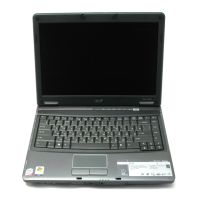
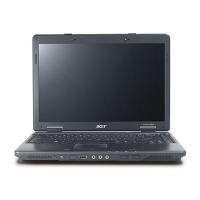
Acer Extensa 4220 - User Manual

Acer Extensa 4220
100 pages
Print Icon
To Next Page IconTo Next Page
Loading...
Extensa 4620/4620Z/4220
Series
User's Guide

Table of Contents

Other manuals for Acer Extensa 4220

Questions and Answers

  • T
    tpageJul 31, 2025
    Why my Acer Laptop doesn’t power on?
    • P
      pclarkJul 31, 2025
      If your Acer Laptop system isn't powering on, the issue might stem from the power source, such as the battery pack or power adapter. It could also be related to the battery pack itself, the power adapter, the hard disc drive, the battery connection board, or even the mainboard. Please refer to “Power System Check” on page 95.
  • R
    Rebecca WallaceAug 7, 2025
    Why Acer Laptop battery can’t be charged?
    • R
      Richard SimmonsAug 7, 2025
      If your Acer Laptop battery won’t charge, the issue might be with the battery pack, or it could be a problem with the mainboard. It is suggested to check “Check the Battery Pack” on page 95.
  • H
    Holly BrownAug 14, 2025
    What to do if my Acer Extensa 4220 Laptop doesn’t power off?
    • S
      Sara BrewerAug 14, 2025
      If your Acer Laptop system will not power off, the problem may be with the power source (battery pack and power adapter). As a solution, you can try holding the power switch for more than 4 seconds. In some cases, the issue may be with the mainboard. It is suggested to check “Power System Check” on page 95.
  • M
    Melissa SotoAug 22, 2025
    Why does my Acer Extensa 4220 power off randomly?
    • D
      Douglas MorrisAug 22, 2025
      If your Acer Laptop is shutting down during operation, this could be due to issues with the power source, including the battery pack and power adapter. Other potential causes include problems with the battery pack, power adapter, hard disc drive, battery connection board, or the mainboard. It is suggested to check “Power System Check” on page 95.

Summary

Information for your safety and comfort

Safety instructions

Read instructions carefully, keep for future reference, follow warnings.

Product Cleaning and Power Handling

Guidelines for cleaning the product and safely disconnecting power.

Warnings

General Warnings

Do not use near water, unstable surfaces, block ventilation, insert objects, spill liquids.

Electrical Power Usage

Operate from indicated power, avoid cord damage, do not overload outlets, use grounded plugs.

Battery and Servicing Precautions

Product Servicing

Do not service yourself; refer to qualified personnel for issues.

Safe Battery Usage Guidelines

Safe usage, storage, and handling of Lithium-ion batteries to prevent leaks or explosions.

Battery and Environmental Safety

Battery Usage and Care

Battery lifespan, proper charger use, handling in extreme temperatures, and disposal.

Potentially Explosive Environments

Precautions for operating the device in potentially explosive atmospheres.

Additional Safety Information

Operating Environment Safety

Safety precautions for wireless devices and RF exposure guidelines.

Medical Device Interference

Potential interference of radio transmitting equipment with medical devices.

Device Usage Safety Considerations

Pacemaker and Hearing Aid Safety

Maintaining separation from pacemakers and potential interference with hearing aids.

Computer Use Comfort and Efficiency

Comfortable Computer Use Tips

Advice on preventing eyestrain, headaches, and physical injury from computer use.

Ergonomics and Vision Care

Taking care of your vision

Suggestions to reduce eyestrain from long viewing hours.

Battery and Maintenance

Cleaning and servicing

Steps for cleaning the computer and when to seek servicing.

Acer Empowering Technology

Empowering Technology Password

Setting and managing the Empowering Technology password for security.

Acer eNet Management

Acer ePower Management

Acer ePresentation Management

Acer eDataSecurity Management

Acer eLock Management

Acer eRecovery Management

Acer eSettings Management

Windows Mobility Center

Specifications

Indicators

Easy-launch buttons

Productivity keys

Touchpad Operations

Using the keyboard

Windows key Functions

Hotkeys

Using a Computer Security Lock

Using System Utilities

Acer Bio-Protection

Fingerprint software for security, password management, and launching applications.

Acer GridVista (Dual-Display)

Launch Manager

Frequently Asked Questions

Troubleshooting Common Issues

System Recovery and Setup

System Restore without CDs

Restoring the computer to factory settings without recovery CDs.

Requesting Service

Battery Pack Management

Maximizing the batterys life

Advice on prolonging battery lifespan.

Installing and Removing Battery Pack

Battery Charging and Optimization

Optimising battery life

Suggestions for optimizing battery operation and life.

Battery-Low Warning

Securing Your Computer

Using a computer security lock

How to connect and use a computer security lock.

Using passwords

Different types of passwords for system and data protection.

Memory and BIOS Configuration

Installing memory

Step-by-step guide to installing RAM modules.

Backup Disc Burning and System Restore

Restore and recovery

Restoring the system from backups or reinstalling applications.

Troubleshooting

Troubleshooting tips

Advice on using onscreen error messages to solve problems.

Error messages

Table of error messages and their corrective actions.

Regulations and Safety Notices

FCC notice

Compliance with FCC rules for digital devices and interference.

Federal Communications Commission Declaration of Conformity

Manufacturers Declaration of Conformity

Acer Extensa 4220 Specifications

General IconGeneral
GraphicsIntel GMA X3100
Battery6-cell Li-ion
ProcessorIntel Celeron M
RAMDDR2
Storage160 GB HDD
Display1280x800
Operating SystemWindows Vista

Related product manuals