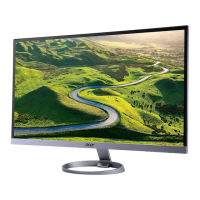
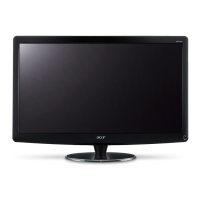
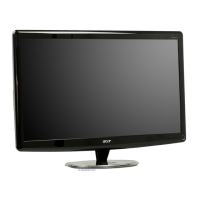
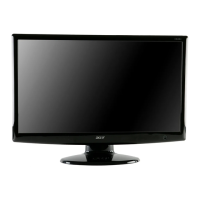
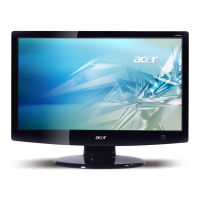
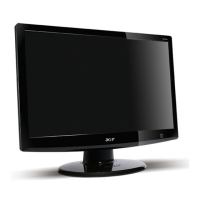
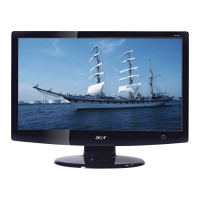
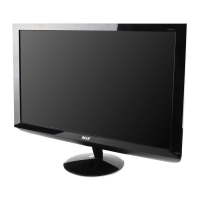
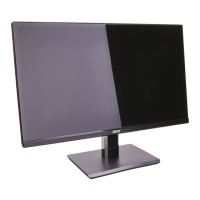
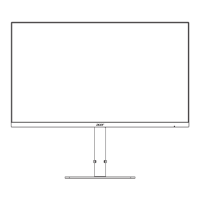
This document is a user guide for an Acer LCD Monitor, providing comprehensive information on its setup, operation, and maintenance.
Function Description
The Acer LCD Monitor is designed to display visual content from a host system. It supports various input sources, including DVI, HDMI, DisplayPort (DP), and Mini DisplayPort (Mini DP), allowing for flexible connectivity with different devices. The monitor is capable of displaying a wide range of resolutions and refresh rates, including UHD (3840x2160) at 60Hz via DisplayPort and HDMI 2.0. It also features FreeSync technology, which dynamically adjusts the display refresh rate to match the content frame rates from a FreeSync-supported graphics source. This feature aims to provide power-efficient, virtually stutter-free, and low-latency display updates. The monitor is equipped with two 3W speakers, providing audio output and supporting DTS Sound technology for enhanced sonic flow.
Usage Features
The monitor offers a variety of features to enhance user experience and comfort:
Connectivity:
- Digital Cable Connection: The monitor supports DVI (Dual Link), HDMI, DisplayPort, and Mini DisplayPort cables for connecting to a computer. Users should ensure both the monitor and computer are powered off before connecting these cables.
- Audio Cable Connection: An optional audio cable can be connected for audio input.
- Power Connection: The monitor uses a universal power supply, operating on either 100/120 V AC or 220/240 V AC. The AC power cord connects to an adapter, which then connects to the monitor and a grounded AC outlet.
Controls and Menus:
- Panel Controls: The monitor features several physical buttons for control:
- Power Button/Indicator: Turns the monitor on/off. A blue light indicates power on, while a blinking blue light signifies standby/power saving mode.
- </> Buttons: Used for navigation within menus and adjusting settings.
- Menu/Enter Button: Accesses the On-Screen Display (OSD) menu and confirms selections.
- Auto/Exit Button: Exits the OSD menu when active. When inactive, pressing it for two seconds activates the Auto Adjustment function (for VGA mode only), which optimizes display position, focus, and clock.
- Empowering Key: Opens the Acer eColor Management OSD and provides access to scenario modes.
- Shortcut Menu: Pressing any of the function buttons (Empowering Key, Auto, or Menu) brings up a shortcut menu for quick access to commonly used settings like Empowering (eColor Management), Auto Adjustment, Menu (OSD), Volume (for audio-input models), and Input (for selecting video sources).
- Input Source Selection: The monitor allows users to manually select the video input source (DVI, HDMI, DP, Mini DP). If "Auto Source" is enabled, the monitor will automatically switch to another port if the current signal is lost or the cable is disconnected.
- Acer eColor Management: This feature provides various scenario modes (User, ECO, Standard, Graphic, Movie) that adjust display settings to suit different content types or user preferences. Users can select a mode using the Empowering Key and navigation buttons.
- OSD Menus: The OSD menu offers extensive control over picture quality, OSD settings, and general monitor settings.
- Picture Menu: Allows adjustment of Acer eColor Management, Blue Light filter, Brightness, Contrast, Colour Temp, Gamma, HDR, Super Sharpness, Color Space, Grayscale mode, 6-axis Saturate, and 6-axis Hue.
- Blue Light Filter: Reduces blue light emission with adjustable ratios (80%, 70%, 60%, 50%) to prevent eye strain. An "Off mode" is certified for low blue light.
- HDR (High Dynamic Range): Offers Auto, On, and Off options for HDR effect, supported only on the HDMI port.
- Super Sharpness: Simulates high-resolution images by boosting pixel density for clearer visuals.
- Color Space: Provides six color modes (sRGB, Rec.709, HDR, EBU, SMPTE-C, Standard) to match image types.
- OSD Menu (Settings): Adjusts OSD menu location and timeout (10 to 120 seconds).
- Setting Menu: Configures general settings such as Wide Mode (Full, Aspect, 1:1), DDC/CI, OD (Overdrive: Off, Normal, Extreme), ACM (Adaptive Contrast Management: On/Off), Input source, DP Format (DP1.1 or DP1.2), DTS Sound (On/Off), Language, Auto Source, Quick Start mode, and Refresh rate num.
- DDC/CI: Allows monitor settings to be controlled via software on the PC.
- DTS Sound: Activates or deactivates DTS Sound for the built-in speakers.
- Quick Start Mode: Speeds up boot time when enabled.
- Refresh Rate Num: Displays the panel's current refresh rate on the information page when switched to "ON".
- Information Menu: Displays basic monitor information, including current resolution, refresh rate, input source, serial number, and FPS (frames per second) if Refresh rate num is enabled.
Ergonomics and Comfort:
- Screen Position Adjustment: The monitor can be tilted 15 degrees up and 5 degrees down to optimize viewing angles and user comfort.
- Power Saving: The monitor automatically enters a "power saving" mode (indicated by a blinking blue LED) when no control signal is detected from the display controller. It recovers in approximately 3 seconds when a signal is detected or the keyboard/mouse is activated.
- Tips for Comfortable Use: The guide provides recommendations for reducing eyestrain and physical injury, including frequent eye rests, regular breaks from the monitor, adjusting display brightness/contrast, eliminating glare, maintaining proper posture, and performing stretching exercises.
Maintenance Features
The user guide outlines essential maintenance and safety guidelines for the monitor:
Cleaning:
- Monitor Cleaning: Users are advised to unplug the monitor before cleaning. A soft cloth should be used to wipe the screen and the cabinet's front and sides.
Safety and Warnings:
- General Safety: Read all instructions and warnings carefully.
- LCD Monitor Specifics: Notes that slight uneven brightness, minor pixel blemishes (0.01% or less), and temporary afterimages are normal for LCD screens and do not indicate a problem.
- Accessibility: The power outlet for the monitor should be easily accessible for quick disconnection.
- Safe Listening: Recommendations are provided to protect hearing, such as gradually increasing volume, limiting high-volume listening, and avoiding turning up volume to block noise.
- Warnings:
- Do not use near water.
- Avoid placing on unstable surfaces.
- Ensure ventilation slots are not blocked to prevent overheating.
- Never insert objects into cabinet slots or spill liquids onto the product.
- Avoid placing on vibrating surfaces.
- Do not use in sporting, exercising, or vibrating environments.
- Use only the supplied power adapter.
- Electrical Power Usage:
- Operate from the specified power type.
- Do not allow anything to rest on the power cord.
- Ensure extension cords and wall outlets are not overloaded and meet ampere ratings.
- The three-wire grounded plug must be inserted into a properly grounded outlet.
- Product Servicing: Users are advised not to attempt self-service. All servicing should be referred to qualified personnel, especially if the power cord is damaged, liquid is spilled, the product is exposed to water, dropped, or exhibits a distinct change in performance.
- Potentially Explosive Environments: Turn off the device in areas with potentially explosive atmospheres, such as near gas pumps, fuel depots, chemical plants, or where blasting operations are in progress.
- Additional Safety Information: Keep small parts away from children.
- IT Equipment Recycling Information: Acer is committed to environmental protection and encourages recycling of used equipment. Information on recycling and WEEE regulations is provided via specific website links.
- Disposal Instructions: Do not dispose of the electronic device in trash; recycle to minimize pollution.

 Need help?
 General

 To Next Page