12
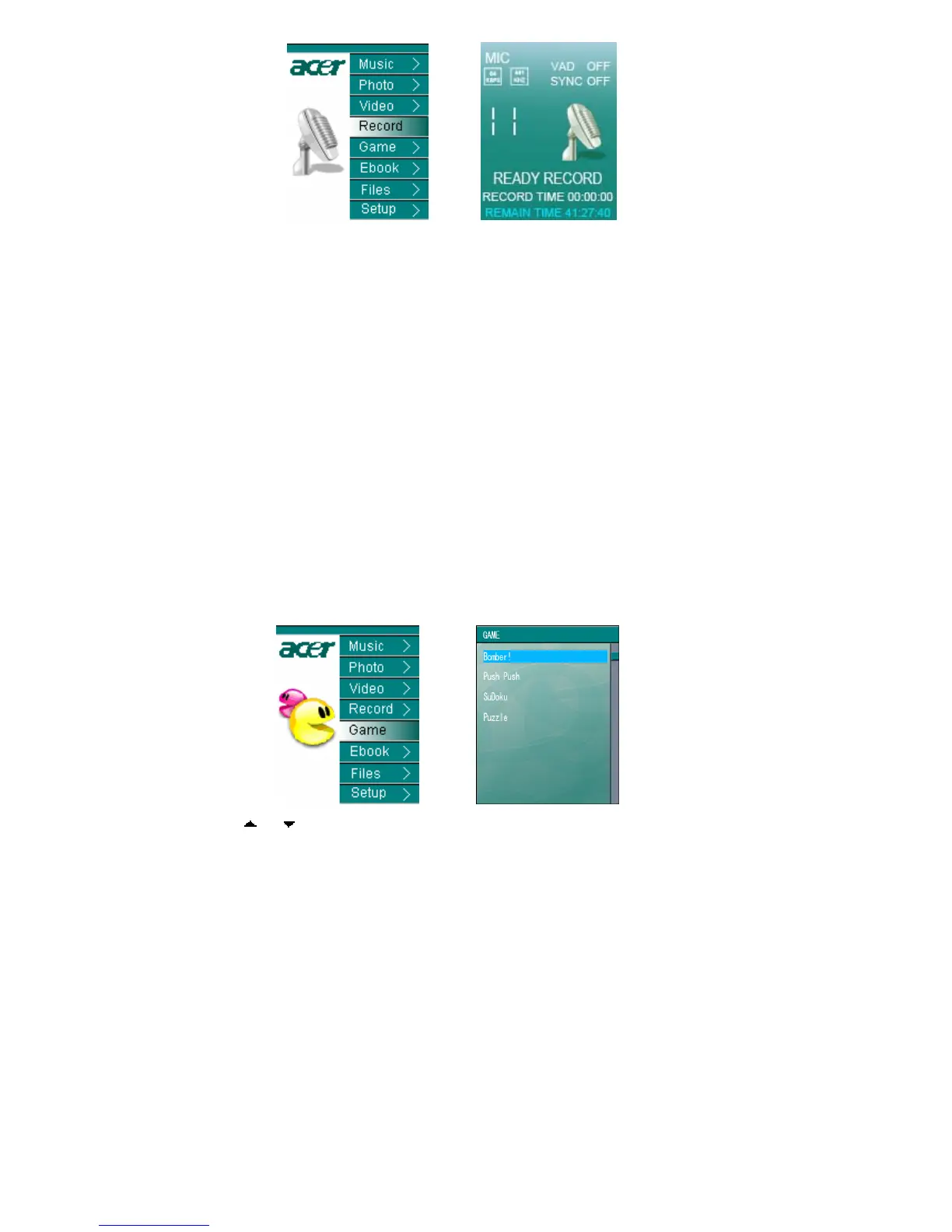
Pic18 Pic19
2) Press “ENTER” to start recording and press “ENTER” again to end it.
3) Press “ESC” to eject the “Save file” window and then go back to the recording
interface, see PIC 19. Press “MODE” to return to the main menu. The recording
files will be kept in Record file. You can choose the Files menu and then select
Record file to broadcast the recording.
Notes:
1) Parameters such as Recording modes (Long time/Good Voice/music), recording
sources (Line/MIC), VAD (Off/Low/High) and Line in Sync (Off/1s/2s/3s/4s) can be
adjusted in recording menu after entering Setup under main menu. See
instructions in setup menu.
2) When the input source is selected as “MIC”, the recorded file will be automatically
formatted as VORCXXX.WMA and AUDIXXX.WMA for “Line”.
6 Game
1) Select “Game” under the main menu as in PIC20. Press “ENTER” to the game list
as in PIC 21.
PIC20 PIC 21
2) Press “ ”or“ ”to choose the wanted game and press “ENTER” to start it. There
are four little delicate games available.
3) Long press ”ESC” for 2 second to return to the main menu
7 Electronic Book
1) Select “Ebook” under the main menu as in PIC22 and press “ENTER” to Ebook list.



 To Next Page