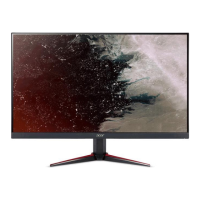
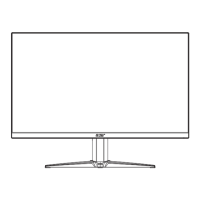
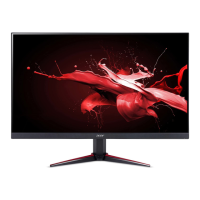
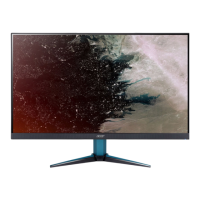
This is a user guide for an Acer LCD monitor, designed to provide visual display of information from electronic devices. It covers safety instructions, special notes on LCD monitors, cleaning procedures, accessibility, safe listening practices, warnings, electrical power usage, product servicing, potentially explosive environments, additional safety information, IT equipment recycling information, disposal instructions, LCD pixel statement, tips for comfortable use, finding your comfort zone, taking care of vision, developing good work habits, and declarations of conformity.
Function Description:
The Acer LCD monitor serves as a visual output device for electronic systems. It supports various display modes and resolutions, including VGA, MAC, SVGA, XGA, SXGA, WXGA, WSXGA+, and UXGA, with refresh rates ranging from 56Hz to 75Hz. The monitor is designed to be plug-and-play, automatically communicating its capabilities to the host system via the DDC (Display Data Channel) protocol. It supports DDC2B standard. The monitor can be connected via HDMI 1.4, VGA, or DisplayPort (DP) cables, and some models also support audio input. It features power-saving modes, indicated by an amber-colored power LED, which activate when the display controller sends a control signal. The monitor can dynamically adjust its refresh rate based on content frame rates for power efficiency, stutter-free, and low-latency display updates, especially with FreeSync-supported graphics sources.
Usage Features:
The monitor offers a range of user controls and adjustments to optimize the viewing experience.
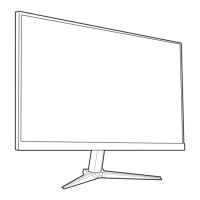
- Screen Position Adjustment: Users can adjust the tilt of the monitor, with a range of -5° to 20° of recline at the highest point. The base is attached by carefully placing the monitor face-down on a stable surface and securing the base.
- Connectivity: It supports HDMI 1.4, VGA, and DP input sockets. For audio output models, an audio input socket is available. The power cord connects to an adapter, which then plugs into a grounded AC outlet. The monitor has a universal power supply, accommodating 100/120 V AC or 220/240 V AC voltage areas without user adjustment.
- On-Screen Display (OSD) Menu: The OSD menu allows users to adjust various settings for picture quality and general operation. It is accessed via a MENU key, and navigation is typically done using a joystick-like toggle button on the backside of the display bezel.
- Hotkeys: The monitor includes hotkeys for quick access to frequently used functions:
- Hotkey 1 (Modes): Allows selection of game modes (G1, G2, G3) or scenario modes (User, Standard, ECO, Graphics, Movie).
- Hotkey 2 (Brightness): Provides direct control over brightness settings.
- Input Select: Enables switching between HDMI 1, HDMI 2, VGA, or Auto Source.
- Picture Adjustments:
- Brightness: Adjustable from 0 to 100.
- Contrast: Adjustable from 0 to 100.
- Black Boost: Adjusts black levels from 0 to 10 to enhance shadows.
- Blue Light: Filters blue light (80%, 70%, 60%, or 50%) to protect eyes; lower values offer better protection.
- ACM (Adaptive Contrast Management): Can be turned on or off.
- Super Sharpness: Enhances image clarity by boosting pixel density.
- Auto Config, H. Position, V. Position, Focus, Clock: For fine-tuning display parameters.
- Color Adjustments:
- Gamma: Adjusts luminance tone; default is 2.2 for Windows.
- Color Temperature: Options include Cool, Normal, Warm, Bluelight, or User.
- Modes: To choose scenario mode.
- Grayscale Mode: To choose Grayscale mode.
- sRGB: Can be turned on or off for better color matching with peripheral devices.
- 6-axis Hue and Saturate: Allows adjustment of red, green, blue, yellow, magenta, and cyan hues and saturations.
- Audio Settings:
- Volume: Adjusts audio output.
- Mute: Toggles audio on/off.
- Gaming Features:
- Over Drive: Selectable as Off, Normal, or Extreme to reduce response time.
- FreeSync: Controls support for dynamic refresh rate adjustment; default is On. If FreeSync is ON, Over Drive is automatically set to Normal. If FreeSync is OFF, Over Drive can be set to Extreme, Normal, or Off.
- MPRT (Moving Picture Response Time): Controls dynamic picture cleaning; default is Off. MPRT is not supported in PIP/PBP mode or with HDR setting "Auto." If MPRT is "On," FreeSync is automatically "Off." Adjustments to Brightness, Blue Light, or ACM will set MPRT to "Off." MPRT function does not affect Logo, Aim Point, Message, and Input Icon brightness. MPRT will auto-off if Input Timing is <75Hz. MPRT (Normal or Extreme) results in darker overall brightness.
- Aim Point: Displays an aim point on the screen for shooting games (not displayed in PBP mode).
- OSD Settings:
- Language: Sets the OSD menu language.
- OSD Timeout: Adjusts the delay before the OSD menu turns off.
- Transparency: Sets OSD transparency (0%, 20%, 40%, 60%, or 80%) in gaming mode.
- Refresh Rate Num: Displays the panel's current refresh rate.
- OSD Lock: Locks/unlocks OSD controls. When locked, an "OSD Locked" message appears, and LED lights change from blue to orange. To unlock, press the "Navi Key" in the middle for more than 3 seconds.
- System Settings:
- Input: Selects the source from HDMI 1, HDMI 2, or VGA.
- Auto Source: Automatically searches for a signal source; default is "On." Surround applications require Auto Source to be "Off."
- Wide Mode: Selects screen aspect (Full, Aspect).
- Hotkey Assignment: Assigns functions to shortcut keys 1 and 2 (Modes, Volume, Brightness, Gamma, Contrast, Blue Light, Over Drive).
- DDC/CI: Allows monitor settings to be controlled via software on the PC.
- HDMI Black Level: Adjusts HDMI black levels.
- Quick Start Mode: Turns on/off to speed up boot time.
- Save Settings: Allows users to save their preferred settings into three user-defined profiles for future recall.
Maintenance Features:
- Cleaning: The monitor should be unplugged before cleaning. A soft cloth should be used to wipe the screen and cabinet front and sides.
- Troubleshooting: The manual provides a troubleshooting guide for common issues like "No picture visible," suggesting remedies such as adjusting brightness/contrast, checking power connections, signal cables, and computer system status (on/standby).
- Product Servicing: Users are advised not to attempt self-servicing due to the risk of exposure to dangerous voltage. Servicing should be referred to qualified personnel, especially if the power cord is damaged, liquid is spilled, the product is exposed to water, dropped, or exhibits a distinct change in performance.

 Need help?
 General


 To Next Page
