EasyManua.ls Logo

Acer S241HL - User Manual

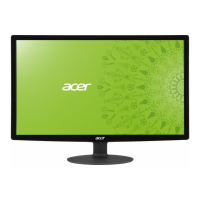
Acer S241HL
29 pages
Print Icon
To Next Page IconTo Next Page
Loading...
User Guide
Acer LCD Monitor

Questions and Answers

  • M
    melindakramerJul 26, 2025
    What to do if my Acer S241HL has no picture?
    • R
      Robin WilkinsonJul 26, 2025
      If your Acer Monitor displays no picture, verify that the AC power cord is properly connected to the monitor and that the video signal cable is securely connected at the back. Ensure that the computer system is powered on and that the power switch on the monitor is also on. You can also try using the OSD to adjust the brightness and contrast to the maximum level or reset them to their default settings.
  • P
    pburchAug 10, 2025
    Why does my Acer S241HL have an abnormal picture?
    • S
      Susan PattersonAug 10, 2025
      If your Acer Monitor displays an abnormal picture, ensure that the graphics adapter and monitor specifications are compatible to avoid input signal frequency mismatch. For non-standard signals, use the OSD to adjust RESOLUTION, CLOCK, CLOCK-PHASE, H-POSITION, and V-POSITION. If the full-screen image is missing, use the OSD to select another resolution or vertical refresh timing. After adjusting the image size, wait a few seconds before changing the signal cable or powering off the monitor.

Summary

Safety and Comfort

Safety Instructions

Essential safety guidelines and warnings for product usage.

Accessibility and Electrical Safety

General Warnings

Critical warnings regarding water, unstable placement, ventilation, and electrical hazards.

Electrical Power Usage

Instructions on operating the product using the correct power supply and cord safety.

Product Servicing and Environmental Concerns

Product Servicing Guidelines

Instructions on when to refer servicing to qualified personnel and not to attempt self-repair.

Vision Care and Work Habits

Monitor Setup and Connections

Initial Setup and Maintenance

Connecting the Power Cord

Detailed steps for connecting the power cord to the monitor and outlet.

Cleaning Your Monitor

Procedures and guidelines for safely cleaning the monitor screen and cabinet.

Installation Procedure

Installation Steps

Step-by-step instructions for connecting the monitor to a host system.

User Controls and OSD Navigation

Acer eColor Management System

Adjusting OSD Settings

Adjusting Picture Quality

How to fine-tune brightness, contrast, color, and other picture settings via OSD.

Troubleshooting Guide

Troubleshooting (VGA Mode)

Common problems and their solutions when using VGA connection.

Troubleshooting (DVI;HDMI)

Troubleshooting (DVI;HDMI Mode)

Common problems and their solutions when using DVI/HDMI connections.

Acer S241HL Specifications

General IconGeneral
3D-
Panel typeTN+Film
Aspect ratio16:9
Response time2 ms
Display diagonal24 \
Display technologyLED
Contrast ratio (dynamic)100000000:1
Display number of colors16.78 million colors
Display brightness (typical)250 cd/m²
Supported graphics resolutions1920 x 1080 (HD 1080)
On/off switchYes
USB Type-A downstream ports quantity0
Product colorBlack
Tilt angle range-5 - 15 °
Panel mounting interface100 x 100 mm
Energy efficiency scaleA to G
Power consumption (standby)- W
Power consumption (typical)19.80 W
Cables includedAC, VGA
Weight and Dimensions IconWeight and Dimensions
Depth (with stand)166 mm
Height (with stand)401 mm
Weight (with stand)3800 g
Depth (without stand)42 mm
Width (without stand)565 mm
Height (without stand)343 mm
Weight (without stand)3500 g

Related product manuals