EasyManua.ls Logo

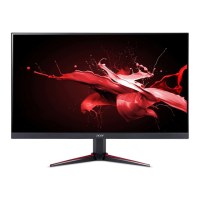
Acer VG270 - User Manual

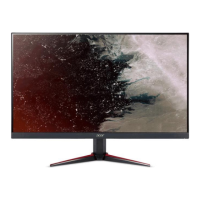
Acer VG270
27 pages
Print Icon
To Next Page IconTo Next Page
Loading...
Acer LCD Monitor
User Guide

Other manuals for Acer VG270

Questions and Answers

  • H
    Howard McdonaldAug 6, 2025
    What to do if my Acer VG270 has no picture?
    • R
      Rebecca BowersAug 6, 2025
      If your Acer monitor displays no picture, there are several things you can check. First, use the OSD to adjust the brightness and contrast to the maximum or reset them to their default settings. Ensure the power switch is on and the AC power cord is properly connected to the monitor. Verify that the video signal cable is securely connected to the back of the monitor. Also, make sure that your computer system is powered on.
  • C
    Crystal KingAug 15, 2025
    Why does my Acer Monitor have an abnormal picture?
    • A
      aparkerAug 15, 2025
      An abnormal picture on your Acer monitor might be due to a mismatch between the graphics adapter and monitor specifications, causing an input signal frequency mismatch. To resolve this, check the compatibility of your graphics adapter and monitor specifications. For non-standard signals, use the OSD to adjust the RESOLUTION, CLOCK, CLOCK-PHASE, H-POSITION, and V-POSITION. If the full-screen image is missing, use the OSD to select another resolution or vertical refresh timing. After adjusting the image size, wait a few seconds before changing or disconnecting the signal cable or powering off the monitor.
  • R
    Roger EdwardsAug 26, 2025
    How to fix abnormal sound on my Acer VG270?
    • B
      blackdianaAug 26, 2025
      If you're experiencing abnormal sound on your Acer monitor (audio-input model), first check that the audio cable connecting the monitor to the host PC is properly connected. Also, verify that the volume setting on the host PC is not set to the minimum. If it is, try increasing the volume level.

Summary

Safety, Health, and Environment

Safety Instructions and Warnings

Essential safety instructions, warnings, and precautions for monitor usage.

LCD Monitor Special Notes

Normal LCD behavior, flickering, pixel defects, and afterimages explained.

Monitor Cleaning and Maintenance

Guidelines for safe cleaning, including unplugging and using soft cloths.

Accessibility and Safe Listening

Ensures proper power outlet access and safe audio volume levels.

Electrical and Product Servicing Safety

Safe electrical power usage and guidelines for professional product servicing.

Environmental, Disposal, and Compliance

Potentially Explosive Environments

Safety precautions for operating the device in hazardous atmospheric conditions.

IT Equipment Recycling and Disposal

Acer's commitment to recycling and proper disposal of electronic equipment.

Regulatory Compliance

Declarations of conformity with EU directives and FCC rules.

User Experience and Ergonomics

LCD Pixel Statement

Information on LCD manufacturing and acceptable pixel variations.

Comfortable Computing Practices

Advice on reducing eyestrain, headaches, and physical injury during computer use.

Vision Care and Work Habits

Tips for eye health and developing productive, relaxing work routines.

Product Setup and Connectivity

Unpacking Your Monitor

Check package contents and save materials for future transport.

Screen Position Adjustment

How to attach the base and adjust the monitor's tilt for optimal viewing.

Power and Cable Connections

Step-by-step guide for connecting the AC power cord and adapter.

Display Data Channel (DDC) and Pinouts

Understanding DDC, and pin assignments for signal cables.

Standard Timing Table

Lists standard VESA modes, resolutions, and refresh rates supported by the monitor.

Installation and User Interface

Monitor Installation Guide

Instructions for connecting signal cables and power for initial setup.

User Control Functions

Overview of monitor's external buttons and joystick functions.

Shortcut Menu Operations

Guide to using the OSD shortcut menu for picture and general settings.

OSD Menu Settings

Input and Picture Settings

Selecting input sources and adjusting picture parameters like brightness and contrast.

Color and Audio Settings

Adjusting color temperature, gamma, hue, saturation, volume, and mute.

Gaming, OSD, and System Configuration

Configuring gaming features, OSD appearance, system options, and saving settings.

Troubleshooting Common Issues

No Picture Visible Troubleshooting

Solutions for 'No picture visible' based on LED status and cable connections.

Acer VG270 Specifications

General IconGeneral
Screen Size27 inches
Resolution1920 x 1080 (Full HD)
Panel TypeIPS
Refresh Rate75 Hz
Response Time1 ms (VRB)
Brightness250 cd/m²
Contrast Ratio1000:1
Aspect Ratio16:9
Viewing Angle178° (H) / 178° (V)
Adaptive SyncAMD FreeSync
Color Gamut72% NTSC
VESA Mount100 x 100 mm
VESA Mount CompatibleYes, 100 x 100 mm
Built-in SpeakersYes (2 x 2W)
Ports1 x HDMI, 1 x VGA

Related product manuals