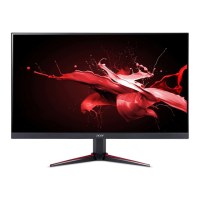
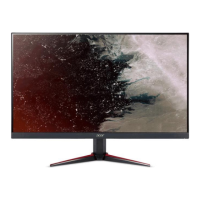
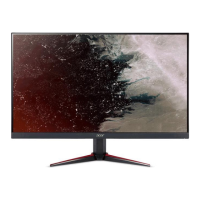
Need help?
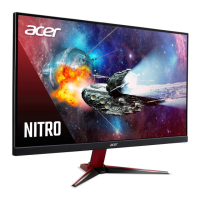
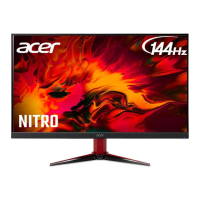
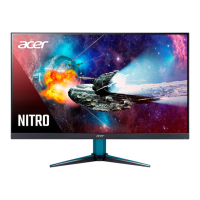
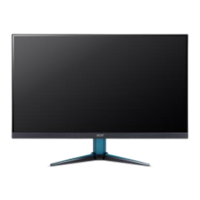
Do you have a question about the Acer VG272 and is the answer not in the manual?
Read instructions carefully, keep for reference, follow warnings.
Detailed description of power button and function key operations.
Troubleshooting for no picture visible issues with remedies.
This document is a user guide for an Acer LCD Monitor, providing essential information for safe and comfortable use, setup, and troubleshooting.
The Acer LCD monitor is designed for video and visual display of information from electronic devices. It offers a high-precision display with advanced features for optimal viewing and user comfort. The monitor supports various input sources, including HDMI and DisplayPort, and includes functionalities like power saving, dynamic contrast adjustment, and specialized gaming modes.
General Use and Comfort: The monitor provides several features to enhance user comfort and reduce potential strain during prolonged use. Users can adjust the tilt of the monitor to find the best viewing position, with a recline range of -5° to 20°. The display incorporates a "Blue Light" filter, which can be adjusted to 80%, 70%, 60%, or 50% to protect eyes by reducing blue light emission. A lower percentage indicates better protection, with 50% meeting TÜV Rheinland's "Low Blue Light Content" standard. The "Super Sharpness" technology enhances image clarity by boosting pixel density, making high-resolution images appear even sharper.
Power Management: The monitor is equipped with power management features. It activates a Sleep mode after 5 minutes of user inactivity and can be woken by moving the mouse or pressing any keyboard key. The power LED indicates the monitor's state: blue for ON and amber for Power Saving Mode. The recovery time from Active OFF to ON state is approximately 3 seconds.
Display Adjustments: Users can fine-tune display settings through the On-Screen Display (OSD) menu. This includes adjusting brightness (0-100) and contrast (0-100) to balance light and dark shades. The "Black Boost" feature allows adjustment of black levels (0-10) to enhance shadows without affecting lighter shades. "ACM" (Adaptive Contrast Management) can be turned on or off for dynamic contrast adjustment based on the current screen content. The monitor also supports HDR (High Dynamic Range) for better color matching and dynamic lighting rendering.
Color Settings: The OSD menu offers comprehensive color adjustments. Users can select different Gamma modes to adjust luminance tone, with 2.2 being the default for Windows. Color temperature options include Cool, Normal, Warm, Bluelight, or User-defined. For advanced color control, "6-axis Hue" and "6-axis Saturate" allow precise adjustments of red, green, blue, yellow, magenta, and cyan hues and saturation levels. An sRGB mode can be enabled for better color matching with peripheral devices like printers and digital cameras.
Audio Settings: The monitor includes audio controls, allowing users to adjust the volume and mute the sound directly from the OSD menu.
Gaming Features: For gamers, the monitor offers specialized features to enhance the gaming experience. "Over Drive" can be set to Off, Normal, or Extreme to reduce response time. "AdaptiveSync" (default On) synchronizes the display's refresh rate with the graphics card's frame rate to prevent screen tearing and stuttering. If AdaptiveSync is on, Over Drive is automatically set to Normal. If AdaptiveSync is off, users can manually select Over Drive settings. The "Refresh Rate Num" displays the panel's current refresh rate. "VRB" (Visual Response Boost) is a dynamic picture control feature that enhances clarity, though it may darken the overall brightness. "Ultra-Low Latency" (default On) speeds up the display switching process, but it is not supported at resolutions below 800x600. An "Aim Point" feature can be displayed on the screen for shooting games, though it is not available in PBP (Picture-by-Picture) mode.
System Settings: The system menu allows selection of input sources (HDMI1, HDMI2, DP) and enables "Auto Source" to automatically search for a signal source. "DP Format" can be set to DP1.1, 1 or DP1.2. "Wide Mode" offers aspect ratio options like Aspect, 1:1, and Full. "Hot Key Assignment" allows users to customize the functions of shortcut keys. "DDC/CI" (Display Data Channel/Command Interface) enables monitor settings to be controlled via software on the PC. "HDMI Black Level" can be adjusted, and "Quick Start Mode" (On/Off) speeds up boot time.
OSD Customization: The OSD menu itself can be customized. Users can select the OSD menu language, adjust the "OSD Timeout" (delay before turning off), and set "Transparency" (0%, 20%, 40%, 60%, or 80%) when using gaming mode. An "OSD Lock" feature prevents accidental changes to settings. When locked, an "OSD Locked" message appears, and LED lights change from blue to orange. To unlock, the "Navi Key" must be pressed for more than 3 seconds.
User Profiles: The monitor supports three user-defined profiles, allowing users to save their preferred settings for different scenarios (e.g., Game Mode Action, Game Mode Racing, Game Mode Sports). These settings can be recalled later, providing quick access to optimized configurations.
Cleaning: To maintain the monitor, it is crucial to unplug it before cleaning. A soft cloth should be used to wipe the screen and the cabinet's front and sides.
Troubleshooting: The user guide provides a troubleshooting section for common issues. For example, if there is no picture, users are advised to check the power switch, AC power cord connection, video signal cable connection, and ensure the computer system is on and not in power saving/standby mode. Brightness and contrast can also be adjusted via the OSD menu or reset to default settings.
Safety Guidelines: The manual emphasizes several safety instructions, including ensuring the power outlet is easily accessible, protecting hearing by gradually increasing volume and limiting high-volume listening, and avoiding the use of the product near water or on unstable surfaces. Proper ventilation is crucial, and openings should not be blocked. Users are warned against inserting objects into cabinet slots or spilling liquids onto the product. The product should not be used in vibrating environments or under conditions that could cause internal damage. Electrical power usage guidelines include ensuring the correct power cord type, avoiding overloading power outlets, and using a properly grounded plug. Product servicing should only be performed by qualified personnel to avoid exposure to dangerous voltage.
Environmental Responsibility: Acer is committed to environmental protection and recycling. The guide provides information on IT equipment recycling and disposal instructions, encouraging users to recycle electronic devices to minimize pollution and protect the environment. Links to Acer's sustainability website are provided for more information.
 General
| Screen Size | 27 inches |
|---|---|
| Resolution | 1920 x 1080 (Full HD) |
| Panel Type | IPS |
| Response Time | 1ms (VRB) |
| Adaptive Sync | AMD FreeSync |
| Contrast Ratio | 1000:1 |
| Viewing Angle | 178° (H) / 178° (V) |
| Color Gamut | 72% NTSC |
| VESA Mount | 100 x 100 mm |
| Tilt | -5° to 20° |
| Refresh Rate | 165Hz |
| Brightness | 250 nits |
| Ports | 1 x DisplayPort 1.2 |
| Weight | 4.85 kg |

 To Next Page