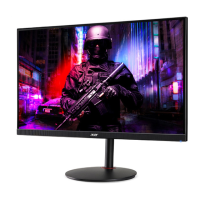
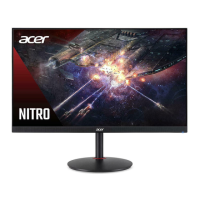
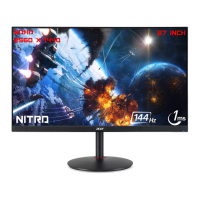
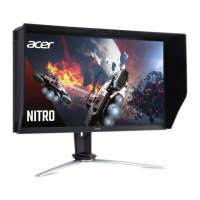
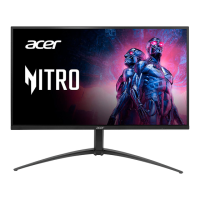
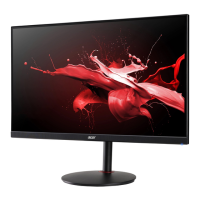
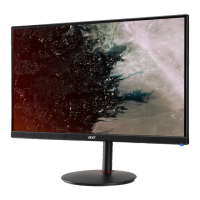
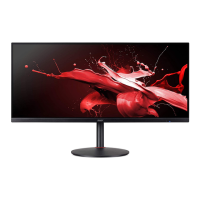
This document serves as a user guide for an Acer LCD Monitor, providing essential information for its safe operation, comfort, and maintenance. It covers various aspects from initial setup to troubleshooting, ensuring users can maximize their experience with the device.
Function Description
The Acer LCD Monitor is designed to provide visual display of information from electronic devices. It functions as a primary output device for computers, allowing users to view desktop patterns, applications, and multimedia content. The monitor supports various display resolutions and timing standards, ensuring compatibility with a wide range of systems. It incorporates a universal power supply, enabling operation in different voltage environments without user adjustment. The monitor also features Display Data Channel (DDC) protocol support, allowing for plug-and-play functionality where the monitor automatically communicates its capabilities to the host system, including supported resolutions and timing. This ensures an easier installation process and optimal display settings.
Usage Features
The monitor offers a range of features designed to enhance user experience and comfort.
- Physical Adjustments: The monitor's tilt can be adjusted to optimize the viewing position. Users can hold the edges of the monitor and tilt it up to 35 degrees or down to 5 degrees, allowing for a personalized and comfortable viewing angle.
- Power Management: The monitor is equipped with power management features to conserve energy. It can enter a "Power Saving" mode, indicated by an amber-colored power LED, when a control signal from the display controller is detected. This mode is maintained until a control signal is detected or the keyboard/mouse is activated, with a quick recovery time of approximately 3 seconds back to the ON state.
- On-Screen Display (OSD) Menu: The OSD menu is a central control hub for adjusting various monitor settings. It can be accessed via the MENU key and navigated using a joystick-like toggle button on the backside of the display bezel. The OSD allows users to adjust picture quality, OSD position, and general settings.
- Picture Settings: Within the OSD, users can fine-tune picture settings such as Brightness, Contrast, Black Boost, Blue Light, ACM, HDR, and Super Sharpness.
- Brightness: Adjustable from 0 to 100, balancing light and dark shades.
- Contrast: Adjustable from 0 to 100, setting the degree of difference between light and dark areas.
- Black Boost: Adjustable from 0 to 10, enhancing shadows by increasing brightness without affecting lighter shades.
- Blue Light: Filters out blue light to protect eyes, with adjustable levels (80%, 70%, 60%, or 50%). Lower values provide better protection, with 50% being the optimal state tested by TÜV Rheinland for "Low Blue Light Content."
- ACM (Adaptive Contrast Management): Can be turned on or off for dynamic contrast adjustment based on the current screen content.
- HDR (High Dynamic Range): Offers "off" and "auto" modes. In "auto" mode, the monitor automatically detects and processes HDR signals, and the display modes are also set to "HDR." When HDR is in "auto" mode, certain parameters like ACM, Gamma, Contrast, Black Boost, and Blue Light are grayed out and disabled.
- Super Sharpness: Can be turned on or off to simulate high-resolution images by boosting the pixel density of the original source, resulting in sharper and clearer images.
- Color Settings: The Color menu allows for adjustments to Gamma, Color Temperature, Modes, sRGB Mode, Grayscale Mode, 6-axis Hue, and 6-axis Saturate.
- Gamma: Adjusts luminance tone, with a default value of 2.2 for Windows.
- Color Temperature: Options include Cool, Normal, Warm, Bluelight, or User-defined.
- Modes: Allows selection of scenario modes (User, Standard, ECO, Graphics, Movie) or game modes (G1, G2, G3) for user-defined profiles.
- sRGB Mode: Can be turned on or off for better color matching with peripheral devices like printers and digital cameras.
- Grayscale Mode: Enables grayscale display.
- 6-axis Hue and Saturate: Provide fine control over the red, green, blue, yellow, magenta, and cyan hues and saturation levels.
- Audio Settings: The Audio menu includes Volume adjustment and a Mute on/off option.
- Gaming Features: The Gaming menu offers Over Drive, FreeSync, Refresh Rate Num, Ultra-Low Latency, and Aim Point.
- Over Drive: Selectable as Off, Normal, or Extreme, to reduce response time.
- FreeSync: Can be turned on or off. When FreeSync is "ON," Over Drive is automatically set to "Normal." When "OFF," users can manually set Over Drive to Extreme, Normal, or Off.
- Refresh Rate Num: Displays the panel's current refresh rate.
- Ultra-Low Latency: When set to "On," speeds up the processing time of the display switching process. This feature is automatically set to "On" and grayed out when FreeSync is active. It is not supported at resolutions below 800x600.
- Aim Point: Displays an aim point on the screen for shooting games.
- OSD Settings: The OSD menu itself can be customized with Language selection, OSD Timeout, Transparency, and OSD Lock.
- Language: Sets the OSD menu language.
- OSD Timeout: Adjusts the delay before the OSD menu turns off.
- Transparency: Selects the transparency of the OSD when using gaming mode (0%, 20%, 40%, 60%, or 80%).
- OSD Lock: Locks all OSD keys to prevent accidental changes. When locked, an "OSD Locked" message is displayed, and the LED light changes from blue to orange. To unlock, the "Navi Key" must be pressed for more than 3 seconds.
- System Settings: The System menu includes Input selection, Auto Source, DP Format, Wide Mode, Hot Key Assignment, DDC/CI, HDMI Black Level, and Quick Start Mode.
- Input: Selects the signal source (HDMI1, HDMI2, DP).
- Auto Source: When "On," the monitor automatically searches for a signal source. For surround applications, Auto Source must be "Off."
- DP Format: Supports DP1.1 or DP1.2 formats.
- Wide Mode: Selects the screen aspect ratio (Aspect or Full).
- Hot Key Assignment: Allows users to assign functions (Modes, Volume, Brightness, Gamma, Contrast, Blue Light, Over Drive) to shortcut keys 1 and 2.
- DDC/CI (Display Data Channel/Command Interface): Allows monitor settings to be controlled via software on the PC.
- HDMI Black Level: Sets the HDMI black level.
- Quick Start Mode: Can be turned on or off to speed up boot time.
- Save Settings: In User mode, users can save their preferred settings into five user-defined profiles (Game Mode Action, Game Mode Racing, Game Mode Sports, etc.). These settings can be recalled when entering gaming mode.
Maintenance Features
The manual provides clear guidelines for the care and maintenance of the monitor, focusing on safety and longevity.
- Cleaning: Users are instructed to always unplug the monitor before cleaning. A soft cloth should be used to wipe the screen and the cabinet's front and sides.
- Safety Instructions: Emphasizes reading instructions carefully, keeping the document for future reference, and following all warnings on the product.
- Accessibility: Ensures the power outlet is easily accessible and close to the operator for quick disconnection.
- Safe Listening: Provides guidelines for protecting hearing when using audio features, such as gradually increasing volume, limiting high-volume listening, and avoiding turning up volume to block out noise.
- Warnings: Includes critical warnings against using the product near water, on unstable surfaces, blocking ventilation openings, pushing objects into slots, spilling liquids, placing it on vibrating surfaces, or using it in vibrating environments. It also specifies that the supplied adapter is only for this monitor.
- Electrical Power Usage: Advises operating the product from the specified power type, consulting a dealer if unsure, and ensuring nothing rests on the power cord. It also warns against overloading power outlets or using non-grounded outlets.
- Product Servicing: Strongly advises against self-servicing to avoid dangerous voltage points and other risks. All servicing should be referred to qualified personnel, especially if the power cord is damaged, liquid is spilled, the product is exposed to water, dropped, or exhibits a distinct change in performance.
- Environmental Protection: Acer is committed to environmental protection and recycling. The manual directs users to Acer's website for information on IT equipment recycling and disposal instructions, encouraging recycling of electronic devices to minimize pollution and protect the global environment, in compliance with WEEE regulations.
- Comfort Tips: Offers tips for comfortable computer use, including finding a comfortable viewing angle, using a footrest, adjusting sitting height, refraining from fixed postures, avoiding slouching, standing up and walking regularly, resting eyes frequently, keeping the display clean, adjusting brightness/contrast, and eliminating glare and reflections.
- Good Work Habits: Encourages developing good work habits such as taking short breaks, performing stretching exercises, breathing fresh air, and exercising regularly to maintain a healthy body.

 Need help?
 General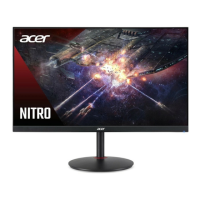

 To Next Page