EasyManua.ls Logo

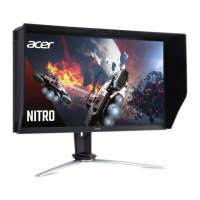
Acer XV270 - User Manual

Acer XV270
30 pages
Print Icon
To Next Page IconTo Next Page
Loading...
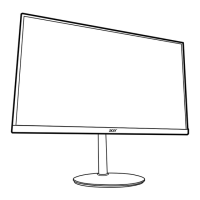
Acer LCD Monitor
User Guide

Other manuals for Acer XV270

Questions and Answers

  • J
    Jeffrey MartinezAug 10, 2025
    What to do if my Acer XV270 has no picture?
    • B
      Brandon HurleyAug 10, 2025
      If your Acer monitor displays no picture, there are several things you can check. First, use the OSD to adjust the brightness and contrast to the maximum or reset them to their default settings. Ensure the power switch is on and the AC power cord is properly connected to the monitor. Verify that the video signal cable is securely connected to the back of the monitor. Also, make sure that your computer system is powered on.
  • J
    Jaime HillAug 20, 2025
    Why does my Acer XV270 have an abnormal picture?
    • M
      Michael ScottAug 20, 2025
      An abnormal picture on your Acer monitor might be due to a mismatch between the graphics adapter and monitor specifications, causing an input signal frequency mismatch. To resolve this, check the compatibility of your graphics adapter and monitor specifications. For non-standard signals, use the OSD to adjust the RESOLUTION, CLOCK, CLOCK-PHASE, H-POSITION, and V-POSITION. If the full-screen image is missing, use the OSD to select another resolution or vertical refresh timing. After adjusting the image size, wait a few seconds before changing or disconnecting the signal cable or powering off the monitor.
  • S
    Stephanie GonzalezAug 30, 2025
    How to fix abnormal sound on my Acer Monitor?
    • J
      Julie GrayAug 30, 2025
      If you're experiencing abnormal sound on your Acer monitor (audio-input model), first check that the audio cable connecting the monitor to the host PC is properly connected. Also, verify that the volume setting on the host PC is not set to the minimum. If it is, try increasing the volume level.

Summary

Information for Your Safety and Comfort

Safety Instructions

Read and follow all safety instructions and warnings marked on the product for safe operation.

Accessibility and Warnings

Safe Listening Guidelines

Offers advice to protect hearing by managing volume levels and listening duration.

General Safety Warnings

Lists crucial warnings regarding water usage, placement, ventilation, and object insertion.

Electrical Power Safety

Covers safe usage of electrical power, cord placement, and grounding for preventing shock.

Electrical Safety and Servicing

Extension Cord and Outlet Safety

Details precautions for using extension cords and avoiding overloading outlets for electrical safety.

Grounding Pin Safety

Explains the importance of the grounding pin for safety and protection from electrical shock and noise.

Product Servicing Guidelines

Instructs users not to service the product themselves and when to contact qualified personnel.

Environmental and Safety Precautions

Potentially Explosive Environments

Advises switching off the device in areas with potentially explosive atmospheres to prevent ignition.

Vision Care and Work Habits

Taking Care of Your Vision

Suggests methods to reduce eyestrain caused by long viewing hours, glare, and poor lighting.

Screen Position Adjustment

Monitor Adjustments

Connection and Power Saving

Connecting Power Cord

Guides on checking power cord type and connecting the adapter to the monitor and outlet.

Installation and FreeSync

FreeSync Technology

Explains FreeSync's function for dynamic refresh rate adjustment, ensuring smooth visuals.

User Controls and External Buttons

Using the Shortcut Menu

Input Selection and Function Page

Picture Settings Adjustment

HDR Mode Configuration

Explains how to enable and configure the HDR function for enhanced visual output.

HDR Status and Effects

Configuring HDR Functionality

Explains the optional HDR settings and their effects on the display's visual output.

Color Settings

Audio and Gaming Settings

Gaming Features Explained

Details gaming-specific features like Over Drive, FreeSync, and Ultra-Low Latency.

Advanced Gaming and OSD Settings

System Settings and Input

Advanced System Settings

Troubleshooting and Compliance

Troubleshooting Display Issues

Provides remedies for common display problems like no picture, checking power and connections.

Acer XV270 Specifications

General IconGeneral
Screen Size27 inches
Panel TypeIPS
Response Time1 ms (VRB)
Brightness400 nits
Contrast Ratio1000:1
Adaptive SyncAMD FreeSync Premium
Viewing Angle178° (H) / 178° (V)
Color Gamut99% sRGB
VESA Mount100 x 100 mm
Resolution1920 x 1080 (FHD)
Ports2 x HDMI 2.0, 1 x DisplayPort 1.2, 1 x Audio Out
Refresh Rate165Hz

Related product manuals