This document is a user guide for an Acer LCD Monitor, providing essential information for its safe and comfortable use, technical specifications, installation instructions, and troubleshooting tips.
Function Description:
The Acer LCD Monitor is designed for video and visual display of information from electronic devices. It supports various display modes and resolutions, including VGA, MAC, VESA, SVGA, XGA, SXGA, WXGA, WXGA+, WSXGA+, FHD, and QHD, with refresh rates ranging from 56Hz to 75Hz. The monitor features a user-friendly On-Screen Display (OSD) menu for adjusting picture quality, OSD position, and general settings. It also includes specific gaming features like Over Drive, FreeSync, VRB, Ultra-Low Latency, and Aim Point. The monitor supports DDC (Display Data Channel) protocol for plug-and-play functionality, automatically informing the host system about its capabilities.
Important Technical Specifications:
- Model Number: XV270U (with SKU variations like XV270U xxxxxx, where 'x' can be 0-9, a-z, or A-Z).
- Display Type: LCD Monitor.
- Power Supply: Universal, supporting 100/120 V AC or 220/240 V AC.
- Power Cord: UL-listed cord set, type SVT, rated 10 A/125 V for 120 V AC units; H05VV-F cord and plug, rated 10 A/250 V for 220/240 V AC units.
- Input Sockets: HDMI2.0 (optional) and/or DP (optional).
- Supported Resolutions and Refresh Rates:
- VGA: 640x480 (60Hz)
- MAC: 640x480 (66.66Hz)
- VESA: 720x400 (70Hz)
- SVGA: 800x600 (56Hz, 60Hz)
- XGA: 1024x768 (60Hz, 70Hz)
- VESA: 1152x864 (75Hz)
- SXGA: 1280x1024 (60Hz)
- VESA: 1280x720 (60Hz)
- WXGA: 1280x800 (60Hz)
- WXGA+: 1440x900 (60Hz)
- WSXGA+: 1680x1050 (60Hz)
- FHD: 1920x1080 (60Hz)
- QHD: 2560x1440 (60Hz, 75Hz)
- Pixel Specification: LCD screen has 99.99% or more effective pixels; may include blemishes of 0.01% or less (missing or always-lit pixels).
- Power Saving Mode: Amber LED indicates standby/power saving mode. Recovery time from Active OFF to ON state is approximately 3 seconds.
- Regulatory Compliance: CE, FCC, VCCI, Nemko, N, R33037 RoHS, NOM.
Usage Features:
- Physical Adjustments:
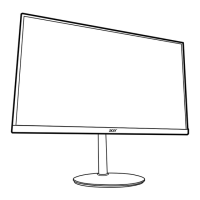
- Height Adjustment: The monitor's height can be adjusted by pressing down on the top of the monitor.
- Tilt: The monitor can tilt from -5° to 25°.
- Swivel: The monitor can swivel 360° on its built-in pedestal.
- Pivot: The display can be rotated clockwise or counter-clockwise up to ±90° after lifting it to the top position and pushing it back.
- External Controls (Joystick): A single toggle button on the backside of the display bezel acts as a joystick for navigation and selection within the OSD.
- Power Button: Turns the monitor on/off (Blue for on, Amber for standby/power saving).
- Function Key 1 (Main Page/Hotkey1): Accesses main OSD page, then hotkey1 functions (Modes, Brightness, Volume, Gamma, Contrast, Blue Light, Over Drive, PIP/PBP, VRB). Also shows monitor info/resets custom color settings.
- Function Key 2 (Main Page/Hotkey2): Accesses main OSD page, then hotkey2 functions (Modes, Brightness, Contrast, Volume, Gamma, Blue Light, Over Drive, PIP/PBP, VRB). Also selects scenario or game mode.
- Function Key 3 (Main Page/Input Select): Accesses main OSD page, then Input select function. Quits OSD when Function Menu is active.
- Function Key 4 (Main Page/Next Function): Accesses main OSD page, then next function in the Function Menu.
- On-Screen Display (OSD) Menu:
- Picture Settings: Brightness (0-100), Contrast (0-100), Black Boost (0-10), Blue Light (80%, 70%, 60%, 50%), ACM (On/Off), Super Sharpness (On/Off), HDR (Off/Auto).
- Color Settings: Gamma (default 2.2), Color Temperature (Cool, Normal, Warm, Bluelight, User), Modes (scenario selection), sRGB Mode (On/Off), Grayscale Mode, 6-axis Hue, 6-axis Saturate.
- Audio Settings: Volume, Mute (On/Off).
- Gaming Settings: Over Drive (Off, Normal, Extreme), FreeSync (On/Off), VRB (Off, Normal, Extreme), Ultra-Low Latency (On/Off), Aim Point (On/Off).
- OSD Settings: Language, OSD Timeout, Transparency (0%, 20%, 40%, 60%, 80%), Refresh Rate Num (On/Off), OSD Lock (On/Off).
- System Settings: Input (HDMI 1, HDMI 2, DP), Auto Source (On/Off), DP Format (DP1.1, DP1.2), Wide Mode (Aspect, Full, 1:1), PIP/PBP (Picture-in-Picture/Picture-by-Picture) settings, Hot Key Assignment, DDC/CI (On/Off), HDMI Black Level, Quick Start Mode (Off/On).
- Gaming Features:
- FreeSync (DP/HDMI): Dynamically adjusts display refresh rate for stutter-free and low-latency updates.
- VRB (Visual Response Boost): Supports dynamic picture control for cleaner images. Note: VRB is affected by HDR, FreeSync, Brightness, Blue Light, ACM, and input timing.
- Ultra-Low Latency: Speeds up display switching process.
- Aim Point: Displays an aim point on screen for shooting games.
- Power Management: Activates Sleep mode within 5 minutes of user inactivity. Wakes up when mouse is moved or any keyboard key is pressed.
- Accessibility: Power outlet should be easily accessible.
- Safe Listening: Gradual volume increase, limit high-volume listening, avoid turning up volume to block noise, turn down volume if unable to hear people speaking.
Maintenance Features:
- Cleaning:
- Always unplug the monitor before cleaning.
- Use a soft cloth to wipe the screen and cabinet front and sides.
- Troubleshooting: A dedicated section provides remedies for common issues like "No picture visible" based on LED status (Blue, Off, Amber).
- Product Servicing: Do not attempt to service the product yourself. Refer all servicing to qualified service personnel, especially if the power cord/plug is damaged, liquid is spilled, the product is exposed to rain/water, dropped, or exhibits distinct changes in performance.
- Recycling: Acer is committed to environmental protection and recycling of used equipment. Information on WEEE regulations and recycling is provided via website links.

 Need help?

 To Next Page
 General