MESSAGING
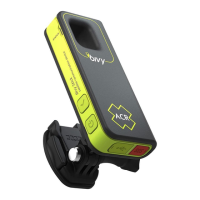
Make sure you are connected to the Bivy Stick via Bluetooth.
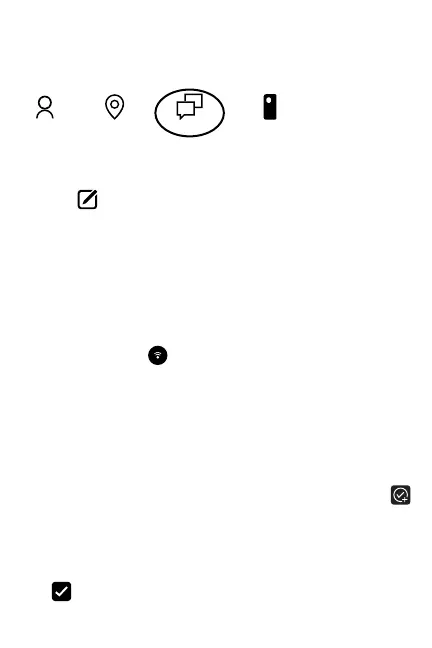
Enter the Messages screen by tapping “MESSAGES” on the
bottom menu.
The Bivy app will ask if you would like to sync your contacts.
This can take up to 5 minutes, depending on how many
contacts you have in your phone.
Use the New Message button to start a new text chain.
Type in the name, number or email address of the person
you want to message. You can send one message to multiple
people, but each message will go to the recipient individually,
and replies will come in their own thread. It does not work like
standard group messaging.
Once you have picked your recipient, enter your message into
the message field at the bottom of the screen. Maximum 160
characters.
You can also hit the Location button to the left of the
message field to automatically add your GPS coordinates and
a link for recipients to see your location on a map.
When a message is being sent out, the status of the message
will say “Sending.” The Status light on the Stick will flash
yellow. Once it has successfully been sent, the Status light on
the Stick will no longer flash yellow and the message status on
the app will change from “Sending” to a timestamp.
To create a preset Check-In message, tap on Check-In Setup
on the STICK screen. You can enter up to five recipients,
comprised of phone numbers or email addresses. Then enter
your message text, up to 160 characters. This will be sent along
with your GPS coordinates and a URL link the recipient(s) can
click on to see your location when you send the Check-In.
The Check-In button sends a Check-In using the phone's
location information to the recipients setup in Check-In Setup.
PROFILE MAP MESSAGES STICK
3


 To Next Page
 Loading...