Automatic Partition Operations
Copyright © Acronis, Inc., 2000–2010
29
Click Finish on the last wizard page to allow Acronis Disk Director Server to create a
pending operation list for new partition creation (these actions may only modify an existing
operation. See
3.4.5 «Modifying pending operations»).
4.2 Increasing Partition Free Space
You might need to increase partition free space in some cases:
• There is no free space to install new applications or store data
• Some programs, like defragmenters, could stop working correctly if partition
free space is smaller than a certain value
Reducing system partition free space below a certain value might cause operating system
problems. The Increase free space wizard will enable you to enlarge a partition using
other partitions' free space. If there is not enough free space in other partitions, it can
use unallocated disk space.
If you need to increase partition free space:
1. Run the Increase free space wizard by selecting Wizards Increase free space or a
similar item in the Wizards sidebar list or by clicking
Increase free space on a
partition on the toolbar.
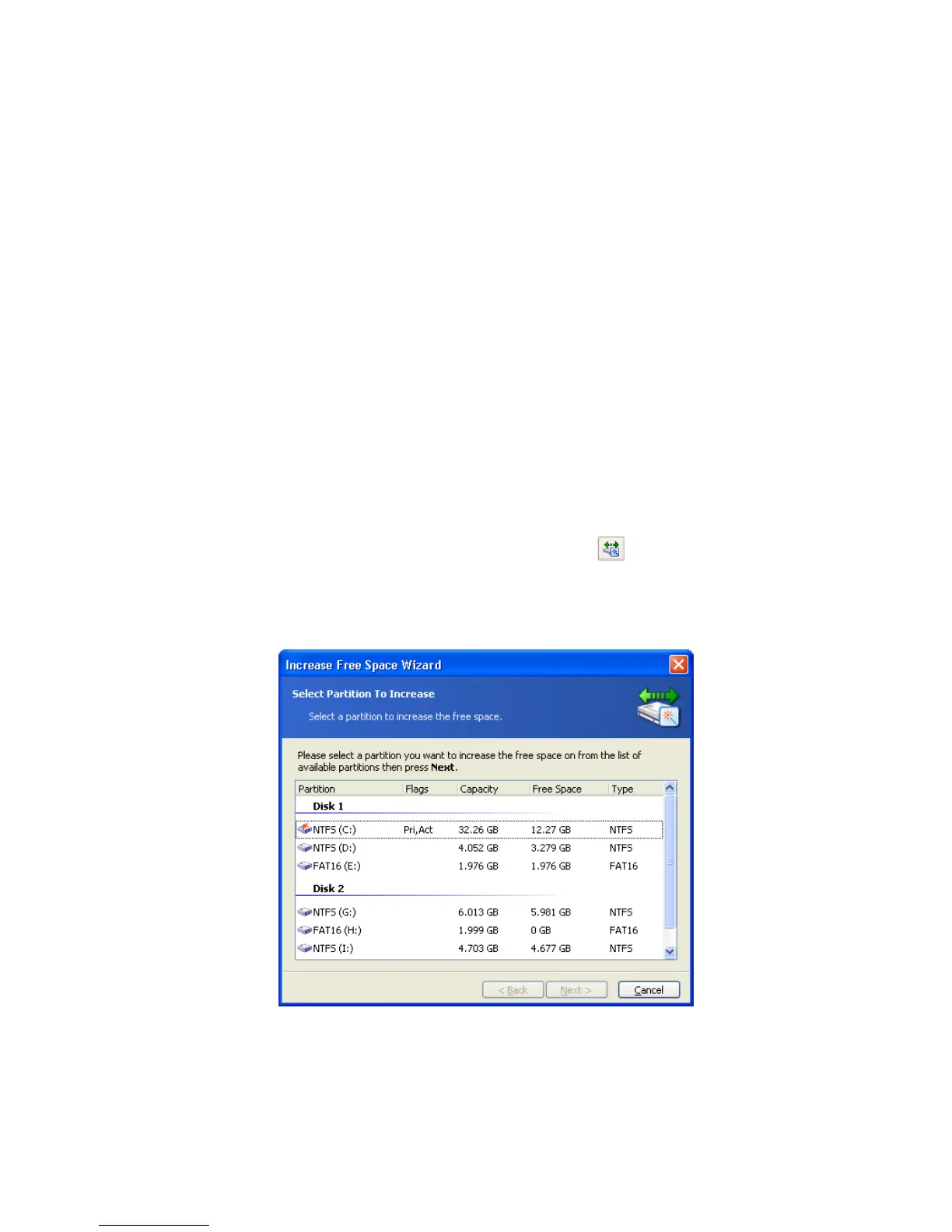
2. On the Select Partition To Increase wizard page, select a partition that you want to
enlarge.
Selecting a partition to increase free space
3. On the Select Partitions wizard page, select a disk partition whose space will be used
to increase the selected partition.



 To Next Page