PC Connect Frequently Asked Questions
We have put together some of the most frequently asked questions for the PC Connect software.
Where do I set the USB Mode in PC Connect?
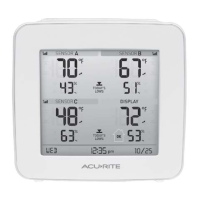
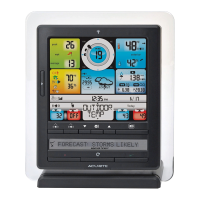
There is no USB mode setting in PC Connect. You may need to set the USB Mode on your Weather Station Indoor
Display unit as indicated below. The model number is located on the back of the Indoor Display.
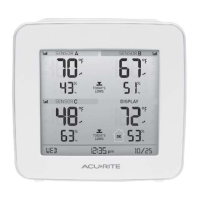
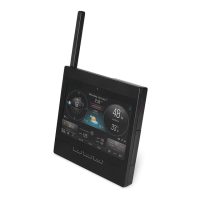
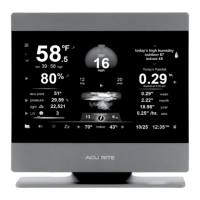
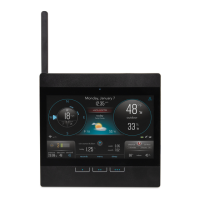
Weather Station models 02064 and 01536 - there is no USB Mode setting on the display. Simply open the PC
Connect software and connect the Indoor Display to your computer using the supplied USB cable.
Weather Station models 01025, 01035, 01036, 01525 or 02032 - before you connect the Indoor Display to your
computer, from the SET menu on the Indoor Display, cycle through the settings to USB MODE or PC
CONNECTMODE and then using the up arrow set to 3 or 4 and press SET to save the setting.
How often is my data sent from PC Connect to Weather Underground when Rapid
Fire Updating is enabled?
Data is sent to Weather Underground as often as every 18 seconds.
Does PC Connect have a software auto-update feature?
No. Software updates are posted on our web site. To view the latest PC Connect software version, from a web
browser, go to > acurite > select Support> from the Categories section select Downloads > select PC Connect
Download.
The current version installed on your computer is listed in the lower left corner of the PC Connect software screen
(example v.2.0.0)
Before you install the latest version, be sure to uninstall any earlier versions.
Cannot write to the Data Transfer CSV file when the file is open
If the Data Transfer CSV file is open when a data transfer is scheduled to occur, PC Connect cannot write to the open
file and the data scheduled to be transferred will be lost. To avoid a loss of data, the Data Transfer file must be closed
during scheduled transfers.
Rely on premium home automation by AcuRite if you’re looking for quality and efficiency.


 To Previous Page