Receiving the time signal
23
CK 2302 DCF radio-controlled clock
English
Setting the time and date manually
If there is more than approx. 20 seconds between two pushes of a button,
the setting process automatically ends and you will have to repeat it.
1. Press and hold the
button until the indicator for the 12- and 24-hour time format
blinks on the display.
2. Use the button
or to set the desired time format: "12 H" or "24 H". If you choose
"12 H", morning hours will be marked with "AM" and afternoon hours with "PM" on
the display.
3. Press
to save the setting. "00" flashes in the display for the time zone you are in
("00" is the default setting for the European mainland).
4. Proceed as previously described:
− Press the button
or to set the desired value.
− Press
to save a setting.
5. You should set the following:
− Hours
− Minutes
− Date format (Day/Month or Month/Day)
− Year
− Month
− Day
− Language (relates exclusively to the weekday indicator)
6. Finally, press
to conclude the procedure.
Starting signal reception of the time signal manually
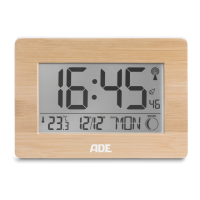
If the radio signal symbol to the left is no longer displayed, the radio signals
from the time signal transmitter are no longer being received. The time
indicator nevertheless continues precisely.
− Press and hold the
button for a few seconds. This is how you manually start (and
end, if necessary) the signal reception.
Pay attention to the following:
If the reception was not successful, the reception symbol fades out after a few
minutes and the time on the display continues normally.
Upon successful signal reception, the radio-controlled clock adjusts itself to the
time of the time signal transmitter. If you have already made manual time and date
settings, they will be adjusted automatically.



 To Next Page