6
USING ACROBAT X PRO
Workspace
Last updated 10/11/2011
When you open a PDF inside a web browser, the toolbars, navigation pane, and task panes are not available. You can
display those items by clicking the Acrobat icon
in the semi-transparent floating toolbar near the bottom of the
window.
Note: Some, but not all, PDFs appear with a document message bar. PDF Portfolios appear with a specialized work area.
For videos on the Acrobat interface, see the following resources:
• Getting around the Acrobat X interface: www.adobe.com/go/learn_acr_10_interface_en
• Getting Started in Acrobat X: www.adobe.com/go/lrvid_002_acrx_en
More Help topics
“Toolbars” on page 7
“Task panes” on page 9
“Document message bar” on page 10
“PDF Portfolio window overview” on page 96
Welcome Screen
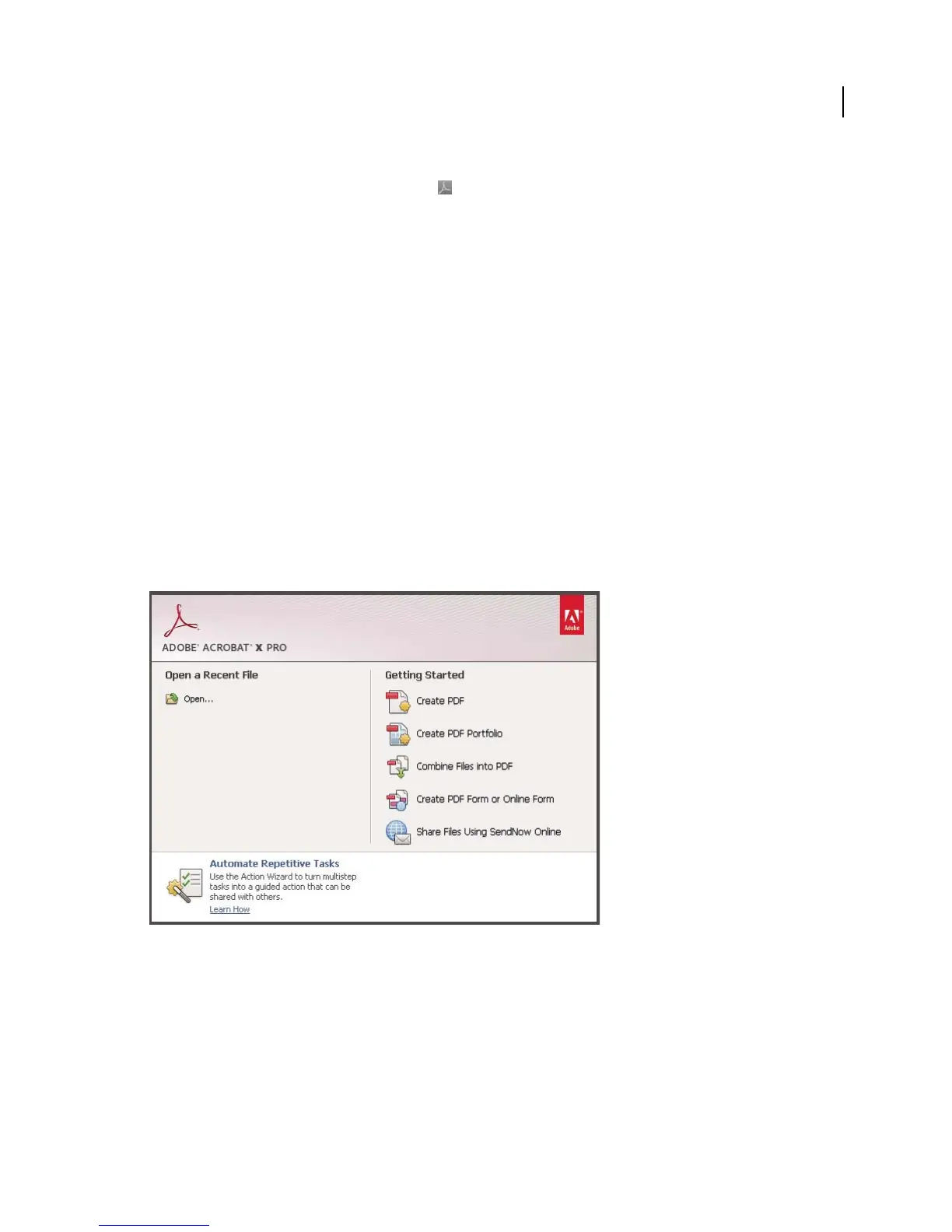
The Welcome Screen is a window in the document pane that appears when no document is open. You can quickly
access the recently opened files, open a file, and launch some commonly used workflows with a single click.
Acrobat X Welcome Screen
Note: In Mac OS, you can turn off the Welcome Screen by setting a preference. Choose Acrobat/Reader > Preferences. In
the Categories on the left, click General. In the Application Startup section, deselect Show Welcome Screen. There is no
similar option in Windows.



 To Next Page