11
USING ACROBAT X PRO
Workspace
Last updated 10/11/2011
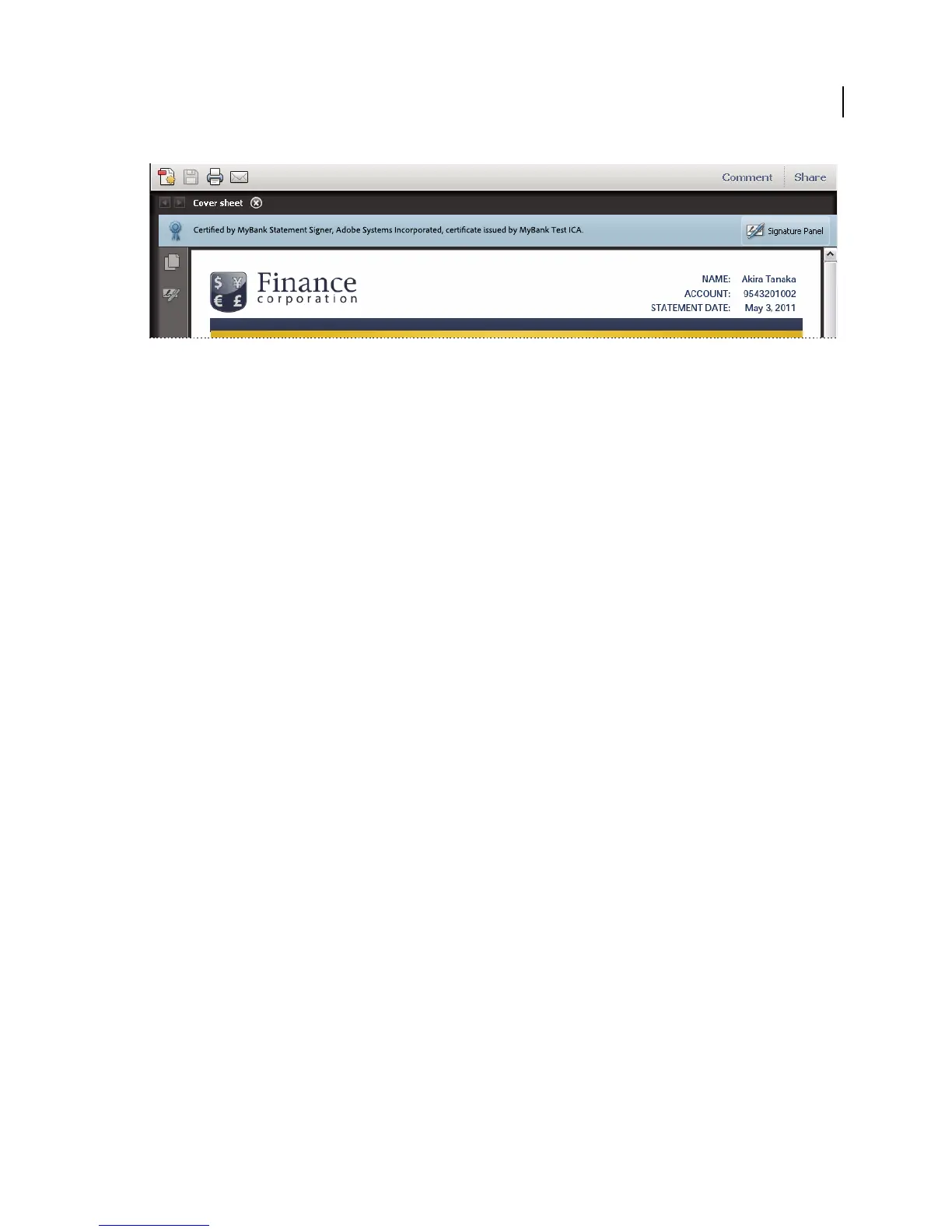
Document message bar for a certified PDF Portfolio
More Help topics
“Security warnings” on page 218
“Enhanced security” on page 214
“Filling in forms” on page 209
“Commenting” on page 150
Set preferences
Many program settings are specified in the Preferences dialog box, including settings for display, tools, conversion,
and performance. Once you set preferences, they remain in effect until you change them.
1 Choose Edit > Preferences (Windows) or Acrobat/Adobe Reader > Preferences (Mac OS).
2 Under Categories, select the type of preference you want to change.
Restore (re-create) preferences
Restore the Acrobat Preferences folder (Windows)
Restore the Acrobat Preferences folder to eliminate problems that damaged preferences cause. Most preference
problems are caused by these file-based preferences, although most Acrobat preferences are stored within the registry.
Note: This solution removes custom settings for Collaboration, JavaScripts, Security, Stamps, Color Management, Auto
Fill, Web Capture, and Updater.
1 Quit Acrobat.
2 In Windows Explorer, go to the Preferences folder:
• (Windows 7/Vista) C:\Users\[username]\AppData\Roaming\Adobe\Acrobat\[version]
• (XP) C:\Documents and Settings\[username]\Application Data\Adobe\Acrobat\[version]
3 Move the Preferences folder to another location (for example, C:\Temp).
4 Restart Acrobat.
If the problem recurs after you restore the Acrobat Preferences folder, then the problem isn’t related to the Preferences
folder. To restore custom settings, drag the folder you moved in step 2 back to its original location. Then click Yes To
All to replace the new Preferences folder.



 To Next Page