123
USING ACROBAT X PRO
PDF Portfolios and combined PDFs
Last updated 10/11/2011
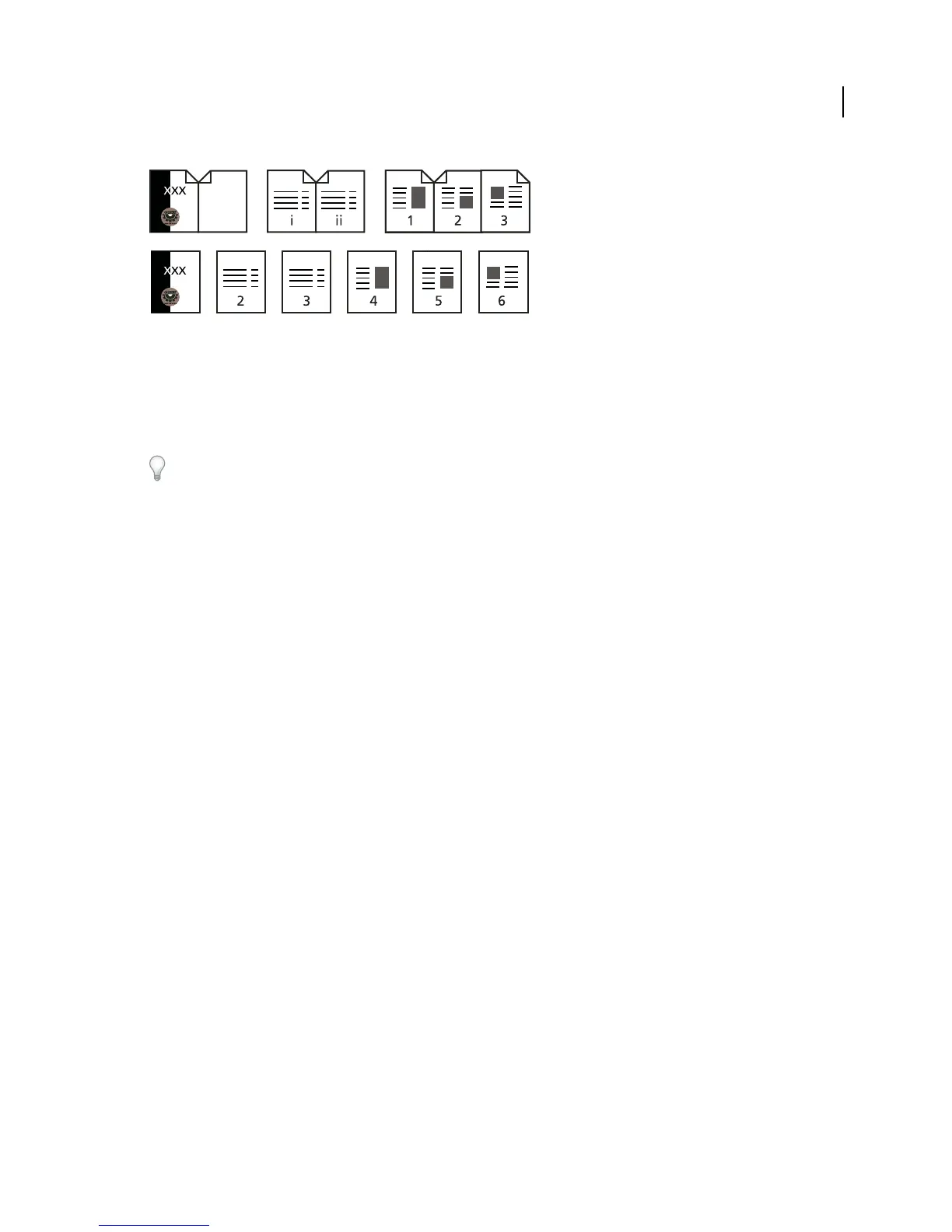
Printed page numbering (top) compared to logical page numbering (bottom)
You can number the pages in your document in a variety of ways. You can specify a different numbering style for
groups of pages, such as 1,
2, 3, or i, ii, iii, or a, b, c. You can also customize the numbering system by adding a prefix.
For example, the numbering for chapter 1 could be 1-1, 1-2, 1-3, and so on, and for chapter 2, it could be 2-1, 2-2, 2-
3, and so on.
Using the Number Pages command affects only the page thumbnails on the Pages panel. You can physically add new
page numbers to a PDF using the headers and footers feature.
1 Click the Page Thumbnails button to open the Page Thumbnails panel, and choose Number Pages from the options
menu.
2 Specify a page range. (Selected refers to pages selected in the Page Thumbnails panel.)
3 Select one of the following, and then click OK:
Begin New Section Starts a new numbering sequence. Choose a style from the pop-up menu, and enter a starting page
number for the section. Specify a prefix, if desired.
Extend Numbering Used In Preceding Section To Selected Pages Continues the numbering sequence from previous
pages without interruption.
More Help topics
“Add and edit headers and footers” on page 110



 To Next Page