147
USING ACROBAT X PRO
Collaboration
Last updated 10/11/2011
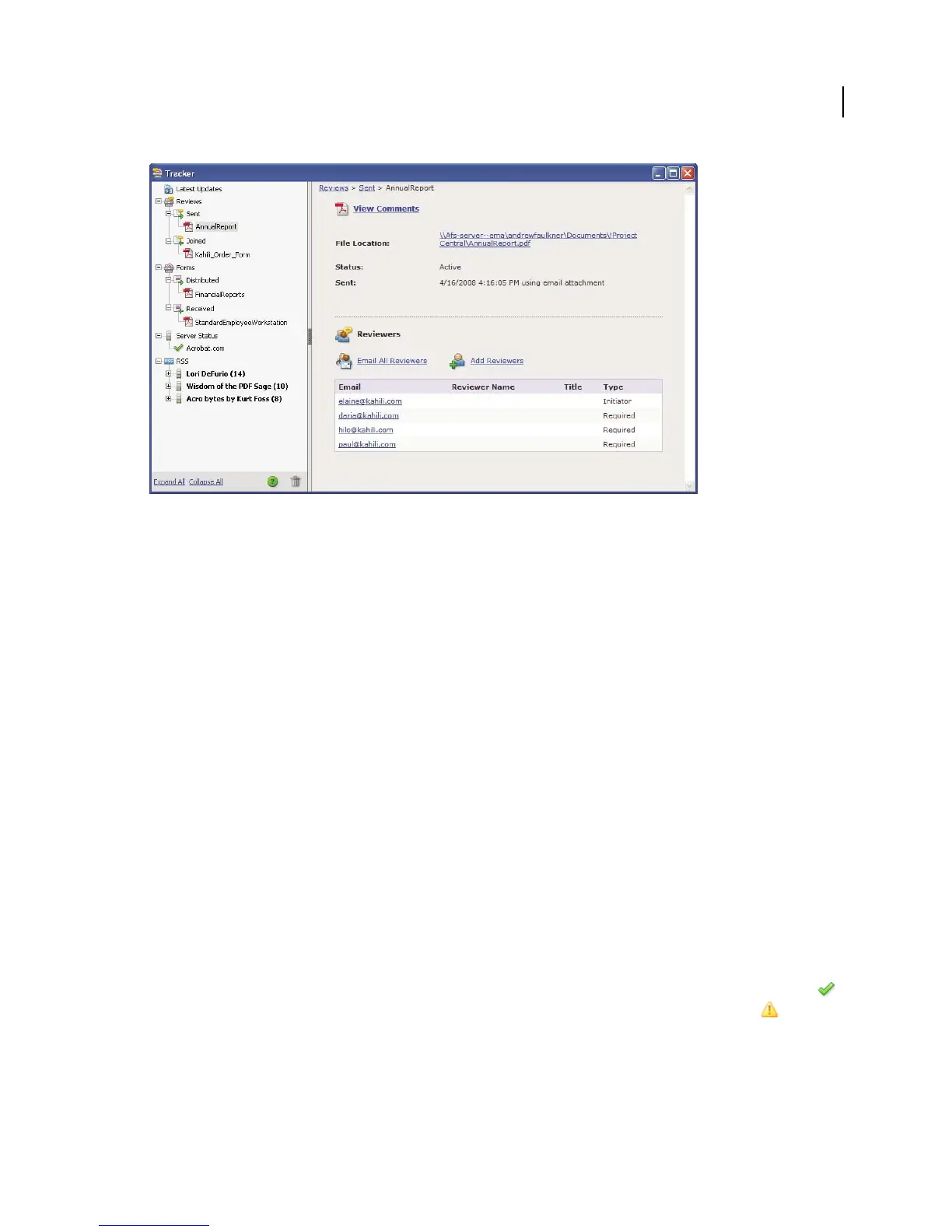
Use the Tracker to manage reviews, forms, and web broadcast subscriptions (RSS feeds). Left panel has links to review files, forms, server status
messages, and RSS feeds. Right panel shows details for item selected in left panel.
Latest Updates
The Latest Updates panel provides a summary of the latest changes in shared reviews, form files, and servers. If you
have no active reviews or forms, this panel provides instructions and links for creating managed reviews, creating
forms, and distributing forms. In the Latest Updates panel, you can also turn Tracker notifications on or off inside
Acrobat and, for Windows only, in the system tray.
Reviews
The Tracker shows who’s joined a shared review and how many comments they’ve published. From the Tracker, you
can rejoin a review and email the participants. If you’ve initiated reviews, you can add or change deadlines, add
reviewers, end a review, and start a new review with existing reviewers.
The left side of the Tracker shows all PDF documents in managed reviews. The information pane on the right lists the
date and time the PDF was sent and the list of invited reviewers. Links to shared PDFs provide additional information,
including the deadline (if set) and the number of comments submitted per reviewer. Deleting a link in the Tracker
deletes the PDF and all comments from the server, and permanently ends the review.
Forms
Use Tracker to manage the forms that you have distributed or received. The Tracker allows you to view and edit the
location of the response file, and track which recipients have responded. You can also add more recipients, email all
recipients, and view the responses for a form. For more information, see
“About Forms Tracker” on page 208.
Server Status
The Server Status shows the state of all servers being used for reviews and distributed forms. The check mark icon
next to the server name indicates that the last synchronization attempt was successful. The warning icon indicates
that the last synchronization attempt was unsuccessful. The warning icon indicates that the server is disconnected
from the network, has problems writing data to the disk, or has some other problem. Contact your network
administrator for assistance.



 To Next Page