195
USING ACROBAT X PRO
Forms
Last updated 10/11/2011
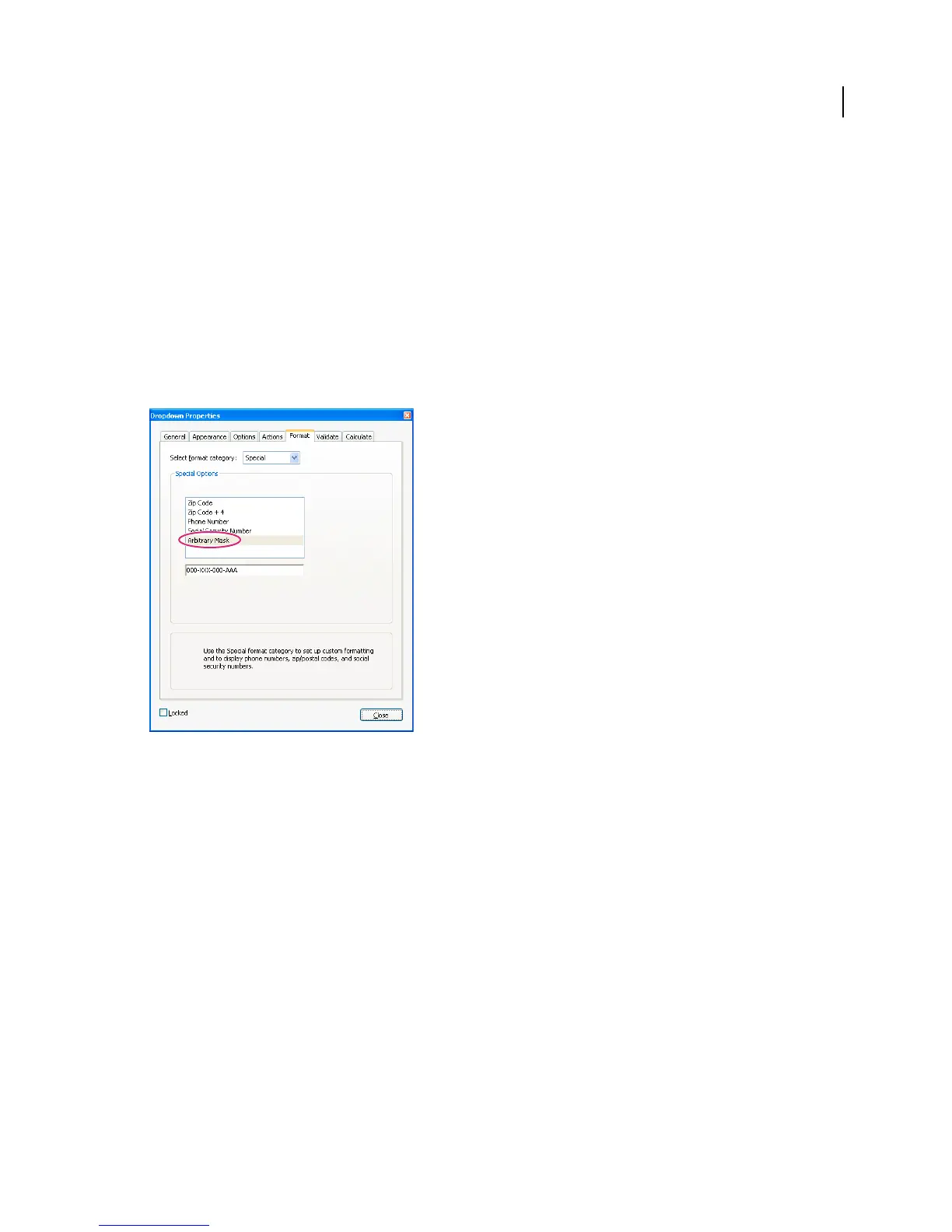
Arbitrary Mask Changes the format category to Custom and makes another text field available, in which you can type
a custom format. Use this option to specify which types of characters the user can enter in any given position, and how
the data displays in the field.
• A Accepts only letters (A–Z, a-z).
• X Accepts spaces and most printable characters, including all characters available on a standard keyboard and
ANSI characters in the ranges of 32–126 and 128–255.
• O The letter “O” accepts alphanumeric characters (A–Z, a-z, and 0–9).
• 9 Accepts only numeric characters (0–9).
For example, a mask setting of AAA--p#999 accepts the input BOE--p#767. A mask setting of OOOOO@XXX accepts
the input vad12@3Up.
Example of an Arbitrary Mask entry
Custom
Makes additional options available to form designers who want to write their own JavaScripts for formatting and
keystrokes. For example, a custom script could define a new currency format or limit the user entry to specific
keystroke characters.
Custom Format Script Displays any custom scripts you have added for formats. The Edit button opens a dialog box in
which you can write and add new scripts.
Custom Keystroke Script Displays any custom scripts you have added to validate keystrokes. The Edit button opens a
dialog box in which you can write and add new scripts.
To get the JavaScript for Acrobat API Reference, see the Acrobat Developer Center at
www.adobe.com/go/learn_acr_javascript_en (PDF, English only).



 To Next Page