433
USING ACROBAT X PRO
Print production tools
Last updated 10/11/2011
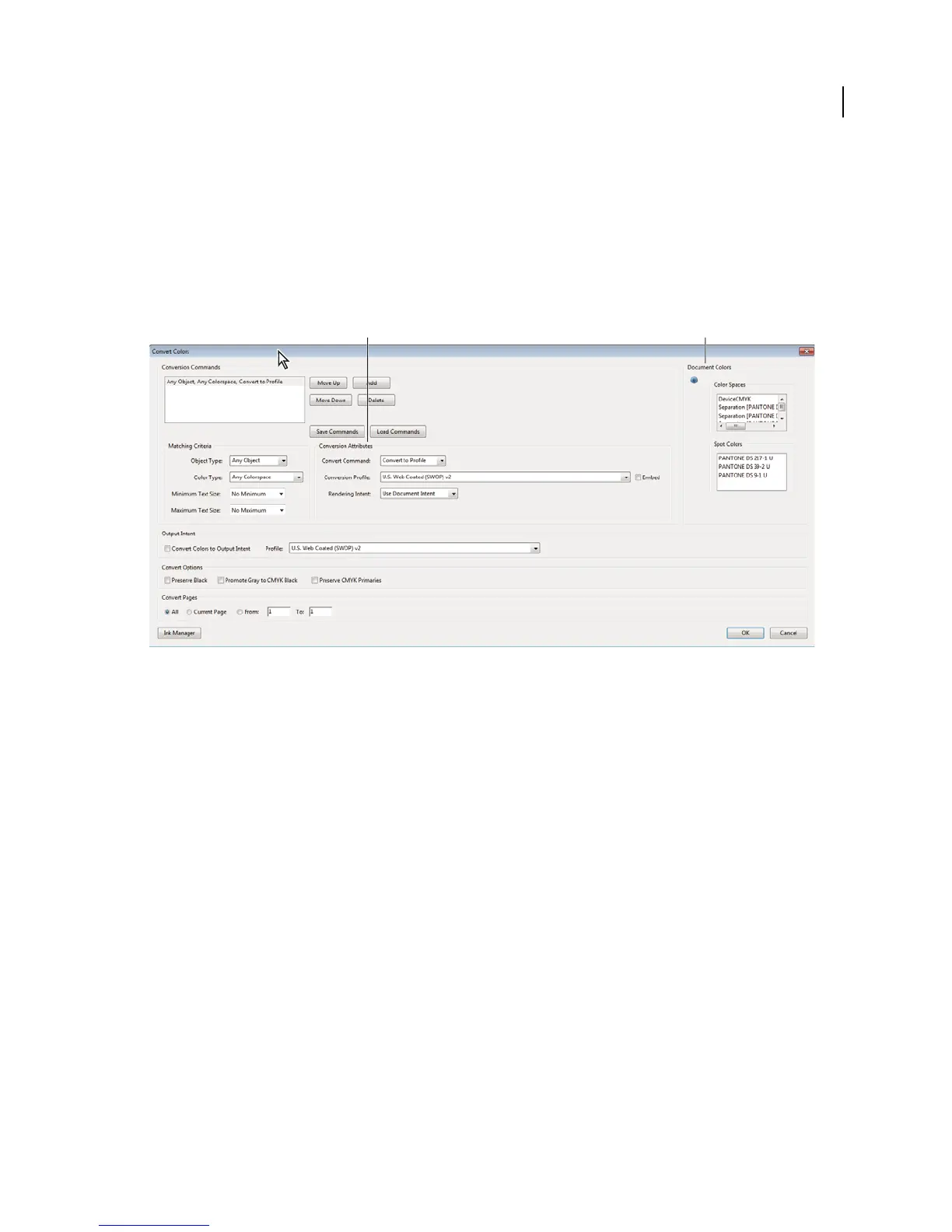
Convert Colors dialog box overview
If you output your PDF to a high-end device or incorporate it in a prepress workflow, you can convert color objects to
CMYK or another color space. Unlike other Acrobat features that temporarily convert colors during printing or
viewing, the Convert Colors feature changes the color values in the document. In the Convert Colors dialog box, you
can convert the colors of a single page or an entire document.
Note: The Convert Colors dialog box converts all colors in the document or all colors for specified object types to the
destination color space. To convert only the colors of a selected object, use the Edit Object tool.
Convert Colors dialog box
A. Conversion Attributes B. Document Colors
Open the Convert Colors dialog box
❖ Choose Tools > Print Production > Convert Colors.
Convert colors to a different color space
Depending on the color spaces you select, color conversion preserves, converts, or maps (aliases) color values from the
source color space to the destination space as follows:
• Objects with untagged RGB data (DeviceRGB) convert from the working space RGB profile to the CMYK gamut
of the destination space. The same is done with untagged CMYK (DeviceCMYK) and grayscale (DeviceGray)
values.
• Objects in device-independent color spaces (CalGray, CalRGB, or Lab) can be preserved or converted. If converted,
Acrobat uses the device-independent object’s embedded profile information.
• Objects set in spot colors can be preserved, converted, or mapped (aliased) to any other ink present in the
document. Objects include Separation, DeviceN, and NChannel color spaces. Spot colors can also be mapped to a
CMYK process color, if the process color model of the destination space is CMYK. Spot colors mapped to other
inks can be previewed in the Output Preview dialog box.
Note: If you want to convert specific spot plates, use Ink Manager in combination with the Convert Colors tool. To
convert only specific spot plates to process, map them to process in Ink Manager. Otherwise, all spots in the document
are converted to process if you have selected Spot Color as the color type.
BA


 To Next Page
 Loading...