457
USING ACROBAT X PRO
Preflight
Last updated 10/11/2011
3 Select a profile, click the flag next to the name, and then choose Favorite.
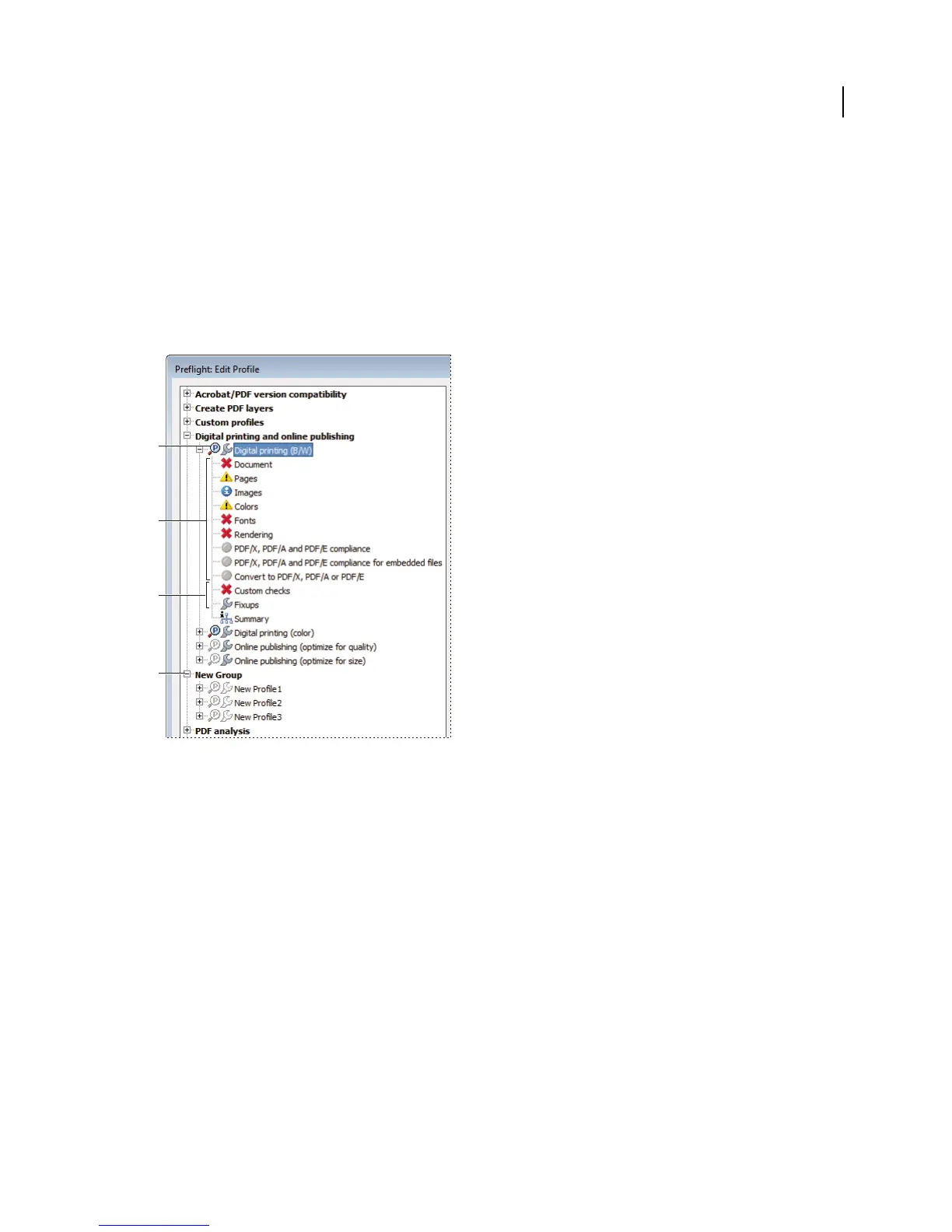
Preflight Edit Profile dialog box overview
The Preflight Edit Profile dialog box lists all available profiles and shows which document properties are being
analyzed. From this dialog box you can unlock and lock a profile, create a new group for organizing profiles, and
specify inspection criteria. You can access additional options and information by expanding the profile.
To open the Preflight Edit Profile dialog box, expand a profile group in the Preflight dialog box, select a profile, and
click Edit (or choose Edit Preflight Profiles from the Options menu).
Preflight Edit Profile dialog box
A. Profile B. Predefined set of checks C. More options D. Profile groups
Add and remove profiles
You can create your own custom preflight profiles. Before you create a new profile from scratch, review existing
profiles for ones that achieve results similar to those you want. If possible, duplicate an existing profile and modify only
the relevant portion.
A preflight profile must contain at least one check or fix and one property that validate the PDF content. When you
build a check from scratch, you can use existing properties or create new properties as you go. For best results when
creating and modifying profiles, add only as many checks as you need to validate the PDF content, and keep the checks
and properties simple and straightforward. For example, you can use a PDF/X profile to check for certain criteria, and
then add checks for non-PDF/X criteria, such as image resolution.
More Help topics
“Add checks to a profile” on page 464
“Create or modify custom checks” on page 465
A
D
B
C



 To Next Page