3
USING ACROBAT X PRO
What’s new
Last updated 10/11/2011
PDF conversion to Excel and Word Save PDF files as Microsoft Word documents and Excel spreadsheets, retaining the
layout, fonts, formatting, and tables. See
“Convert PDFs to Word, RTF, spreadsheets or other formats” on page 130.
Password strength meter Create better passwords with the password strength meter. See “Add password security” on
page 224
Online forms creation and distribution Create and distribute online forms using your web browser and the Adobe
FormsCentral service. Recipients fill out these forms using any Internet-connected device. See
“Create online forms
using FormsCentral” on page 177.
Document sharing and storing Send and store large documents using services at Acrobat.com. Use online
Workspaces at Acrobat.com to store and share a set of documents with individuals or teams outside your organization.
See
“File sharing and real-time collaboration” on page 135.
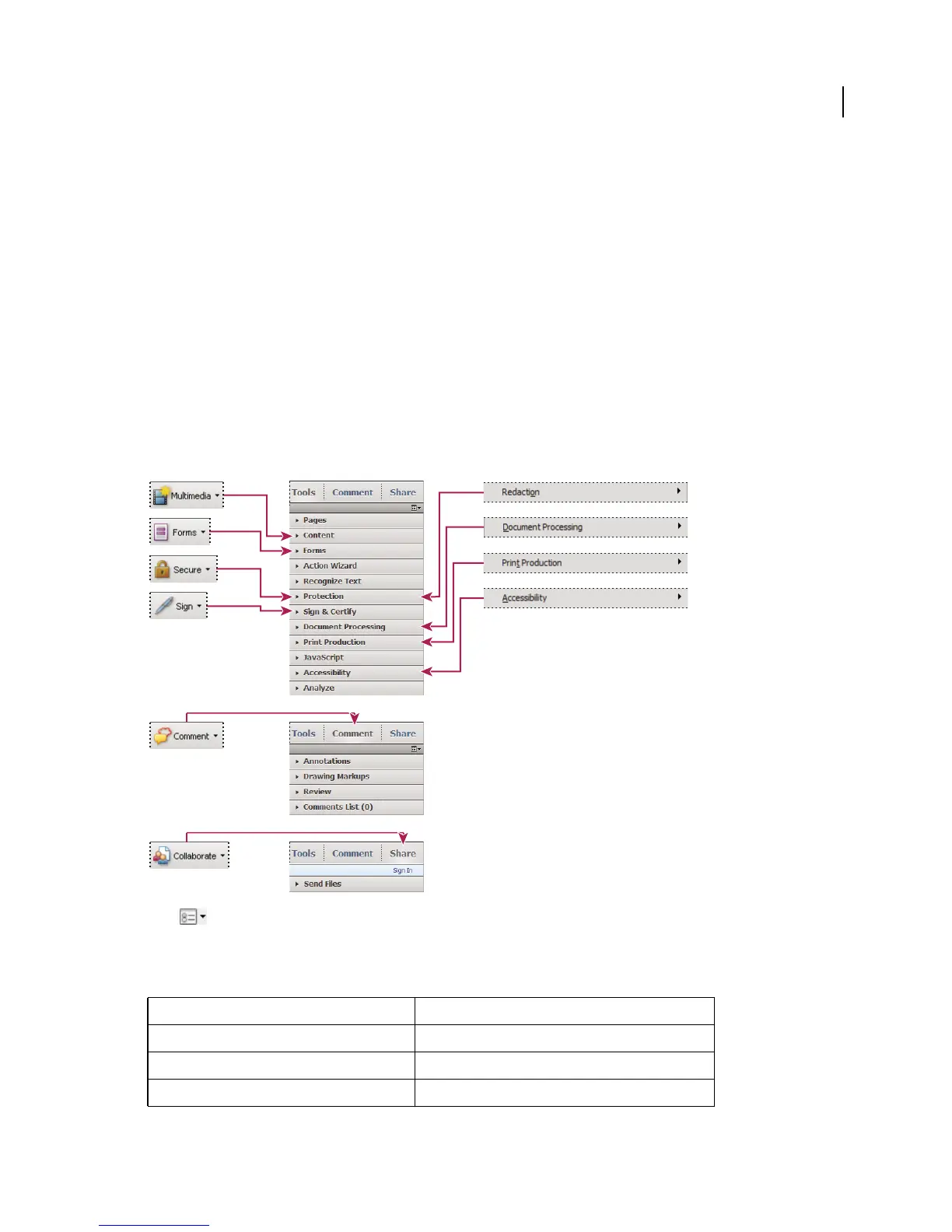
Where’s my Acrobat 9 tool?
Most Acrobat 9 menus have moved to a corresponding panel in the Tools, Comment, or Share pane.
Acrobat 9 menu commands and tools map to panels in the Acrobat X task panes. To add all the panels to the Tools pane, click the options
menu under the Share pane and choose a deselected panel from the list. Excerpted from “Adobe Acrobat X Classroom in a Book,”
published by Adobe Press. Copyright 2011.
Here are a few additional command locations.
Acrobat 9 Acrobat X
Document > Optimize Scanned PDF Tools > Document Processing > Optimize Scanned PDF
Document > OCR Text Recognition Tools > Recognize Text
Document > Examine Document Tools > Protection > Remove Hidden Information
Acrobat 9 task menu Acrobat X menu bar
Acrobat 9 Advanced menu



 To Next Page